


Aspire templates
Ce contenu n’est pas encore disponible dans votre langue.
Aspire provides a number of project templates to help you create new apps. You can use these templates to create full Aspire solutions, or add individual projects to existing Aspire solutions.
The Aspire templates are available in the 📦 Aspire.ProjectTemplates NuGet package.
Available templates
Section titled “Available templates”The Aspire templates allow you to create new apps pre-configured with the Aspire solutions structure and default settings. These projects also provide a unified debugging experience across the different resources of your app.
Aspire templates are available in two categories: solution templates and project templates. Solution templates create a new Aspire solution with multiple projects, while project templates create individual projects that can be added to an existing Aspire solution.
Solution templates
Section titled “Solution templates”The following Aspire solution templates are available (assume the solution is named AspireSample):
-
Aspire Empty App: A minimal Aspire project that includes the following:
- AspireSample.AppHost: An orchestrator project designed to connect and configure the different projects and services of your app.
- AspireSample.ServiceDefaults: An Aspire shared project to manage configurations that are reused across the projects in your solution related to resilience, service discovery, and telemetry.
-
Aspire Starter App: In addition to the AppHost and ServiceDefaults projects, the Aspire Starter App also includes the following:
- AspireSample.ApiService: An ASP.NET Core Minimal API project is used to provide data to the frontend. This project depends on the shared ServiceDefaults project.
- AspireSample.Web: An ASP.NET Core Blazor App project with default Aspire service configurations, this project depends on the ServiceDefaults project.
- AspireSample.Test: Either an MSTest, NUnit, or xUnit test project with project references to the AppHost and an example WebTests.cs file demonstrating an integration test.
-
Aspire Starter App with ASP.NET Core and React: This template includes the AppHost and ServiceDefaults projects, plus:
- AspireSample.ApiService: An ASP.NET Core Minimal API project that provides data to the frontend.
- AspireSample.Web: A React-based frontend application with TypeScript configured to work with the Aspire app.
-
Aspire Starter App with FastAPI and React: This template provides a Python-based starter app with the following projects:
- AspireSample.AppHost: The orchestrator project for managing the app’s services.
- AspireSample.ApiService: A FastAPI Python backend service that provides data to the frontend.
- AspireSample.Web: A React-based frontend application with TypeScript.
For more information on getting started with Python in Aspire, see Build your first app.
Project templates
Section titled “Project templates”The following Aspire project templates are available:
-
Aspire AppHost: A standalone AppHost project that can be used to orchestrate and manage the different projects and services of your app.
-
Aspire Test projects: These project templates are used to create test projects for your Aspire app, and they’re intended to represent functional and integration tests. The test projects include the following templates:
- MSTest: A project that contains MSTest integration of an Aspire AppHost project.
- NUnit: A project that contains NUnit integration of an Aspire AppHost project.
- xUnit: A project that contains xUnit.net integration of an Aspire AppHost project.
For more information on the test templates, see Testing overview.
-
Aspire Service Defaults: A standalone ServiceDefaults project that can be used to manage configurations that are reused across the projects in your solution related to resilience, service discovery, and telemetry.
Install the Aspire templates
Section titled “Install the Aspire templates”The Aspire templates are included with the Aspire workload. To install the templates, run the following command:
dotnet new install Aspire.ProjectTemplatesCreate solutions and projects using templates
Section titled “Create solutions and projects using templates”To create an Aspire solution or project, use Visual Studio, Visual Studio Code, or the Aspire CLI, and base it on the available templates. Explore additional Aspire templates in the Aspire samples repository.
To create an Aspire project using Visual Studio, search for Aspire in the Visual Studio new project window and select your desired template.
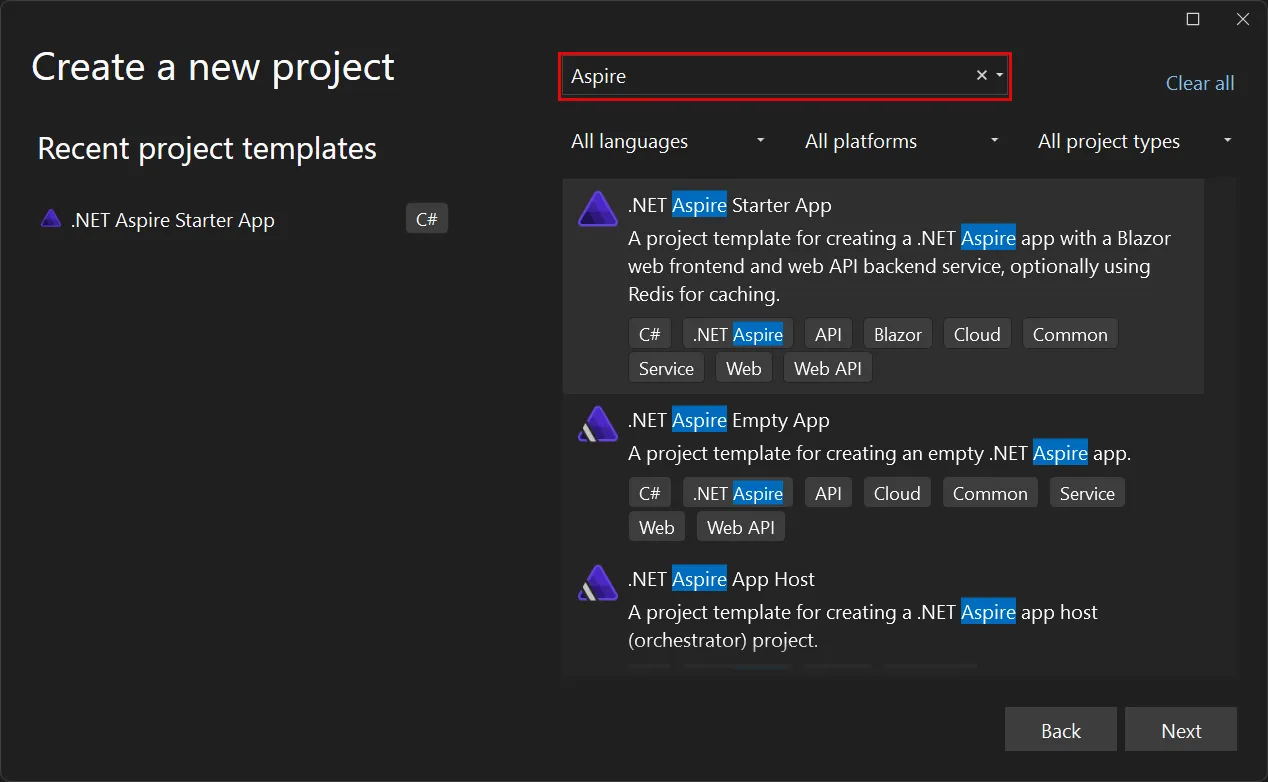
Follow the prompts to configure your project or solution from the template, and then select Create.
To create an Aspire project using Visual Studio Code, search for Aspire in the Visual Studio Code new project window and select your desired template.
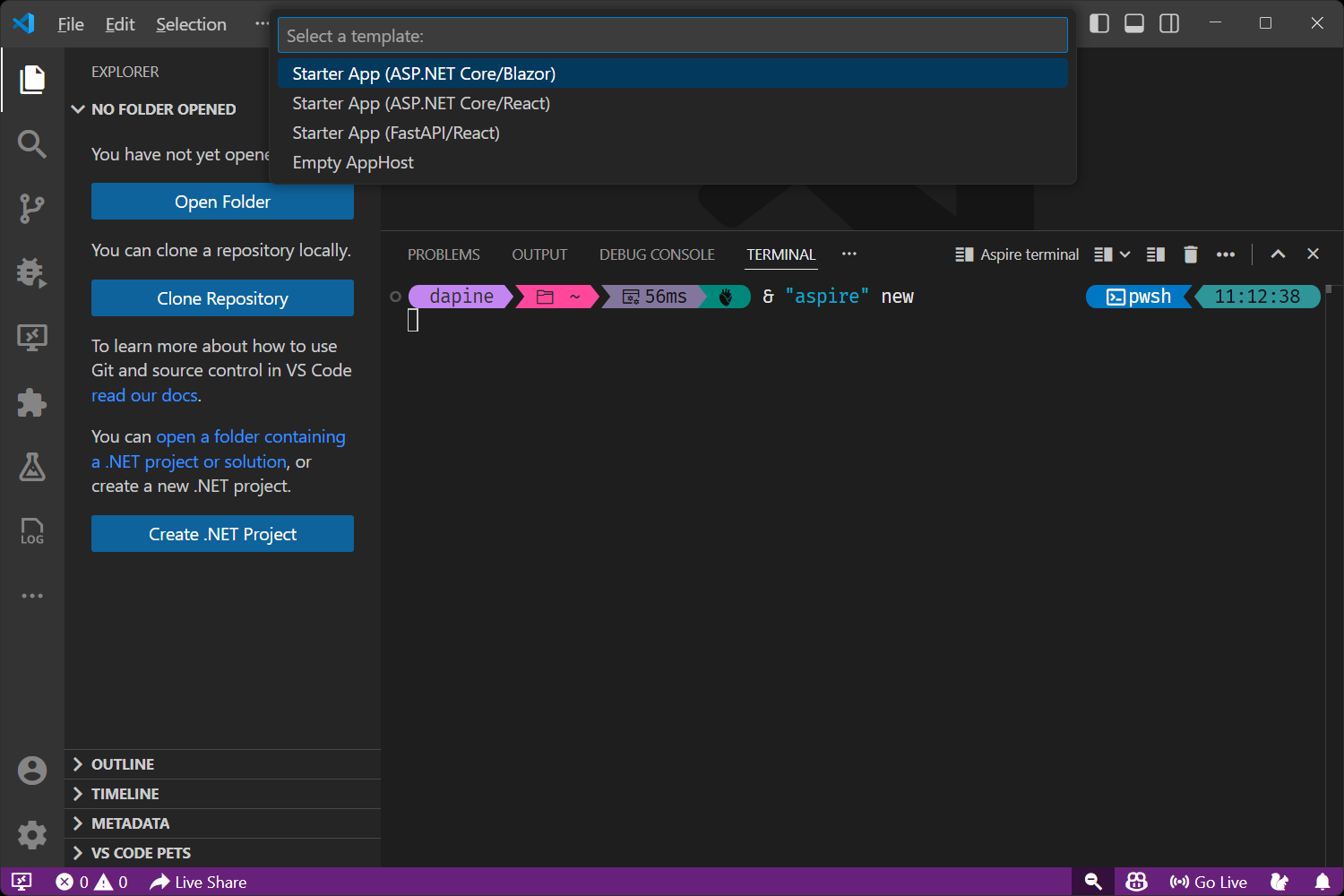
Select the desired location, enter a name, and select Create.
To create an Aspire solution or project using the Aspire CLI, use the aspire new command and specify which template you would like to create.
For detailed information about the aspire new command and all available
options, see the aspire new command
reference.
Consider the following examples:
To create an empty AppHost project:
aspire new aspire-emptyTo create an Aspire starter app (ASP.NET Core/Blazor), which is a full solution with a sample UI and backing API:
aspire new aspire-starterTo create an Aspire starter app with ASP.NET Core and React:
aspire new aspire-ts-cs-starterTo create an Aspire starter app with FastAPI and React:
aspire new aspire-py-starterYou need to trust the development certificate before running the app. Run the following command:
aspire certs trustFor more information, see Troubleshoot untrusted localhost certificate. For in-depth details about troubleshooting localhost certificates on Linux, see ASP.NET Core: GitHub repository issue #32842.