


Clone, run, and explore this sample
This sample demonstrates working with database containers in an Aspire app, using the features of the underlying container image to modify the default database created during container startup. This is especially helpful when not using an ORM like Entity Framework Core that can run migrations on application startup (e.g., as in the Aspire Shop sample) and handle cases when the database configured in the AppHost is not yet created.
The entry point that composes every resource and dependency in this sample's distributed application.
var builder = DistributedApplication.CreateBuilder(args);
// PostgreSQL container is configured with an auto-generated password by default// and supports setting the default database name via an environment variable & running *.sql/*.sh scripts in a bind mount.var todosDbName = "Todos";
var postgres = builder.AddPostgres("postgres")    // Set the name of the default database to auto-create on container startup.    .WithEnvironment("POSTGRES_DB", todosDbName)    // Mount the SQL scripts directory into the container so that the init scripts run.    .WithBindMount("../DatabaseContainers.ApiService/data/postgres", "/docker-entrypoint-initdb.d")    // Configure the container to store data in a volume so that it persists across instances.    .WithDataVolume()    .WithPgWeb()    // Keep the container running between AppHost sessions.    .WithLifetime(ContainerLifetime.Persistent);
// Add the default database to the application model so that it can be referenced by other resources.var todosDb = postgres.AddDatabase(todosDbName);
// MySql container is configured with an auto-generated password by default// and supports setting the default database name via an environment variable & running *.sql/*.sh scripts in a bind mount.var catalogDbName = "catalog"; // MySql database & table names are case-sensitive on non-Windows.
var mysql = builder.AddMySql("mysql")    // Set the name of the database to auto-create on container startup.    .WithEnvironment("MYSQL_DATABASE", catalogDbName)    // Mount the SQL scripts directory into the container so that the init scripts run.    .WithBindMount("../DatabaseContainers.ApiService/data/mysql", "/docker-entrypoint-initdb.d")    // Configure the container to store data in a volume so that it persists across instances.    .WithDataVolume()    // Keep the container running between AppHost sessions.    .WithLifetime(ContainerLifetime.Persistent);
// Add the database to the application model so that it can be referenced by other resources.var catalogDb = mysql.AddDatabase(catalogDbName);
// SQL Server container is configured with an auto-generated password by default// but doesn't support any auto-creation of databases or running scripts on startup so we have to do it manually.var sqlserver = builder.AddSqlServer("sqlserver")    // Configure the container to store data in a volume so that it persists across instances.    .WithDataVolume()    // Keep the container running between AppHost sessions.    .WithLifetime(ContainerLifetime.Persistent);
// Add the database to the application model so that it can be referenced by other resources.var initScriptPath = Path.Join(Path.GetDirectoryName(typeof(Program).Assembly.Location), "init.sql");var addressBookDb = sqlserver.AddDatabase("AddressBook")    .WithCreationScript(File.ReadAllText(initScriptPath));
builder.AddProject<Projects.DatabaseContainers_ApiService>("apiservice")    .WithReference(todosDb)    .WaitFor(todosDb)    .WithReference(catalogDb)    .WaitFor(catalogDb)    .WithReference(addressBookDb)    .WaitFor(addressBookDb)    .WithHttpHealthCheck("/alive")    .WithHttpHealthCheck("/health");
builder.Build().Run();
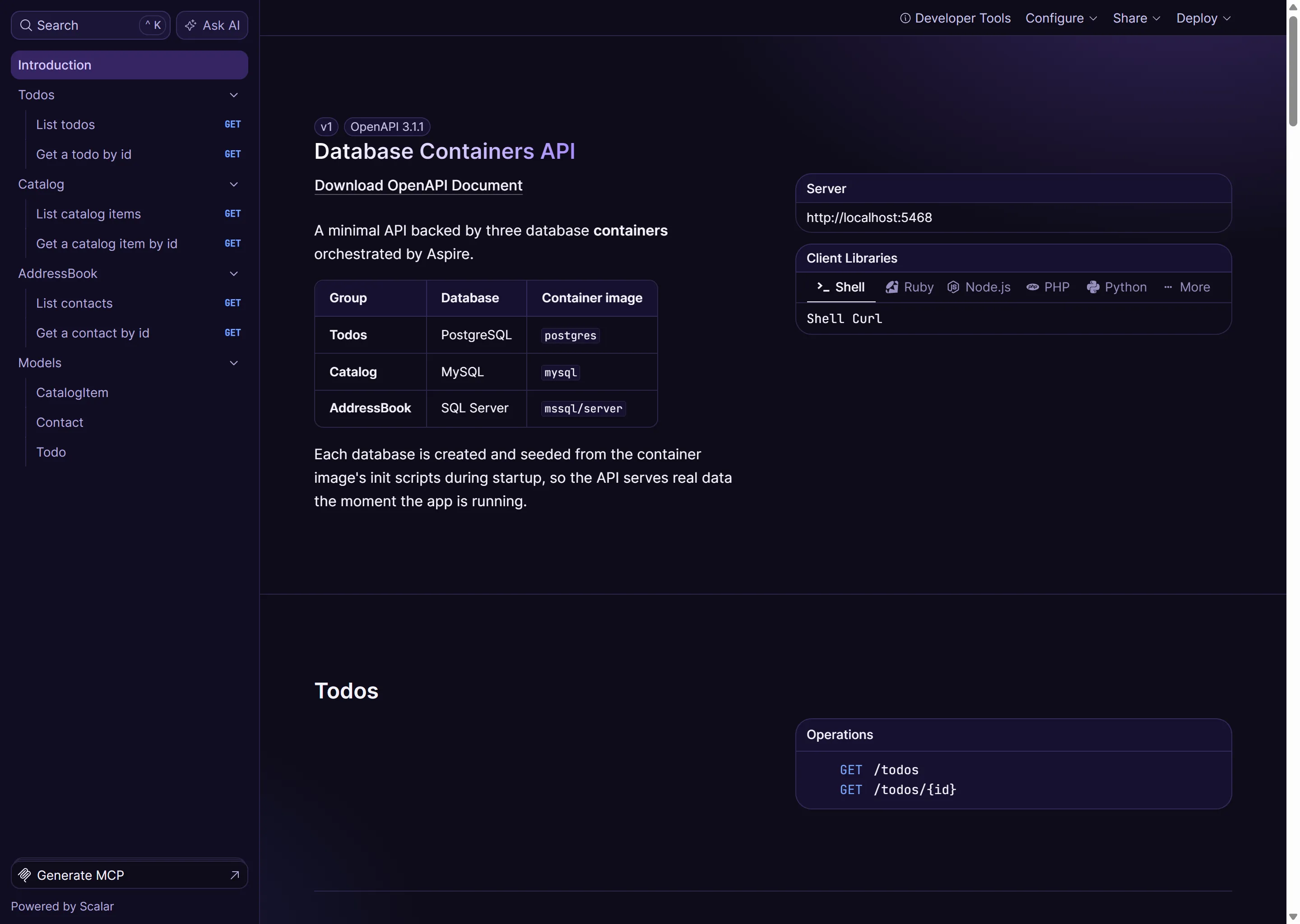
The app uses the following database container types:
The app consists of an API service:
ContainerDatabases.ApiService: This is an HTTP API that returns data from each of the configured databases.
Prerequisites
Section titled PrerequisitesRunning the app
Section titled Running the appIf using the Aspire CLI, run aspire run from this directory.
If using VS Code, open this directory as a workspace and launch the DatabaseContainers.AppHost project using either the Aspire or C# debuggers.
If using Visual Studio, open the solution file DatabaseContainers.slnx and launch/debug the DatabaseContainers.AppHost project.
If using the .NET CLI, run dotnet run from the DatabaseContainers.AppHost directory.
From the Aspire dashboard, click on the endpoint URL for the DatabaseContainers.ApiService project to launch the Scalar API reference for the APIs. You can use the reference to explore and call the APIs and see the results.
Sample screenshots
Select the image to zoom in.
 Aspire