
Azure Cosmos DB Entity Framework Core integration
Это содержимое пока не доступно на вашем языке.

Azure Cosmos DB is a fully managed NoSQL database service for modern app development. The Aspire Cosmos DB Entity Framework Core integration enables you to connect to existing Cosmos DB instances or create new instances from .NET with the Azure Cosmos DB emulator.
Hosting integration
Section titled “Hosting integration”The Aspire Azure Cosmos DB hosting integration models Cosmos DB resources as the following types:
AzureCosmosDBResource: Represents an Azure Cosmos DB resource.AzureCosmosDBContainerResource: Represents an Azure Cosmos DB container resource.AzureCosmosDBDatabaseResource: Represents an Azure Cosmos DB database resource.AzureCosmosDBEmulatorResource: Represents an Azure Cosmos DB emulator resource.
To access these types and APIs, add the 📦 Aspire.Hosting.Azure.CosmosDB NuGet package to your AppHost project.
aspire add azure-cosmosdbAspire CLI интерактивен; выберите подходящий результат поиска при запросе:
Select an integration to add:
> azure-cosmosdb (Aspire.Hosting.Azure.CosmosDB)> Other results listed as selectable options...#:package Aspire.Hosting.Azure.CosmosDB@*<PackageReference Include="Aspire.Hosting.Azure.CosmosDB" Version="*" />Add Azure Cosmos DB resource
Section titled “Add Azure Cosmos DB resource”In your AppHost project, call AddAzureCosmosDB to add and return an Azure Cosmos DB resource builder:
var builder = DistributedApplication.CreateBuilder(args);
var cosmos = builder.AddAzureCosmosDB("cosmos-db");
// After adding all resources, run the app...
When you add an AzureCosmosDBResource to the AppHost, it exposes other useful APIs to add databases and containers. In other words, you must add an AzureCosmosDBResource before adding any of the other Cosmos DB resources.
Connect to an existing Azure Cosmos DB account
Section titled “Connect to an existing Azure Cosmos DB account”You might have an existing Azure Cosmos DB account that you want to connect to. Chain a call to annotate that your resource is an existing resource:
var builder = DistributedApplication.CreateBuilder(args);
var existingCosmosName = builder.AddParameter("existingCosmosName");var existingCosmosResourceGroup = builder.AddParameter("existingCosmosResourceGroup");
var cosmosdb = builder.AddAzureCosmosDB("cosmos-db")    .AsExisting(existingCosmosName, existingCosmosResourceGroup);
builder.AddProject<Projects.ExampleProject>()    .WithReference(cosmosdb);
// After adding all resources, run the app...
For more information on treating Azure Cosmos DB resources as existing resources, see Use existing Azure resources.
Add Azure Cosmos DB database and container resources
Section titled “Add Azure Cosmos DB database and container resources”Aspire models parent child relationships between Azure Cosmos DB resources. For example, an Azure Cosmos DB account (AzureCosmosDBResource) can have multiple databases (AzureCosmosDBDatabaseResource), and each database can have multiple containers (AzureCosmosDBContainerResource). When you add a database or container resource, you do so on a parent resource.
To add an Azure Cosmos DB database resource, call the AddCosmosDatabase method on an IResourceBuilder<AzureCosmosDBResource> instance:
var builder = DistributedApplication.CreateBuilder(args);
var cosmos = builder.AddAzureCosmosDB("cosmos-db");var db = cosmos.AddCosmosDatabase("db");
// After adding all resources, run the app...
When you call AddCosmosDatabase, it adds a database named db to your Cosmos DB resources and returns the newly created database resource. The database is created in the Cosmos DB account that’s represented by the AzureCosmosDBResource that you added earlier. The database is a logical container for collections and users.
An Azure Cosmos DB container is where data is stored. When you create a container, you need to supply a partition key.
To add an Azure Cosmos DB container resource, call the AddContainer method on an IResourceBuilder<AzureCosmosDBDatabaseResource> instance:
var builder = DistributedApplication.CreateBuilder(args);
var cosmos = builder.AddAzureCosmosDB("cosmos-db");var db = cosmos.AddCosmosDatabase("db");var container = db.AddContainer("entries", "/id");
// After adding all resources, run the app...
The container is created in the database that’s represented by the AzureCosmosDBDatabaseResource that you added earlier. For more information, see Databases, containers, and items in Azure Cosmos DB.
Parent child resource relationship example
Section titled “Parent child resource relationship example”To better understand the parent-child relationship between Azure Cosmos DB resources, consider the following example, which demonstrates adding an Azure Cosmos DB resource along with a database and container:
var builder = DistributedApplication.CreateBuilder(args);
var cosmos = builder.AddAzureCosmosDB("cosmos");
var customers = cosmos.AddCosmosDatabase("customers");var profiles = customers.AddContainer("profiles", "/id");
var orders = cosmos.AddCosmosDatabase("orders");var details = orders.AddContainer("details", "/id");var history = orders.AddContainer("history", "/id");
builder.AddProject<Projects.Api>("api")    .WithReference(profiles)    .WithReference(details)    .WithReference(history);
builder.Build().Run();
The preceding code adds an Azure Cosmos DB resource named cosmos with two databases: customers and orders. The customers database has a single container named profiles, while the orders database has two containers: details and history. The partition key for each container is /id.
The following diagram illustrates the parent child relationship between the Azure Cosmos DB resources:
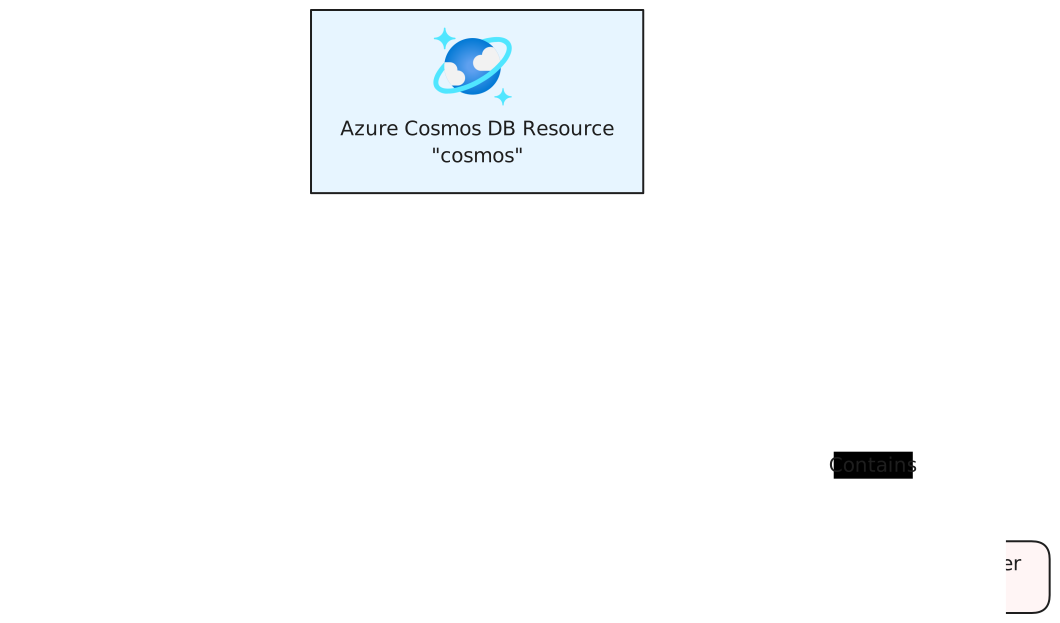
When your AppHost code expresses parent-child relationships, the client can deep-link to these resources by name. For example, the customers database can be referenced by name in the client project, registering a Microsoft.Azure.Cosmos.Database instance that connects to the customers database. The same applies to named containers, for example, the details container can be referenced by name in the client project, registering a Microsoft.Azure.Cosmos.Container instance that connects to the details container.
Add Azure Cosmos DB emulator resource
Section titled “Add Azure Cosmos DB emulator resource”To add an Azure Cosmos DB emulator resource, chain a call on an IResourceBuilder<AzureCosmosDBResource> to the RunAsEmulator API:
var builder = DistributedApplication.CreateBuilder(args);
var cosmos = builder.AddAzureCosmosDB("cosmos-db")  .RunAsEmulator();
// After adding all resources, run the app...
When you call RunAsEmulator, it configures your Cosmos DB resources to run locally using an emulator. The emulator in this case is the Azure Cosmos DB Emulator. The Azure Cosmos DB Emulator provides a free local environment for testing your Azure Cosmos DB apps and it’s a perfect companion to the Aspire Azure hosting integration. The emulator isn’t installed, instead, it’s accessible to Aspire as a container. When you add a container to the AppHost, as shown in the preceding example with the mcr.microsoft.com/cosmosdb/emulator image, it creates and starts the container when the AppHost starts.
Configure Cosmos DB emulator container
Section titled “Configure Cosmos DB emulator container”There are various configurations available to container resources, for example, you can configure the container’s ports, environment variables, it’s lifetime, and more.
Configure Cosmos DB emulator container gateway port
Section titled “Configure Cosmos DB emulator container gateway port”By default, the Cosmos DB emulator container when configured by Aspire, exposes the following endpoints:
| Endpoint | Container port | Host port |
|---|---|---|
https | 8081 | dynamic |
The port that it’s listening on is dynamic by default. When the container starts, the port is mapped to a random port on the host machine. To configure the endpoint port, chain calls on the container resource builder provided by the RunAsEmulator method as shown in the following example:
var builder = DistributedApplication.CreateBuilder(args);
var cosmos = builder.AddAzureCosmosDB("cosmos-db")    .RunAsEmulator(emulator =>    {        emulator.WithGatewayPort(7777);    });
// After adding all resources, run the app...
The preceding code configures the Cosmos DB emulator container’s existing https endpoint to listen on port 8081. The Cosmos DB emulator container’s port is mapped to the host port as shown in the following table:
| Endpoint name | Port mapping (container:host) |
|---|---|
https | 8081:7777 |
Configure Cosmos DB emulator container with persistent lifetime
Section titled “Configure Cosmos DB emulator container with persistent lifetime”To configure the Cosmos DB emulator container with a persistent lifetime, call the WithLifetime method on the Cosmos DB emulator container resource and pass ContainerLifetime.Persistent:
var builder = DistributedApplication.CreateBuilder(args);
var cosmos = builder.AddAzureCosmosDB("cosmos-db")    .RunAsEmulator(emulator =>    {        emulator.WithLifetime(ContainerLifetime.Persistent);    });
// After adding all resources, run the app...
Configure Cosmos DB emulator container with data volume
Section titled “Configure Cosmos DB emulator container with data volume”To add a data volume to the Azure Cosmos DB emulator resource, call the WithDataVolume method on the Azure Cosmos DB emulator resource:
var builder = DistributedApplication.CreateBuilder(args);
var cosmos = builder.AddAzureCosmosDB("cosmos-db")    .RunAsEmulator(emulator =>    {        emulator.WithDataVolume();    });
// After adding all resources, run the app...
The data volume is used to persist the Cosmos DB emulator data outside the lifecycle of its container. The data volume is mounted at the /tmp/cosmos/appdata path in the Cosmos DB emulator container and when a name parameter isn’t provided, the name is generated. The emulator has its AZURE_COSMOS_EMULATOR_ENABLE_DATA_PERSISTENCE environment variable set to true. For more information on data volumes and details on why they’re preferred over bind mounts, see Docker docs: Volumes.
Configure Cosmos DB emulator container partition count
Section titled “Configure Cosmos DB emulator container partition count”To configure the partition count of the Cosmos DB emulator container, call the WithPartitionCount method:
var builder = DistributedApplication.CreateBuilder(args);
var cosmos = builder.AddAzureCosmosDB("cosmos-db")    .RunAsEmulator(emulator =>    {        emulator.WithPartitionCount(100); // Defaults to 25    });
// After adding all resources, run the app...
The preceding code configures the Cosmos DB emulator container to have a partition count of 100. This is a shorthand for setting the AZURE_COSMOS_EMULATOR_PARTITION_COUNT environment variable.
Use Linux-based emulator (preview)
Section titled “Use Linux-based emulator (preview)”The next generation of the Azure Cosmos DB emulator is entirely Linux-based and is available as a Docker container. It supports running on a wide variety of processors and operating systems.
To use the preview version of the Cosmos DB emulator, call the RunAsPreviewEmulator method. Since this feature is in preview, you need to explicitly opt into the preview feature by suppressing the ASPIRECOSMOSDB001 experimental diagnostic.
The preview emulator also supports exposing a “Data Explorer” endpoint which allows you to view the data stored in the Cosmos DB emulator via a web UI. To enable the Data Explorer, call the WithDataExplorer method.
#pragma warning disable ASPIRECOSMOSDB001
var builder = DistributedApplication.CreateBuilder(args);
var cosmos = builder.AddAzureCosmosDB("cosmos-db")    .RunAsPreviewEmulator(emulator =>    {        emulator.WithDataExplorer();    });
// After adding all resources, run the app...
The preceding code configures the Linux-based preview Cosmos DB emulator container, with the Data Explorer endpoint, to use at run time.
Provisioning-generated Bicep
Section titled “Provisioning-generated Bicep”If you’re new to Bicep, it’s a domain-specific language for defining Azure resources. With Aspire, you don’t need to write Bicep by-hand, instead the provisioning APIs generate Bicep for you. When you publish your app, the generated Bicep is output alongside the manifest file. When you add an Azure Cosmos DB resource, the following Bicep is generated:
@description('The location for the resource(s) to be deployed.')param location string = resourceGroup().location
resource cosmos 'Microsoft.DocumentDB/databaseAccounts@2024-08-15' = {  name: take('cosmos-${uniqueString(resourceGroup().id)}', 44)  location: location  properties: {    locations: [      {        locationName: location        failoverPriority: 0      }    ]    capabilities: [      {        name: 'EnableServerless'      }    ]    consistencyPolicy: {      defaultConsistencyLevel: 'Session'    }    databaseAccountOfferType: 'Standard'    disableLocalAuth: true  }  kind: 'GlobalDocumentDB'  tags: {    'aspire-resource-name': 'cosmos'  }}
output connectionString string = cosmos.properties.documentEndpoint
output name string = cosmos.name
The preceding Bicep is a module that provisions an Azure Cosmos DB account resource. Additionally, role assignments are created for the Azure resource in a separate module:
@description('The location for the resource(s) to be deployed.')param location string = resourceGroup().location
param cosmos_outputs_name string
param principalId string
resource cosmos 'Microsoft.DocumentDB/databaseAccounts@2024-08-15' existing = {  name: cosmos_outputs_name}
resource cosmos_roleDefinition 'Microsoft.DocumentDB/databaseAccounts/sqlRoleDefinitions@2024-08-15' existing = {  name: '00000000-0000-0000-0000-000000000002'  parent: cosmos}
resource cosmos_roleAssignment 'Microsoft.DocumentDB/databaseAccounts/sqlRoleAssignments@2024-08-15' = {  name: guid(principalId, cosmos_roleDefinition.id, cosmos.id)  properties: {    principalId: principalId    roleDefinitionId: cosmos_roleDefinition.id    scope: cosmos.id  }  parent: cosmos}
The generated Bicep is a starting point and is influenced by changes to the provisioning infrastructure in C#. Customizations to the Bicep file directly will be overwritten, so make changes through the C# provisioning APIs to ensure they are reflected in the generated files.
Customize provisioning infrastructure
Section titled “Customize provisioning infrastructure”All Aspire Azure resources are subclasses of the AzureProvisioningResource type. This type enables the customization of the generated Bicep by providing a fluent API to configure the Azure resources—using the ConfigureInfrastructure API. For example, you can configure the kind, consistencyPolicy, locations, and more. The following example demonstrates how to customize the Azure Cosmos DB resource:
var builder = DistributedApplication.CreateBuilder(args);
builder.AddAzureCosmosDB("cosmos-db")    .ConfigureInfrastructure(infra =>    {        var cosmosDbAccount = infra.GetProvisionableResources()                                    .OfType<CosmosDBAccount>()                                    .Single();
        cosmosDbAccount.Kind = CosmosDBAccountKind.MongoDB;        cosmosDbAccount.ConsistencyPolicy = new()        {            DefaultConsistencyLevel = DefaultConsistencyLevel.Strong,        };        cosmosDbAccount.Tags.Add("ExampleKey", "Example value");    });
The preceding code:
- Chains a call to the
ConfigureInfrastructureAPI:- The
infraparameter is an instance of theAzureResourceInfrastructuretype. - The provisionable resources are retrieved by calling the
GetProvisionableResourcesmethod. - The single
CosmosDBAccountis retrieved. - The
CosmosDBAccount.ConsistencyPolicyis assigned to aDefaultConsistencyLevel.Strong. - A tag is added to the Cosmos DB account with a key of
ExampleKeyand a value ofExample value.
- The
Hosting integration health checks
Section titled “Hosting integration health checks”The Azure Cosmos DB hosting integration automatically adds a health check for the Cosmos DB resource. The health check verifies that the Cosmos DB is running and that a connection can be established to it.
The hosting integration relies on the 📦 AspNetCore.HealthChecks.CosmosDb NuGet package.
Client integration
Section titled “Client integration”To get started with the Aspire Microsoft Entity Framework Core Cosmos DB integration, install the 📦 Aspire.Microsoft.EntityFrameworkCore.Cosmos NuGet package in the client-consuming project, i.e., the project for the application that uses the Microsoft Entity Framework Core Cosmos DB client.
dotnet add package Aspire.Microsoft.EntityFrameworkCore.Cosmos#:package Aspire.Microsoft.EntityFrameworkCore.Cosmos@*<PackageReference Include="Aspire.Microsoft.EntityFrameworkCore.Cosmos" Version="*" />Add Cosmos DB context
Section titled “Add Cosmos DB context”In the Program.cs file of your client-consuming project, call the AddCosmosDbContext extension method to register a DbContext for use via the dependency injection container. The method takes a connection name parameter and a database name parameter.
builder.AddCosmosDbContext<MyDbContext>("cosmosdb", "databaseName");Alternatively, the database name can be inferred from the connection when there’s a single database in the connection string. In this case, you can omit the database name parameter:
builder.AddCosmosDbContext<MyDbContext>("cosmosdb");You can then retrieve the DbContext instance using dependency injection. For example, to retrieve the client from a service:
public class ExampleService(MyDbContext context){ // Use context...}For more information on using Entity Framework Core with Azure Cosmos DB, see the Examples for Azure Cosmos DB for NoSQL SDK for .NET.
Configuration
Section titled “Configuration”The Aspire Microsoft Entity Framework Core Cosmos DB integration provides multiple options to configure the Azure Cosmos DB connection based on the requirements and conventions of your project.
Use a connection string
Section titled “Use a connection string”When using a connection string from the ConnectionStrings configuration section, you can provide the name of the connection string when calling builder.AddCosmosDbContext:
builder.AddCosmosDbContext<MyDbContext>("CosmosConnection");And then the connection string will be retrieved from the ConnectionStrings configuration section:
{ "ConnectionStrings": { "CosmosConnection": "AccountEndpoint=https://{account_name}.documents.azure.com:443/;AccountKey={account_key};" }}For more information, see the ConnectionString documentation.
Use configuration providers
Section titled “Use configuration providers”The Aspire Microsoft Entity Framework Core Cosmos DB integration supports Microsoft.Extensions.Configuration. It loads the EntityFrameworkCoreCosmosSettings from configuration files such as appsettings.json. Example appsettings.json that configures some of the options:
{ "Aspire": { "Microsoft": { "EntityFrameworkCore": { "Cosmos": { "DisableTracing": true } } } }}For the complete Cosmos DB client integration JSON schema, see Aspire.Microsoft.EntityFrameworkCore.Cosmos/ConfigurationSchema.json.
Use inline delegates
Section titled “Use inline delegates”You can also pass the Action<EntityFrameworkCoreCosmosSettings> configureSettings delegate to set up some or all the EntityFrameworkCoreCosmosSettings options inline, for example to disable tracing from code:
builder.AddCosmosDbContext<MyDbContext>( "cosmosdb", settings => settings.DisableTracing = true);Client integration health checks
Section titled “Client integration health checks”The Aspire Microsoft Entity Framework Core Cosmos DB integration currently doesn’t implement health checks, though this may change in future releases.
Logging
Section titled “Logging”The Aspire Microsoft Entity Framework Core Cosmos DB integration uses the following log categories:
Azure-Cosmos-Operation-Request-DiagnosticsMicrosoft.EntityFrameworkCore.ChangeTrackingMicrosoft.EntityFrameworkCore.Database.CommandMicrosoft.EntityFrameworkCore.InfrastructureMicrosoft.EntityFrameworkCore.Query
Tracing
Section titled “Tracing”The Aspire Microsoft Entity Framework Core Cosmos DB integration will emit the following tracing activities using OpenTelemetry:
Azure.Cosmos.OperationOpenTelemetry.Instrumentation.EntityFrameworkCore
Metrics
Section titled “Metrics”The Aspire Microsoft Entity Framework Core Cosmos DB integration currently supports the following metrics:
Microsoft.EntityFrameworkCoreec_Microsoft_EntityFrameworkCore_active_db_contextsec_Microsoft_EntityFrameworkCore_total_queriesec_Microsoft_EntityFrameworkCore_queries_per_secondec_Microsoft_EntityFrameworkCore_total_save_changesec_Microsoft_EntityFrameworkCore_save_changes_per_secondec_Microsoft_EntityFrameworkCore_compiled_query_cache_hit_rateec_Microsoft_Entity_total_execution_strategy_operation_failuresec_Microsoft_E_execution_strategy_operation_failures_per_secondec_Microsoft_EntityFramew_total_optimistic_concurrency_failuresec_Microsoft_EntityF_optimistic_concurrency_failures_per_second