Aspire resources support a number of different lifetime modes. For example, the default session lifetime starts a resource when the AppHost starts and shuts it down when the AppHost exits. A persistent lifetime leaves a resource running when the AppHost exits and can reuse the same instance on the next run.
Resource lifetimes apply to containers, executables, and projects. Persistent executable and project lifetimes are experimental in Aspire 13.4. You can use different lifetimes for resources that take time to initialize, need stable local endpoints, should remain available while you restart or rebuild the AppHost, or need to match another resource’s lifetime.
A session lifetime creates the resource when the AppHost starts and disposes of it when the AppHost stops. This is the default lifetime for resources, so you usually don’t need to configure it explicitly.
Use session lifetime for resources that should only exist while the AppHost is running, such as local test dependencies, temporary containers, or processes that don’t need stable state across runs. Session resources also default to proxied endpoints, which are available while the AppHost is running.
If you previously configured another lifetime and want to return a resource to the default behavior, call WithSessionLifetimewithSessionLifetime. For container resources, WithLifetime(ContainerLifetime.Session) is still supported.
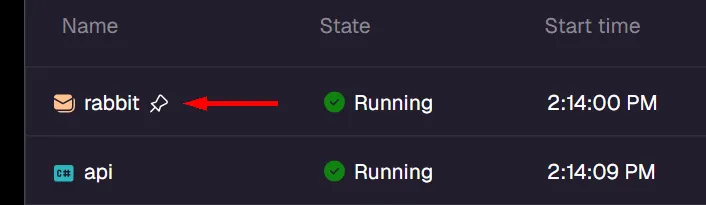
A persistent lifetime reuses a previously created resource when possible and doesn’t dispose of it when the AppHost stops. Configure this behavior with WithPersistentLifetimewithPersistentLifetime, or with the existing container-specific WithLifetime(ContainerLifetime.Persistent) API for container resources.
Use persistent lifetime for resources that are expensive to initialize, need stable local endpoints, or should remain available while you restart or rebuild the AppHost. Common examples include databases, message brokers, emulators, long-running executables, and project resources that should continue running after the AppHost exits.
Persistent containers use proxied endpoints by default, just like session containers. The proxy runs only while the AppHost is running, so the proxy address isn’t reachable after the AppHost stops. Persistent executables and projects default to proxyless endpoints so their direct addresses stay stable and reachable even after the AppHost stops.
You can still configure endpoint proxy behavior explicitly on any persistent resource. Set isProxied: false on an individual endpoint, or call WithEndpointProxySupport(false) to make every endpoint on a resource proxyless. When a proxyless endpoint doesn’t specify a public port, Aspire allocates one before the resource is created. For persistent resources, Aspire stores the allocated port in user secrets when user secrets are available and reuses it on later AppHost runs.
A parent-process lifetime keeps a resource available across AppHost restarts, but scopes cleanup to a parent process. Configure this behavior with WithParentProcessLifetime(processId).
Use parent-process lifetime for resources that should outlive an individual AppHost run but still be cleaned up when a broader development tool, IDE, or other owning process exits.
Parent-process lifetime resources share persistent resource behavior across AppHost runs. If Aspire detects meaningful configuration changes on a subsequent run, the resource is recreated with the new settings.
The parent process ID must be the valid ID of a running process. Aspire records both the process ID and the process identity timestamp so cleanup follows the specific process instance instead of accidentally matching a reused process ID.
A resource-scoped lifetime configures one resource to use another resource’s effective lifetime. Configure this behavior with WithLifetimeOf(resource).
Use resource-scoped lifetime when a companion resource should follow the lifetime choice of another resource. This is useful for sidecars, helper executables, or child resources that should become persistent only when the resource they support is persistent.
Aspire evaluates the source resource’s lifetime when it prepares the application model, so later lifetime changes to the source resource are reflected by the dependent resource. The source and dependent resources must both support lifetime configuration.
Use WithExplicitStartwithExplicitStart to prevent a resource from starting automatically with the rest of the AppHost. The resource appears in the dashboard but remains stopped until you start it manually.
Starting in Aspire 13.5, WithExplicitStart() also affects when execution configuration callbacks (for example, WithEnvironmentwithEnvironment and WithArgswithArgs) are evaluated, depending on whether the resource is session-scoped or persistent.
For session-scoped resources (the default lifetime), Aspire defers Developer Control Plane (DCP) registration until you manually start the resource from the dashboard. This means execution configuration callbacks — such as WithEnvironment(context => ...) — are not evaluated during AppHost startup. They run only when the resource is manually started.
AppHost.cs
var builder =DistributedApplication.CreateBuilder(args);
// The callback below is NOT evaluated during AppHost startup.
// It runs only when the resource is manually started from the dashboard.
var job =builder.AddExecutable("batch-job","dotnet",".","run","--project","BatchJob")
.WithExplicitStart()
.WithEnvironment(async context =>
{
// Prompt or compute dynamic configuration at start time
For persistent resources, Aspire must register the resource with the Developer Control Plane (DCP) immediately at startup so it can discover any existing running instance. However, when you manually start a persistent explicit-start resource, Aspire patches the existing DCP resource to start it rather than deleting and recreating it. This means the execution configuration callbacks run once during startup registration and are not re-evaluated when you manually start the resource.
AppHost.cs
var builder =DistributedApplication.CreateBuilder(args);
// Persistent explicit-start resources are registered at startup to detect existing instances.
// The callback runs during startup registration — not again when manually started.
#pragmawarningdisable ASPIREPERSISTENCE001
var cache =builder.AddContainer("long-lived-cache","my-cache-image")
In the preceding example, the PostgreSQL container persists between AppHost runs, and WithDataVolume() stores database data in a named volume that survives container recreation. The inventory project references the database as normal.
Executable resources can also use persistent lifetimes. Persistent executables are useful for local services that have expensive startup, need stable process identity, or should remain reachable while the AppHost restarts.
var builder =DistributedApplication.CreateBuilder(args);
var worker =builder.AddExecutable("worker","node","../worker","server.js")
.WithHttpEndpoint(port:5050, targetPort:5050)
.WithPersistentLifetime();
builder.Build().Run();
The preceding example configures a concrete port so the endpoint address is explicit. If you omit the public port, Aspire allocates one before the executable starts and reuses it from user secrets on later AppHost runs when user secrets are available.
var builder =DistributedApplication.CreateBuilder(args);
var api =builder.AddProject<Projects.ApiService>("api")
.WithPersistentLifetime();
builder.Build().Run();
Persistent project and executable resources are run by Aspire’s orchestrator so it can manage their lifecycle consistently. Persistent project and executable resources don’t support replicas.
Use WithLifetimeOfwithLifetimeOf when a companion resource should follow another resource’s lifetime. This is useful when a sidecar, helper process, or supporting service should become persistent only when its source resource is persistent.
var builder =DistributedApplication.CreateBuilder(args);
var database =builder.AddPostgres("postgres")
.WithPersistentLifetime()
.WithDataVolume();
var companion =builder.AddExecutable("companion","dotnet","../Companion","Companion.dll")
.WithLifetimeOf(database);
builder.Build().Run();
The dependent resource’s lifetime is evaluated when Aspire prepares the application model, so later changes to the source resource’s lifetime are reflected by the dependent resource.
Use WithParentProcessLifetimewithParentProcessLifetime when a resource should survive AppHost restarts but be cleaned up when another process exits. Aspire records the parent process identity instead of retaining a live process handle, so the cleanup scope follows the specific process instance instead of a reused process ID.
The older container-specific lifetime API is still supported. Use WithLifetime(ContainerLifetime.Persistent) to keep a container running across AppHost restarts, or WithLifetime(ContainerLifetime.Session) to explicitly use the default session behavior.
For new code, prefer the shared WithPersistentLifetime() and WithSessionLifetime() APIs because they work consistently across containers, executables, and projects.
By default, persistent containers use a naming pattern that combines:
The service name you specify in your AppHost.
A postfix based on a hash of the AppHost project path.
This naming scheme ensures that persistent containers are unique to each AppHost project, preventing conflicts when multiple Aspire projects use the same service names.
For example, if you have a service named "postgres" in an AppHost project located at /path/to/MyApp.AppHost, the container name might be postgres-abc123def where abc123def is derived from the project path hash.
Overrides the default container name for this resource. By default Aspire generates a unique container name based on the resource name and a random postfix (or a postfix based on a hash of the AppHost project path for persistent container resources). This method allows you to override that behavior with a custom name, but could lead to naming conflicts if the specified name is not unique.
var builder =DistributedApplication.CreateBuilder(args);
var postgres =builder.AddPostgres("postgres")
.WithPersistentLifetime()
.WithContainerName("my-shared-postgres");
builder.Build().Run();
When you specify a custom container name, Aspire first checks if a container with that name already exists. If a container with that name exists and was previously created by Aspire, it follows the normal persistent container behavior and can be automatically recreated if the configuration changes. If a container with that name exists but wasn’t created by Aspire, it won’t be managed or recreated by the AppHost. If no container with the custom name exists, Aspire creates a new one.
Persistent executable and project resources are scoped to a specific AppHost instance and uniquely identified by their resource name within that scope. Two executable or project resources with the same name in different AppHosts don’t collide with each other; they result in separate process instances.
For persistent containers, use Docker CLI commands, Docker Desktop, or your preferred container management tool to stop and remove the container:
Stop and remove a persistent container
# Stop the container
dockerstopmy-container-name
# Remove the container
dockerrmmy-container-name
For persistent executable and project resources, stop the running process with your operating system process manager or terminal tools. You can also stop a persistent resource from the Aspire dashboard if the runtime-specific cleanup option isn’t straightforward.
WithPersistentLifetime() and WithDataVolume() serve different purposes and are often used together. The following table summarizes the behavior of each combination for container resources:
Configuration
Container behavior
Data behavior
Neither (default)
Created on start, destroyed on stop
Lost every time the AppHost stops
WithPersistentLifetime() only
Stays running between AppHost runs
Survives AppHost restarts, but lost if the container is recreated (config change, pruning, image update)
WithDataVolume() only
Created on start, destroyed on stop
Persists in a named volume—survives container recreation
Both (recommended for databases)
Stays running between AppHost runs
Persists in a named volume—survives container recreation
For databases and other stateful services, use both APIs together so you get fast startup (the container stays running) and data safety (a volume protects data even if the container is recreated):




 Aspire