
Custom resource commands
此内容尚不支持你的语言。
Each resource in the Aspire app model is represented as an IResource and when added to the distributed application builder, it’s the generic-type parameter of the IResourceBuilder<T> interface. You use the resource builder API to chain calls, configuring the underlying resource, and in some situations, you might want to add custom commands to the resource. Some common scenario for creating a custom command might be running database migrations or seeding/resetting a database. In this article, you learn how to add a custom command to a Redis resource that clears the cache.
Add custom commands to a resource
Section titled “Add custom commands to a resource”Start by creating a new Aspire Starter App from the available templates. After creating this solution, add a new class named RedisResourceBuilderExtensions.cs to the AppHost project. Replace the contents of the file with the following code:
using Microsoft.Extensions.DependencyInjection;using Microsoft.Extensions.Diagnostics.HealthChecks;using Microsoft.Extensions.Logging;using StackExchange.Redis;
namespace Aspire.Hosting;
internal static class RedisResourceBuilderExtensions{    public static IResourceBuilder<RedisResource> WithClearCommand(        this IResourceBuilder<RedisResource> builder)    {        var commandOptions = new CommandOptions        {            UpdateState = OnUpdateResourceState,            IconName = "AnimalRabbitOff",            IconVariant = IconVariant.Filled        };
        builder.WithCommand(            name: "clear-cache",            displayName: "Clear Cache",            executeCommand: context => OnRunClearCacheCommandAsync(builder, context),            commandOptions: commandOptions);
        return builder;    }
    private static async Task<ExecuteCommandResult> OnRunClearCacheCommandAsync(        IResourceBuilder<RedisResource> builder,        ExecuteCommandContext context)    {        var connectionString = await builder.Resource.GetConnectionStringAsync() ??            throw new InvalidOperationException(                $"Unable to get the '{context.ResourceName}' connection string.");
        await using var connection = ConnectionMultiplexer.Connect(connectionString);        var database = connection.GetDatabase();        await database.ExecuteAsync("FLUSHALL");
        return CommandResults.Success();    }
    private static ResourceCommandState OnUpdateResourceState(        UpdateCommandStateContext context)    {        var logger = context.ServiceProvider.GetRequiredService<ILogger<Program>>();        if (logger.IsEnabled(LogLevel.Information))        {            logger.LogInformation(                "Updating resource state: {ResourceSnapshot}",                context.ResourceSnapshot);        }
        return context.ResourceSnapshot.HealthStatus is HealthStatus.Healthy            ? ResourceCommandState.Enabled            : ResourceCommandState.Disabled;    }}
The preceding code:
- Shares the
Aspire.Hostingnamespace so that it’s visible to the AppHost project. - Is a
static classso that it can contain extension methods. - It defines a single extension method named
WithClearCommand, extending theIResourceBuilder<RedisResource>interface. - The
WithClearCommandmethod registers a command namedclear-cachethat clears the cache of the Redis resource. - The
WithClearCommandmethod returns theIResourceBuilder<RedisResource>instance to allow chaining.
The WithCommand API adds the appropriate annotations to the resource, which are consumed in the Aspire dashboard. The dashboard uses these annotations to render the command in the UI. Before getting too far into those details, let’s ensure that you first understand the parameters of the WithCommand method:
name: The name of the command to invoke.displayName: The name of the command to display in the dashboard.executeCommand: TheFunc<ExecuteCommandContext, Task<ExecuteCommandResult>>to run when the command is invoked, which is where the command logic is implemented.updateState: TheFunc<UpdateCommandStateContext, ResourceCommandState>callback is invoked to determine the “enabled” state of the command, which is used to enable or disable the command in the dashboard.iconName: The name of the icon to display in the dashboard. The icon is optional, but when you do provide it, it should be a valid Fluent UI Blazor icon name.iconVariant: The variant of the icon to display in the dashboard, valid options areRegular(default) orFilled.
Execute command logic
Section titled “Execute command logic”The executeCommand delegate is where the command logic is implemented. This parameter is defined as a Func<ExecuteCommandContext, Task<ExecuteCommandResult>>. The ExecuteCommandContext provides the following properties:
ExecuteCommandContext.ServiceProvider: TheIServiceProviderinstance that’s used to resolve services.ExecuteCommandContext.ResourceName: The name of the resource instance that the command is being executed on.ExecuteCommandContext.CancellationToken: TheCancellationTokenthat’s used to cancel the command execution.
In the preceding example, the executeCommand delegate is implemented as an async method that clears the cache of the Redis resource. It delegates out to a private class-scoped function named OnRunClearCacheCommandAsync to perform the actual cache clearing. Consider the following code:
private static async Task<ExecuteCommandResult> OnRunClearCacheCommandAsync(    IResourceBuilder<RedisResource> builder,    ExecuteCommandContext context){    var connectionString = await builder.Resource.GetConnectionStringAsync() ??        throw new InvalidOperationException(            $"Unable to get the '{context.ResourceName}' connection string.");
    await using var connection = ConnectionMultiplexer.Connect(connectionString);
    var database = connection.GetDatabase();
    await database.ExecuteAsync("FLUSHALL");
    return CommandResults.Success();}
The preceding code:
- Retrieves the connection string from the Redis resource.
- Connects to the Redis instance.
- Gets the database instance.
- Executes the
FLUSHALLcommand to clear the cache. - Returns a
CommandResults.Success()instance to indicate that the command was successful.
Update command state logic
Section titled “Update command state logic”The updateState delegate is where the command state is determined. This parameter is defined as a Func<UpdateCommandStateContext, ResourceCommandState>. The UpdateCommandStateContext provides the following properties:
UpdateCommandStateContext.ServiceProvider: TheIServiceProviderinstance that’s used to resolve services.UpdateCommandStateContext.ResourceSnapshot: The snapshot of the resource instance that the command is being executed on.
The immutable snapshot is an instance of CustomResourceSnapshot, which exposes all sorts of valuable details about the resource instance. Consider the following code:
private static ResourceCommandState OnUpdateResourceState(    UpdateCommandStateContext context){    var logger = context.ServiceProvider.GetRequiredService<ILogger<Program>>();
    if (logger.IsEnabled(LogLevel.Information))    {        logger.LogInformation(            "Updating resource state: {ResourceSnapshot}",            context.ResourceSnapshot);    }
    return context.ResourceSnapshot.HealthStatus is HealthStatus.Healthy        ? ResourceCommandState.Enabled        : ResourceCommandState.Disabled;}
The preceding code:
- Retrieves the logger instance from the service provider.
- Logs the resource snapshot details.
- Returns
ResourceCommandState.Enabledif the resource is healthy; otherwise, it returnsResourceCommandState.Disabled.
Test the custom command
Section titled “Test the custom command”To test the custom command, update your AppHost project’s AppHost.cs file to include the following code:
var builder = DistributedApplication.CreateBuilder(args);
var cache = builder.AddRedis("cache")                   .WithClearCommand();
var apiService = builder.AddProject<Projects.AspireApp_ApiService>("apiservice");
builder.AddProject<Projects.AspireApp_Web>("webfrontend")    .WithExternalHttpEndpoints()    .WithReference(cache)    .WaitFor(cache)    .WithReference(apiService)    .WaitFor(apiService);
builder.Build().Run();
The preceding code calls the WithClearCommand extension method to add the custom command to the Redis resource. Run the app and navigate to the Aspire dashboard. You should see the custom command listed under the Redis resource. On the Resources page of the dashboard, select the ellipsis button under the Actions column:
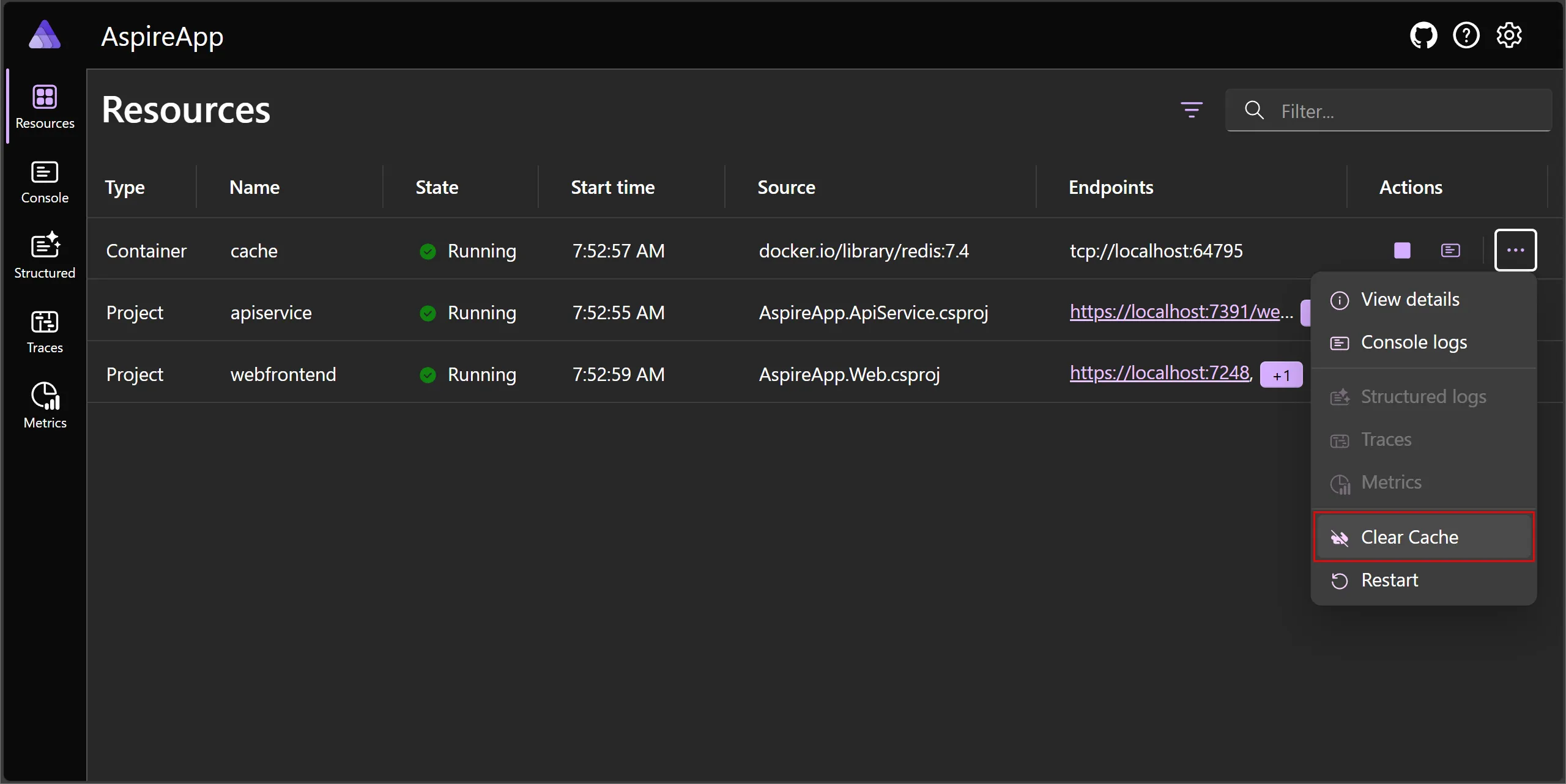
The preceding image shows the Clear cache command that was added to the Redis resource. The icon displays as a rabbit crossed out to indicate that the speed of the dependent resource is being cleared.
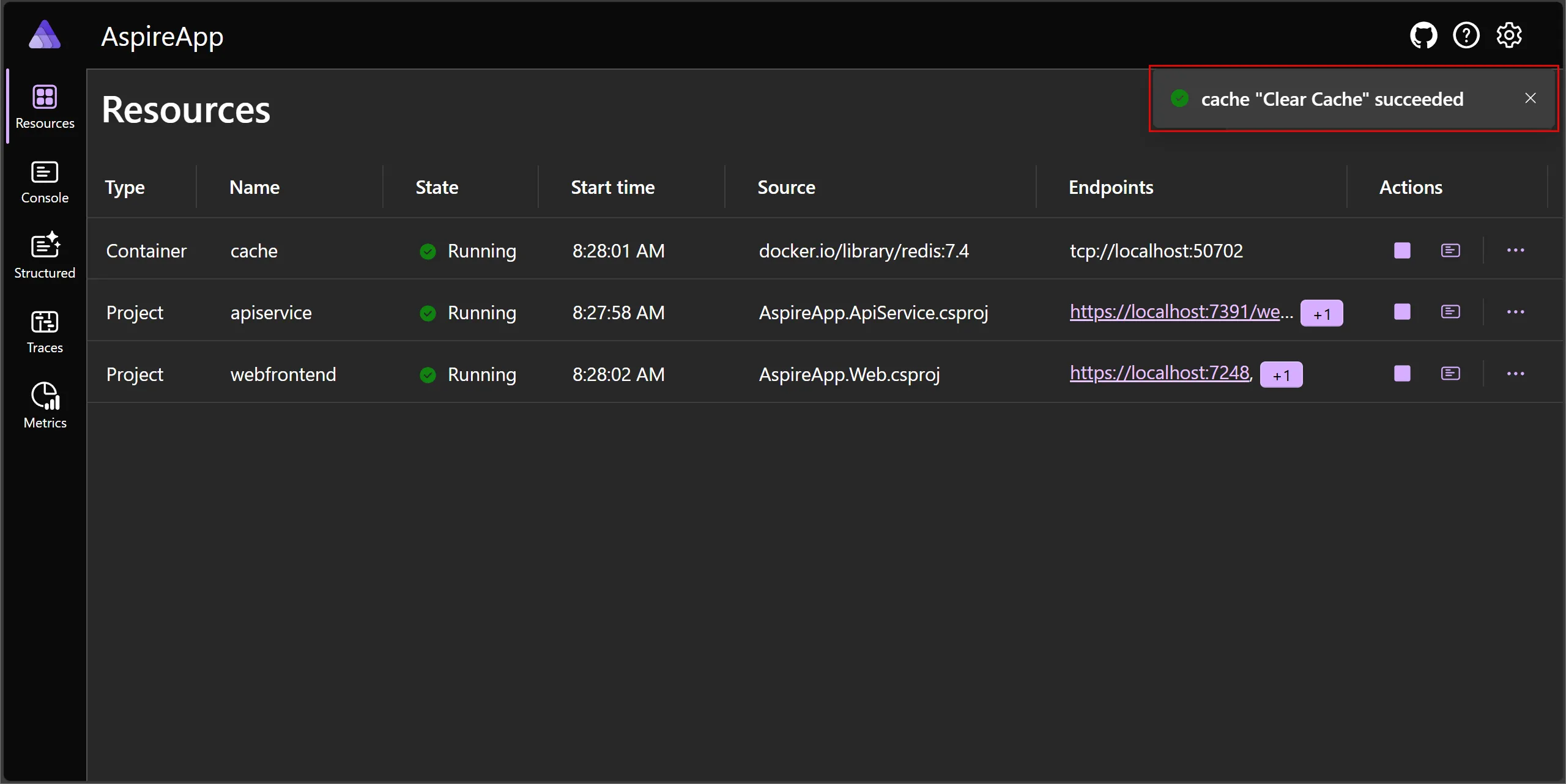
Select the Clear cache command to clear the cache of the Redis resource. The command should execute successfully, and the cache should be cleared:
Programmatically execute commands
Section titled “Programmatically execute commands”In addition to executing commands through the Aspire dashboard, you can also execute commands programmatically using the ResourceCommandService. This service is useful when you need to:
- Execute commands from within your application code
- Automate command execution as part of a workflow
- Build custom tooling that needs to control resources
The most common scenario is to call commands from within other custom command implementations. The ExecuteCommandContext provides access to the IServiceProvider, which you can use to retrieve the ResourceCommandService.
Execute commands from a custom command
Section titled “Execute commands from a custom command”The following example shows how to create a custom command that executes other commands. In this case, a “reset-all” command clears the cache and restarts a database:
using Aspire.Hosting.ApplicationModel;using Microsoft.Extensions.DependencyInjection;using Microsoft.Extensions.Logging;
var builder = DistributedApplication.CreateBuilder(args);
var cache = builder.AddRedis("cache")    .WithClearCommand(); // Defines a "clear-cache" command as shown earlier
var database = builder.AddPostgres("postgres")    .WithCommand("restart", "Restart Database", async (context, ct) =>    {        // Restart database implementation        return CommandResults.Success();    });
var api = builder.AddProject<Projects.Api>("api")    .WithReference(cache)    .WithReference(database)    .WithCommand("reset-all", "Reset Everything", async (context, ct) =>    {        var logger = context.ServiceProvider.GetRequiredService<ILogger<Program>>();        var commandService = context.ServiceProvider.GetRequiredService<ResourceCommandService>();
        logger.LogInformation("Starting full system reset...");
        var clearResult = await commandService.ExecuteCommandAsync(            resource: cache.Resource,            commandName: "clear-cache",            cancellationToken: ct);
        var restartResult = await commandService.ExecuteCommandAsync(            resource: database.Resource,            commandName: "restart",            cancellationToken: ct);
        if (!clearResult.Success || !restartResult.Success)        {            return CommandResults.Failure("System reset failed");        }
        logger.LogInformation("System reset completed successfully");        return CommandResults.Success();    });
builder.Build().Run();
In this example:
- The
contextparameter provides access toServiceProvider - The
ResourceCommandServiceis retrieved from the service provider - Commands are executed on resource instances using
cache.Resourceanddatabase.Resource - Each command result is checked for success before proceeding
Execute a command by resource ID
Section titled “Execute a command by resource ID”You can also execute a command using the resource ID or resource name. The resource ID is the unique identifier for a resource instance, while the resource name is the display name (which must be unique to use this approach):
var result = await commandService.ExecuteCommandAsync(    resourceId: "cache",    commandName: "clear-cache",    cancellationToken: cancellationToken);
if (result.Success){    logger.LogInformation("Command executed successfully");}else if (result.Canceled){    logger.LogWarning("Command was canceled");}else{    logger.LogError("Command failed: {ErrorMessage}", result.ErrorMessage);}
The resourceId parameter can be either:
- The unique ID of the resource (e.g.,
cache-abcdwxyzfor a resource with replicas) - The display name (e.g.,
cache) if there are no duplicate names
Execute commands on resources with replicas
Section titled “Execute commands on resources with replicas”When executing a command on a resource with multiple replicas using the IResource overload, the command runs in parallel on all instances:
// For a resource with replicas, the command executes on all instancesvar result = await commandService.ExecuteCommandAsync( resource: cache.Resource, commandName: "clear-cache", cancellationToken: cancellationToken);The behavior when executing on multiple replicas:
- The command runs in parallel on all instances
- If all commands succeed, the result indicates success
- If any commands fail, the result includes details about the failures
- If all non-successful commands were canceled, the result indicates cancellation
Handle command execution results
Section titled “Handle command execution results”The ExecuteCommandResult class provides information about the command execution:
Success: A boolean indicating whether the command was successful.ErrorMessage: An optional string property with an error message if the command was unsuccessful.Canceled: A boolean indicating whether the command was canceled by the user.
You can use these properties to handle different execution outcomes in your application logic. The CommandResults helper class provides factory methods to create result instances:
// In your command implementationreturn CommandResults.Success();// orreturn CommandResults.Failure("Error occurred during execution");// orreturn CommandResults.Canceled();