In this tutorial, you take the app you created in the Build your first Aspire app — C# AppHost quickstart and deploy it. This can be broken down into several key steps:
Clean up resources - Remove any deployed resources to avoid incurring costs.
The following diagram shows the architecture of the sample app you’re deploying:
architecture-beta
    group api-docker(logos:docker-icon)[API container]
    group f-docker(logos:docker-icon)[Front end container]

    service api(logos:dotnet)[API service] in api-docker
    service http(iconoir:server-connection)[https]
    service frontend(aspire:blazor)[Blazor frontend] in f-docker

    frontend:L --> R:http
    http:L --> R:api
The ASP.NET Core Blazor and Minimal API starter template consists of two resources, each deployed as a separate container.
Clean up resources - Remove any deployed resources to avoid incurring costs.
The following diagram shows the architecture of the sample app you’re deploying:
architecture-beta
  group docker(logos:docker-icon)[NodeJS and static site server container]

  service api(logos:nodejs-icon)[API service] in docker
  service http(iconoir:server-connection)[https] in docker
  service frontend(logos:react)[React frontend] in docker

  frontend:L --> R:http
  http:L --> R:api
The React (Vite) and Express starter template consists of two resources that are deployed as a single container. The Express server hosts both the API and the static frontend files generated by React.
This tutorial uses the backend serves frontend deployment model. For the other production patterns available to AddViteApp and AddJavaScriptApp, including reverse proxy and gateway/BFF approaches, see Deploy JavaScript apps.
In the root directory of your Aspire solution that you created in the previous quickstart, add the appropriate hosting deployment package by running the following command in your terminal:
Docker Compose is a tool for defining and running multi-container Docker applications. It allows you to use a YAML file to configure your application’s services, networks, and volumes, making it easier to manage and deploy complex applications locally or in various environments.
Aspire CLI — Add Docker Compose
aspireadddocker
The Aspire CLI is interactive, be sure to select the appropriate search result for the 📦 Aspire.Hosting.Docker version you want to add.
Aspire CLI — Add Azure App Containers
aspireaddazure-appcontainers
The Aspire CLI is interactive, be sure to select the appropriate search result for the 📦 Aspire.Hosting.Azure.AppContainers version you want to add.
If prompted for additional selections, use the Up Arrow↑Up Arrow↑Up Arrow↑ and Down Arrow↓Down Arrow↓Down Arrow↓ keys to navigate the options. Press ReturnReturnEnterEnterEnterEnter to confirm your selection.
Learn more about the aspire add command in the reference docs.
In the root directory of your Aspire app that you created in the previous quickstart, add the appropriate hosting deployment package by running the following command in your terminal:
Docker Compose is a tool for defining and running multi-container Docker applications. It allows you to use a YAML file to configure your application’s services, networks, and volumes, making it easier to manage and deploy complex applications locally or in various environments.
Aspire CLI — Add Docker Compose
aspireadddocker
The Aspire CLI is interactive, be sure to select the appropriate search result for the 📦 Aspire.Hosting.Docker version you want to add.
Aspire CLI — Add Azure App Containers
aspireaddazure-appcontainers
The Aspire CLI is interactive, be sure to select the appropriate search result for the 📦 Aspire.Hosting.Azure.AppContainers version you want to add.
If prompted for additional selections, use the Up Arrow↑Up Arrow↑Up Arrow↑ and Down Arrow↓Down Arrow↓Down Arrow↓ keys to navigate the options. Press ReturnReturnEnterEnterEnterEnter to confirm your selection.
Learn more about the aspire add command in the reference docs.
AddDockerComposeEnvironment - Configures the Docker Compose environment for deployment. This call implicitly adds support for containerizing resources in the AppHost as part of deployment.
WithExternalHttpEndpoints - Exposes HTTP endpoints for the resource when deployed.
AppHost.cs project-based orchestrator
var builder =DistributedApplication.CreateBuilder(args);
// Add the following line to configure the Azure App Container environment
builder.AddAzureContainerAppEnvironment("env");
var apiService =builder.AddProject<Projects.AspireApp_ApiService>("apiservice")
AddAzureContainerAppEnvironment - Configures the Azure App Container environment for deployment. This call implicitly adds support for containerizing resources in the AppHost as part of deployment.
WithExternalHttpEndpoints - Exposes HTTP endpoints for the resource when deployed.
In the AppHost, chain a call to the appropriate environment API method to configure the deployment environment for your target.
addDockerComposeEnvironment - Configures the Docker Compose environment for deployment. This call implicitly adds support for containerizing resources in the AppHost as part of deployment.
withExternalHttpEndpoints - Exposes HTTP endpoints for the resource when deployed.
addAzureContainerAppEnvironment - Configures the Azure App Container environment for deployment. This call implicitly adds support for containerizing resources in the AppHost as part of deployment.
withExternalHttpEndpoints - Exposes HTTP endpoints for the resource when deployed.
When deploying to Azure, the aspire deploy command is interactive. To avoid prompts (for example, when running in CI/CD), set the following environment variables:
09:21:49 (print-apiservice-summary) i [INF] Successfully deployed apiservice to Azure Container Apps environment env. No public endpoints were configured.
When you call aspire deploy, the Aspire CLI builds the container images for your resources, pushes them to the target environment (if applicable), and deploys the resources according to the configuration in your AppHost.
Additional information about this command can be found in the aspire deploy reference docs.
After a deployment, the Aspire CLI writes to the provided output path (or the default output path if none is provided) a set of files based on your deployment target. This may include files such as Docker Compose files, Kubernetes manifests, or cloud provider-specific configuration files.
The aspire-output directory contains the generated environment variables and the Docker Compose configuration. The best part is, these files are opaque to you as a developer. You don’t need to write them yourself.
The .env.Production file contains the name of the app image:
./aspire-output/.env.Production
# Container image name for apiservice
APISERVICE_IMAGE=apiservice:latest
# Default container port for apiservice
APISERVICE_PORT=8080
# Container image name for webfrontend
WEBFRONTEND_IMAGE=webfrontend:latest
# Default container port for webfrontend
WEBFRONTEND_PORT=8080
Finally, the docker-compose.yaml file defines the services for both the API and frontend:
When deploying to Azure, the aspire deploy command is interactive. To avoid prompts (for example, when running in CI/CD), set the following environment variables:
When you call aspire deploy, the Aspire CLI builds the container images for your resources, pushes them to the target environment (if applicable), and deploys the resources according to the configuration in your AppHost.
Additional information about this command can be found in the aspire deploy reference docs.
After a deployment, the Aspire CLI writes to the provided output path (or the default output path if none is provided) a set of files based on your deployment target. This may include files such as Docker Compose files, Kubernetes manifests, or cloud provider-specific configuration files.
The aspire-output directory contains the generated environment variables, an app.Dockerfile, and the Docker Compose configuration. The best part is, these files are opaque to you as a developer. You don’t need to write them yourself.
The app.Dockerfile is generated as a multi-stage Dockerfile to build the Express API and also serve the React frontend:
When deploying to Docker Compose, the aspire deploy command displays the URLs where your services are running. Look for the print-*-summary steps in the deployment output, which show the localhost URLs for each service that has been configured with WithExternalHttpEndpoints.
In the deployment output, you’ll see lines similar to the following:
Aspire CLI - Deployment summary
14:28:35 (print-env-dashboard-summary) i [INF] Successfully deployed env-dashboard to http://localhost:54633.
14:28:35 (print-webfrontend-summary) i [INF] Successfully deployed webfrontend to http://localhost:54463.
Open your web browser and navigate to the URL shown for your web frontend (for example, http://localhost:54463) to see your deployed application.
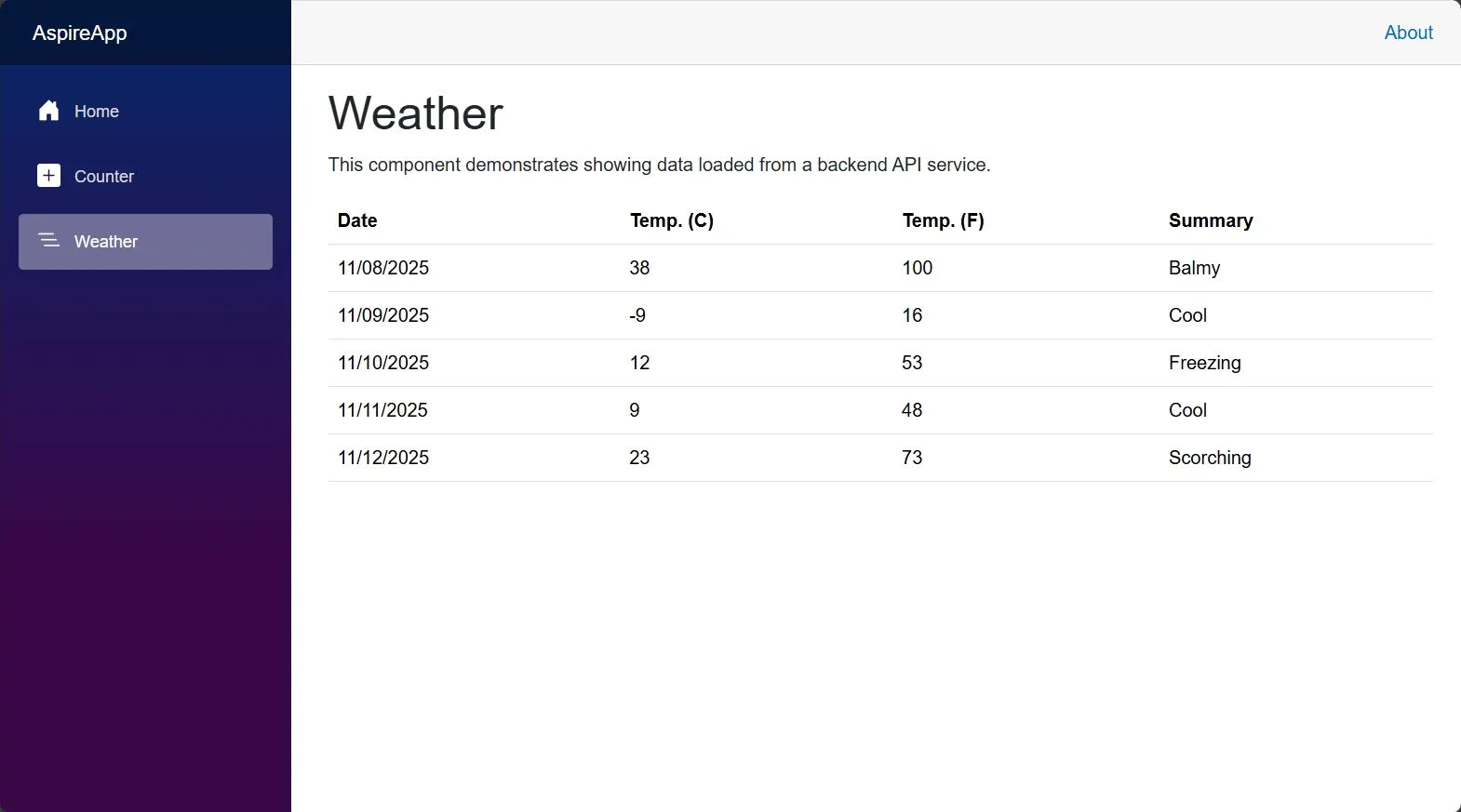
The frontend displays the weather forecast data in the ASP.NET Core Blazor application.
When deploying to Azure App Containers, you can verify that your ASP.NET Core/Blazor application is running by navigating to the URL provided in the deployment output. Look for a line similar to the following in the output:
Aspire CLI - Deployment summary
09:21:44 (print-webfrontend-summary) i [INF] Successfully deployed webfrontend to
https://{NAME}.{LOCATION}.azurecontainerapps.io
Open your web browser and navigate to the provided URL to see your deployed application.
The frontend displays the weather forecast data in the ASP.NET Core Blazor application.
To verify that your application is running as expected after deployment, follow the instructions for your chosen deployment target below.
When deploying to Docker Compose, the aspire deploy command displays the URLs where your services are running. Look for the print-*-summary steps in the deployment output, which show the localhost URLs for each service that has been configured with withExternalHttpEndpoints.
In the deployment output, you’ll see lines similar to the following:
Aspire CLI - Deployment summary
13:24:13 (print-env-dashboard-summary) i [INF] Successfully deployed env-dashboard to http://localhost:54633.
13:24:13 (print-app-summary) i [INF] Successfully deployed app to http://localhost:54463.
Open your web browser and navigate to the URL shown for your app (for example, http://localhost:54463) to see your deployed application.
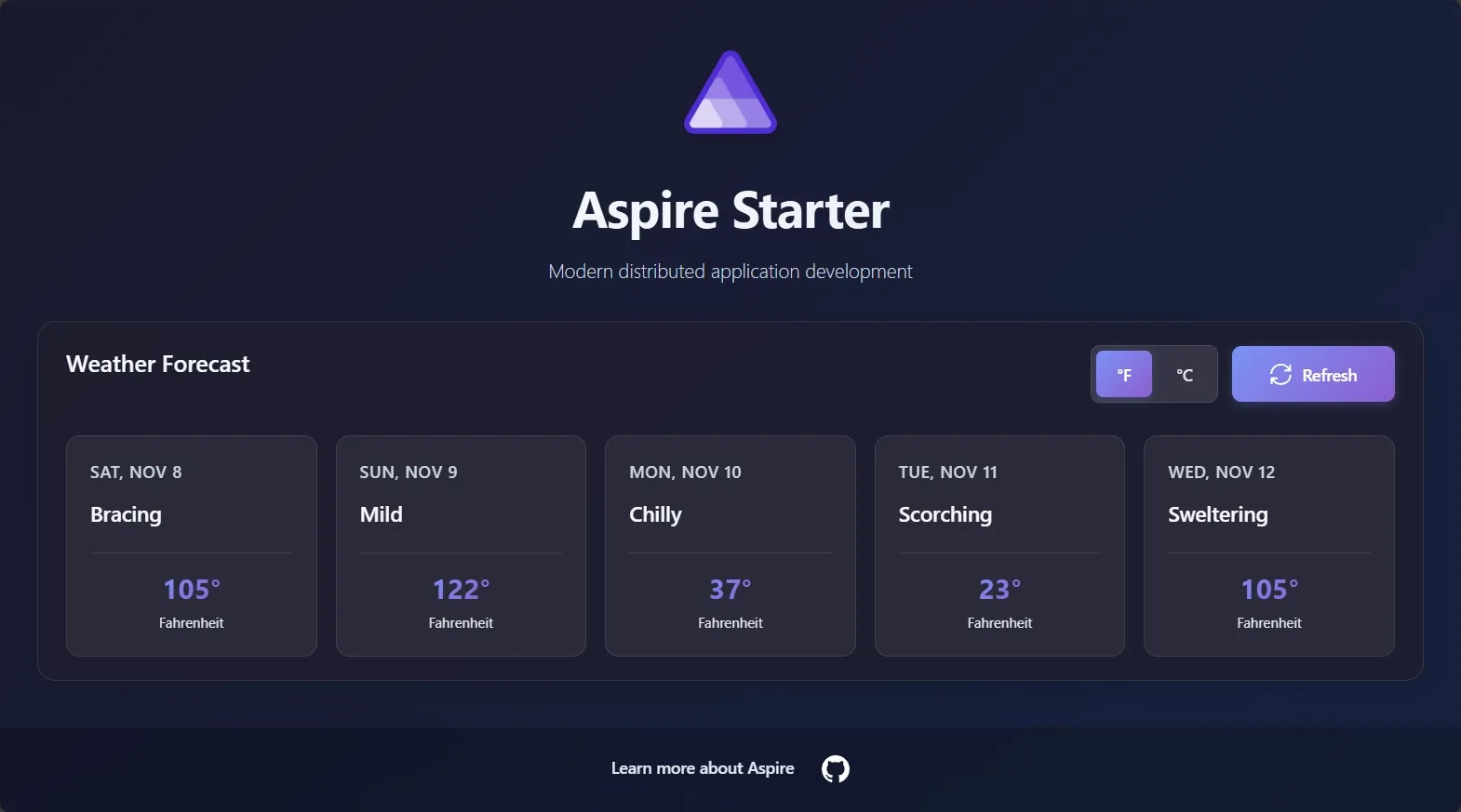
The frontend displays the weather forecast data in a React template. In this example, both the API service and the React frontend are running within the same Docker container.
When deploying to Azure App Containers, you can verify that your Express/React application is running by navigating to the URL provided in the deployment output. Look for a line similar to the following in the output:
Aspire CLI - Deployment summary
09:25:29 (print-app-summary) i [INF] Successfully deployed app to
https://{NAME}.{LOCATION}.azurecontainerapps.io
Open your web browser and navigate to the provided URL to see your deployed application.
The frontend displays the weather forecast data in a React template. In this example, both the API service and the React frontend are running within the same Docker container.
After deploying your application, it’s important to clean up resources to avoid incurring unnecessary costs or consuming local system resources.
Use aspire destroy to tear down the deployed environment. The command discovers the deployment, shows what will be removed, and prompts for confirmation before continuing.
You’ve just built your first Aspire app and deployed it to production. Now you might be wondering: “How do I make sure all these services actually work together correctly?” That’s where integration testing comes in. Aspire makes it easy to test your entire application stack, including service-to-service communication and resource dependencies. Ready to learn how? Write your first test
After deploying your application, it’s important to clean up resources to avoid incurring unnecessary costs or consuming local system resources.
Use aspire destroy to tear down the deployed environment. The command discovers the deployment, shows what will be removed, and prompts for confirmation before continuing.
You’ve just built your first Aspire app and deployed it to production. Now you might be wondering: “How do I make sure all these services actually work together correctly?” That’s where integration testing comes in. Aspire makes it easy to test your entire application stack, including service-to-service communication and resource dependencies. Ready to learn how? Write your first test





 Aspire