


What's new in Aspire 13
Dette indhold er ikke tilgængeligt i dit sprog endnu.
📢 Aspire 13 represents a major milestone in the Aspire product line.
The product is now called Aspire, dropping its previous .NET prefix. Aspire is a multi-language application platform that continues to provide best-in-class support for .NET applications while making Python and JavaScript first-class citizens, with comprehensive support for running, debugging, and deploying applications.
This release introduces:
- Python support includes modules, Uvicorn deployment, flexible package management with uv, pip, or venv, and automatic production Dockerfile generation.
- JavaScript support includes Vite and npm-based apps, package manager auto-detection, debugging, and container-based build pipelines.
- Multi-language infrastructure provides URI, JDBC, and individual connection properties, plus certificate trust across languages and containers.
- Container files can serve as build artifacts, so build outputs are containers rather than folders for reproducible, isolated, and portable builds.
aspire doprovides build, publish, and deployment pipelines with parallel execution, dependency tracking, and extensible workflows.- The modern CLI adds
aspire initfor existing apps and deployment state management that remembers configuration across runs. - The VS Code extension streamlines project creation, integration management, multi-language debugging, and deployment.
Along with the rebranding, Aspire now has a new home at aspire.dev, the central hub for documentation, getting started guides, and community resources.
Aspire 13 requires the .NET 10 SDK or later.
If you have feedback, questions, or want to contribute to Aspire, collaborate with us on GitHub or join us on our new Discord to chat with the team and other community members.
🆙 Upgrade to Aspire 13.0
Section titled “🆙 Upgrade to Aspire 13.0”The easiest way to upgrade to Aspire 13.0 is using the aspire update command:
-
Update the Aspire CLI to the latest version:
Terminal window curl -sSL https://aspire.dev/install.sh | bashTerminal window irm https://aspire.dev/install.ps1 | iex -
Update your Aspire project using the
aspire updatecommand:Aspire CLI — Update all Aspire packages aspire updateThis command will:
- Update the
Aspire.AppHost.Sdkversion in your AppHost project. - Update all Aspire NuGet packages to version 13.0.
- Handle dependency resolution automatically.
- Support both regular projects and Central Package Management (CPM).
- Update the
-
Update your Aspire templates:
Terminal window dotnet new install Aspire.ProjectTemplates
🧩 AppHost template updates
Section titled “🧩 AppHost template updates”Aspire 13.0 introduces a simplified AppHost project template structure. The SDK now encapsulates the Aspire.Hosting.AppHost package, resulting in cleaner project files.
Before (9.x):
<Project Sdk="Microsoft.NET.Sdk">
  <Sdk Name="Aspire.AppHost.Sdk" Version="9.5.2" />
  <PropertyGroup>    <OutputType>Exe</OutputType>    <TargetFramework>net9.0</TargetFramework>    <ImplicitUsings>enable</ImplicitUsings>    <Nullable>enable</Nullable>    <UserSecretsId>1bf2ca25-7be4-4963-8782-c53a74e10ad9</UserSecretsId>  </PropertyGroup>
  <ItemGroup>    <ProjectReference Include="..\MyApp.ApiService\MyApp.ApiService.csproj" />    <ProjectReference Include="..\MyApp.Web\MyApp.Web.csproj" />  </ItemGroup>
  <ItemGroup>    <PackageReference Include="Aspire.Hosting.AppHost" Version="9.5.2" />    <PackageReference Include="Aspire.Hosting.Redis" Version="9.5.2" />  </ItemGroup>
</Project>
After (13.0):
<Project Sdk="Aspire.AppHost.Sdk/13.0.0">
  <PropertyGroup>    <OutputType>Exe</OutputType>    <TargetFramework>net10.0</TargetFramework>    <ImplicitUsings>enable</ImplicitUsings>    <Nullable>enable</Nullable>    <UserSecretsId>1bf2ca25-7be4-4963-8782-c53a74e10ad9</UserSecretsId>  </PropertyGroup>
  <ItemGroup>    <ProjectReference Include="..\MyApp.ApiService\MyApp.ApiService.csproj" />    <ProjectReference Include="..\MyApp.Web\MyApp.Web.csproj" />  </ItemGroup>
  <ItemGroup>    <PackageReference Include="Aspire.Hosting.Redis" Version="13.0.0" />  </ItemGroup>
</Project>
Key changes include:
- The SDK is specified directly in the
<Project>tag with its version:Sdk="Aspire.AppHost.Sdk/13.0.0". - The SDK automatically includes
Aspire.Hosting.AppHost, so an explicit package reference is no longer needed. - The separate
<Sdk Name="..." />element and theMicrosoft.NET.Sdkbase SDK are removed. - The target framework is updated from
net9.0tonet10.0.
The aspire update command automatically handles this migration when upgrading from 9.x to 13.0.
🌐 Aspire as a multi-language platform
Section titled “🌐 Aspire as a multi-language platform”Aspire 13.0 marks a shift from a .NET-centric orchestration tool to a multi-language application platform. Python and JavaScript are now first-class citizens alongside .NET, with comprehensive support for development, debugging, and deployment workflows.
Python as a first-class citizen
Section titled “Python as a first-class citizen”Aspire 13.0 introduces comprehensive Python support, making it effortless to build, debug, and deploy Python applications alongside your other services.
Flexible Python application models
Section titled “Flexible Python application models”Aspire provides three ways to run Python code, each suited to different use cases:
var builder = DistributedApplication.CreateBuilder(args);
// Run a Python script directlyvar etl = builder.AddPythonApp("etl-job", "../etl", "process_data.py");
// Run a Python module (python -m celery)var worker = builder.AddPythonModule("celery-worker", "../worker", "celery")    .WithArgs("worker", "-A", "tasks", "--loglevel=info");
// Run an executable from the virtual environment (e.g., gunicorn)var api = builder.AddPythonExecutable("api", "../api", "gunicorn")    .WithArgs("app:app", "--bind", "0.0.0.0:8000");
Uvicorn integration for ASGI applications
Section titled “Uvicorn integration for ASGI applications”For Python web applications using ASGI frameworks like FastAPI, Starlette, or Quart, Aspire provides dedicated AddUvicornApp support:
var api = builder.AddUvicornApp("api", "./api", "main:app") .WithExternalHttpEndpoints() .WithHttpHealthCheck("/health");The AddUvicornApp method automatically:
- Configures HTTP endpoints.
- Sets up appropriate Uvicorn command-line arguments.
- Supports hot-reload during development.
- Integrates with Aspire’s health check system.
Python package management
Section titled “Python package management”Aspire 13.0 provides flexible Python package management with automatic detection.
When you add a Python app, Aspire automatically detects and configures package management:
// If pyproject.toml or requirements.txt exists → automatically uses pip// If neither exists → creates a virtual environment (.venv)var api = builder.AddUvicornApp("api", "./api", "main:app");In most cases, you don’t need to configure package management explicitly because Aspire detects it automatically.
For modern Python projects using uv, explicitly opt in with WithUv():
builder.AddUvicornApp("api", "./api", "main:app") .WithUv(); // Use uv for package managementWhen using WithUv(), Aspire:
- Automatically runs
uv syncto install dependencies frompyproject.toml. - Creates isolated virtual environments per project.
- Leverages uv’s performance benefits (10-100x faster than pip).
- Auto-detects Python version from project configuration.
To configure pip behavior explicitly, use WithPip():
builder.AddUvicornApp("api", "./api", "main:app") .WithPip(); // Explicitly use pip for package managementWhen using WithPip(), Aspire:
- Automatically installs dependencies from
requirements.txtorpyproject.toml(pip supports both). - Detects virtual environments (
.venv) by walking up parent directories. - Creates a virtual environment if one doesn’t exist.
By default, Aspire uses .venv in the app directory as the virtual environment path. Use WithVirtualEnvironment() to specify a custom path or control automatic creation:
// Use a custom venv pathbuilder.AddPythonApp("api", "./api", "main.py")    .WithVirtualEnvironment("myenv");
// Use existing venv without auto-creationbuilder.AddPythonApp("worker", "./worker", "worker.py")    .WithVirtualEnvironment(".venv", createIfNotExists: false);
By default, createIfNotExists is true, so Aspire will create the virtual environment if it doesn’t exist. Set it to false to require the virtual environment to already exist.
VS Code debugging support
Section titled “VS Code debugging support”Python applications can be debugged directly in VS Code with full breakpoint support. Aspire 13.0 automatically enables debugging infrastructure for all Python resources - no additional configuration required. See Visual Studio Code extension for more.
Supported debugging scenarios include:
- Debug Python scripts added with
AddPythonApp, including breakpoints and variable inspection. - Debug Python modules added with
AddPythonModule, including module resolution. - Debug Flask apps with auto-reload.
- Debug Uvicorn and FastAPI ASGI applications with async and await support.
Debugging is automatically enabled for Python resources, and the Aspire VS Code extension generates VS Code launch configurations automatically.
Automatic Dockerfile generation
Section titled “Automatic Dockerfile generation”Aspire automatically generates production-ready Dockerfiles for Python applications when publishing:
// With uv (recommended)builder.AddUvicornApp("api", "./api", "main:app")    .WithUv();
// Or with pipbuilder.AddUvicornApp("api", "./api", "main:app")    .WithPip();
The generated Dockerfile automatically adapts based on your package manager choice:
- With uv, the Dockerfile uses uv for fast dependency installation from
pyproject.toml. - With pip, it installs dependencies from
requirements.txt.
Both approaches use appropriate Python base images and follow container best practices.
Python version detection
Section titled “Python version detection”Aspire automatically detects the Python version for Dockerfile generation from multiple sources (in priority order):
- A
.python-versionfile has the highest priority. - The
requires-pythonfield inpyproject.tomlis next. - The virtual environment’s
python --versionprovides the fallback.
The detected version selects the appropriate Python base image for Docker publishing.
Starter template: Vite + FastAPI
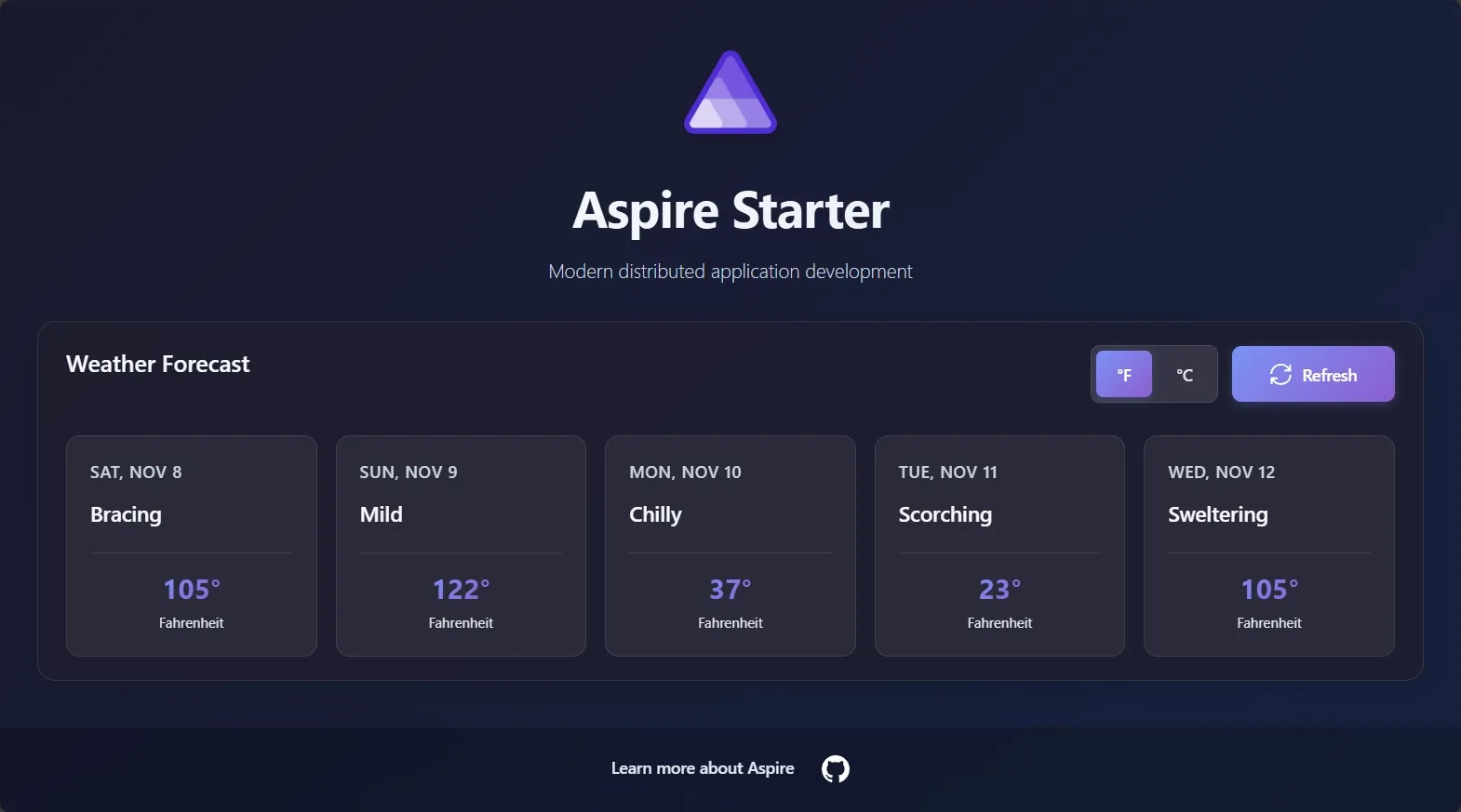
Section titled “Starter template: Vite + FastAPI”Aspire 13.0 includes a new aspire-py-starter template that demonstrates a full-stack Python application:
aspire new aspire-py-starterThis template includes:
- A FastAPI backend runs as a Python ASGI application using Uvicorn.
- A Vite and React frontend uses TypeScript.
- OpenTelemetry integration provides distributed tracing, logs, and metrics.
- Optional Redis caching provides a distributed cache across requests.
- Container files let the Python backend serve the frontend’s static files.
Build a full-stack multi-language app—Python backend + JavaScript frontend—fast. Use aspire new aspire-py-starter to generate it, then explore the Python integration and JavaScript integration guides.
The React frontend communicates with the FastAPI backend via HTTP endpoints, demonstrating seamless integration between the two languages within a single Aspire application. The new template has a modern UX:
JavaScript as a first-class citizen
Section titled “JavaScript as a first-class citizen”Aspire 13.0 refactors and expands JavaScript support. In earlier versions, the Aspire.Hosting.NodeJs integration enabled JavaScript applications. In Aspire 13.0, the integration was renamed to Aspire.Hosting.JavaScript and it introduces AddJavaScriptApp as the foundational method for all JavaScript applications.
Unified JavaScript application model
Section titled “Unified JavaScript application model”The new AddJavaScriptApp method replaces the older AddNpmApp (removed) and provides a consistent way to add JavaScript applications:
var builder = DistributedApplication.CreateBuilder(args);
// Add a JavaScript application - runs "npm run dev" by defaultvar frontend = builder.AddJavaScriptApp("frontend", "./frontend");
// Use a different package managervar admin = builder.AddJavaScriptApp("admin", "./admin")    .WithYarn();
By default, AddJavaScriptApp:
- Automatically detects npm from
package.json. - Runs the “dev” script during local development.
- Runs the “build” script when publishing to create production assets.
- Automatically generates Dockerfiles to build production assets.
Package manager flexibility
Section titled “Package manager flexibility”Aspire automatically detects and supports multiple JavaScript package managers with intelligent defaults for both development and production scenarios.
Starting in Aspire 13.0, package managers install dependencies by default (install = true). This keeps dependencies up to date during development and publishing.
When publishing (production mode), Aspire automatically uses deterministic install commands based on the presence of lockfiles:
- npm uses
npm ciifpackage-lock.jsonexists; otherwise, it usesnpm install. - Yarn uses
yarn install --immutablewhenyarn.lockexists and Yarn 2 or later is detected. Otherwise, it usesyarn install --frozen-lockfilewhenyarn.lockexists oryarn installwhen no lockfile exists. - pnpm uses
pnpm install --frozen-lockfileifpnpm-lock.yamlexists; otherwise, it usespnpm install.
This ensures reproducible builds in CI/CD and production environments while remaining flexible during development.
You can also customize package manager behavior:
// Customize npm with additional flagsvar app = builder.AddJavaScriptApp("app", "./app")    .WithNpm(installCommand: "ci", installArgs: ["--legacy-peer-deps"]);
// Or use different package managersvar yarnApp = builder.AddJavaScriptApp("yarn-app", "./yarn-app")    .WithYarn(installArgs: ["--immutable"]);
Customizing scripts
Section titled “Customizing scripts”You can customize which scripts run during development and build:
// Use different script namesvar app = builder.AddJavaScriptApp("app", "./app") .WithRunScript("start") // Run "npm run start" during development instead of "dev" .WithBuildScript("prod"); // Run "npm run prod" during publish instead of "build"Passing arguments to scripts
Section titled “Passing arguments to scripts”Unlike the deprecated AddNpmApp API, AddJavaScriptApp does not support an args constructor parameter for passing command-line arguments directly to scripts. You have two options to pass arguments:
Option 1 uses WithArgs to pass arguments directly:
// Before (Aspire 9.x with AddNpmApp)// builder.AddNpmApp("hasura-console", "../Web/ClientApp",//     scriptName: "hasura:console",//     args: ["--no-browser"])
// After (Aspire 13.0 with AddJavaScriptApp)builder.AddJavaScriptApp("hasura-console", "../Web/ClientApp")    .WithRunScript("hasura:console")    .WithArgs("--no-browser");
Option 2 defines custom scripts with arguments in package.json:
{ "scripts": { "dev": "vite", "hasura:console": "hasura console --no-browser" }}// Before (Aspire 9.x with AddNpmApp)// builder.AddNpmApp("hasura-console", "../Web/ClientApp",// scriptName: "hasura:console",// args: ["--no-browser"])
// After (Aspire 13.0 with AddJavaScriptApp)builder.AddJavaScriptApp("hasura-console", "../Web/ClientApp") .WithRunScript("hasura:console");Option 2 keeps all script configuration in package.json, making your scripts more discoverable and easier to run outside of Aspire (e.g., npm run hasura:console).
Vite support
Section titled “Vite support”AddViteApp is now a specialization of AddJavaScriptApp with Vite-specific optimizations:
var frontend = builder.AddViteApp("frontend", "./frontend") .WithReference(api);Vite applications get:
- Automatic port binding configuration.
- Hot module replacement (HMR) support.
- Optimized build scripts for production.
- Automatic Dockerfile generation.
Dynamic Dockerfile generation
Section titled “Dynamic Dockerfile generation”JavaScript applications automatically generate Dockerfiles when published, with intelligent defaults based on your package manager:
var app = builder.AddJavaScriptApp("app", "./app");The generated Dockerfile:
- Detects Node.js version from
.nvmrc,.node-version,package.json, or.tool-versions. - Uses multi-stage builds for smaller images.
- Installs dependencies in a separate layer for better caching.
- Runs your build script to create production assets.
- Defaults to
node:22-slimif no version is specified.
For information about using JavaScript build artifacts in other containers, see Container files as build artifacts.
Node support
Section titled “Node support”AddNodeApp has now been refactored to align with other language integrations.
var app = builder.AddNodeApp("frontend", "./frontend", "app.js") .WithReference(api);Node.js applications get:
- Defaults to npm when
package.jsonexists. - Allows for customizing package manager and build/run scripts.
- Automatic Dockerfile generation with multi-stage builds for smaller images (defaults to
node:22-alpineif no version is specified).
Multi-language infrastructure
Section titled “Multi-language infrastructure”Beyond language-specific support, Aspire 13.0 introduces infrastructure features that work across all languages.
Multi-language connection properties
Section titled “Multi-language connection properties”Database resources now expose multiple connection string formats automatically, making it easy to connect from any language:
var postgres = builder.AddPostgres("db").AddDatabase("mydb");
// .NET app uses the "ConnectionStrings" configuration sectionvar dotnetApi = builder.AddProject<Projects.Api>()    .WithReference(postgres);
// Python app can use URI formatvar pythonWorker = builder.AddPythonModule("worker", "./worker", "worker.main")    .WithEnvironment("DATABASE_URL", postgres.Resource.UriExpression);
// Java app can use JDBC formatvar javaApp = builder.AddExecutable("java-app", "java", "./app", ["-jar", "app.jar"])    .WithEnvironment("DB_JDBC", postgres.Resource.JdbcConnectionStringExpression);
When you reference a database resource with WithReference, Aspire automatically exposes multiple connection properties as environment variables. For example, a PostgreSQL resource named db exposes:
DB_URI- PostgreSQL URI format:postgresql://user:pass@host:port/dbname.DB_JDBCCONNECTIONSTRING- JDBC format:jdbc:postgresql://host:port/dbname.DB_HOST,DB_PORT,DB_USERNAME,DB_PASSWORD,DB_DATABASENAME- Individual properties.
The JDBC connection string does not include credentials for security best practices. Use the separate DB_USERNAME and DB_PASSWORD environment variables to authenticate, or configure your JDBC driver to use these properties.
This pattern works for all supported databases (PostgreSQL, SQL Server, Oracle, MySQL, MongoDB, etc.) with appropriate URI and JDBC formats for each.
Certificate trust across languages
Section titled “Certificate trust across languages”Aspire 13.0 automatically configures ASP.NET Development Certificate trust for Python, Node.js, and containerized applications without any additional configuration:
// Python applications automatically trust development certificatesvar pythonApi = builder.AddUvicornApp("api", "./api", "main:app");
// Node.js applications automatically trust development certificatesvar nodeApi = builder.AddJavaScriptApp("frontend", "./frontend");
// Containerized applications automatically trust development certificatesvar container = builder.AddContainer("service", "myimage");
Aspire automatically:
- Python resources receive the
SSL_CERT_FILEandREQUESTS_CA_BUNDLEenvironment variables. - Node.js resources receive the
NODE_EXTRA_CA_CERTSenvironment variable. - Containers mount certificate bundles and receive the appropriate environment variables.
- Aspire generates and manages development certificates without manual intervention on all platforms.
This enables secure HTTPS communication during local development across all languages and containerized services.
Simplified service URL environment variables
Section titled “Simplified service URL environment variables”Aspire 13.0 introduces multi-language-friendly environment variables that make service discovery easier for apps that consume environment variables directly.
var builder = DistributedApplication.CreateBuilder(args);
var api = builder.AddProject<Projects.Api>("api");
// Python app gets simple environment variablesvar pythonApp = builder.AddPythonModule("worker", "./worker", "worker.main")    .WithReference(api); // Sets API and API_HTTPS env vars
await builder.Build().RunAsync();
Instead of complex service discovery formats, these apps receive simple environment variables:
API_HTTP=http://localhost:5000—HTTP endpoint.API_HTTPS=https://localhost:5001—HTTPS endpoint.
This feature makes Aspire’s service discovery mechanism accessible to any programming language, not just .NET applications with service discovery libraries.
🛠️ CLI and tooling
Section titled “🛠️ CLI and tooling”aspire init command
Section titled “aspire init command”The new aspire init command provides a streamlined, interactive experience for initializing Aspire solutions with comprehensive project setup and configuration.
Find out more about the aspire init command in the aspire init documentation.
# Initialize a new Aspire solution - interactive prompts guide you through setupaspire initWhen you run aspire init, the CLI will:
- Find and update existing solution files in the current directory.
- Create a single-file AppHost for quick starts when no solution exists.
- Prompt you to add projects to your AppHost.
- Configure references to service defaults automatically.
- Create package source mappings for Aspire packages in
NuGet.config. - Prompt you to select the appropriate template version.
The init command simplifies the initial project setup through an interactive workflow that ensures consistent configuration across team members.
aspire new: Curated starter templates
Section titled “aspire new: Curated starter templates”Aspire 13.0 refocuses aspire new around curated starter templates that demonstrate different application patterns. The command now provides an interactive experience designed to help you get started quickly with ready-to-run examples.
aspire newWhen you run the command, you’ll see an interactive menu to select a starter template:
Select a template:
> Blazor & Minimal API starter  React (Vite) & FastAPI starter  Empty AppHost
(Type to search)
Available starter templates include:
- The Blazor and Minimal API starter is a full-stack .NET application with a Blazor frontend and ASP.NET Core API.
- The React (Vite) and FastAPI starter demonstrates Python and JavaScript integration.
- The Empty AppHost is a minimal single-file AppHost for custom applications.
The starter template collection is designed to be extensible and will grow over time to showcase different architectural patterns and technology combinations. This approach makes it easier to explore Aspire’s capabilities and learn from working examples.
For command reference material, see the aspire new documentation.
Aspire update improvements
Section titled “Aspire update improvements”The aspire update command has received significant improvements in Aspire 13.0, including the new --self flag to update the CLI itself:
# Update all Aspire packages in the current projectaspire update
# Update the Aspire CLI itself (new in 13.0)aspire update --self
# Update a specific projectaspire update --project ./src/MyApp.AppHost
Aspire 13.0 adds:
- A
--selfflag that updates the Aspire CLI without reinstalling it. - Reliability fixes for edge cases in dependency resolution.
- Clearer error messages when updates fail.
- Faster package detection and update operations.
The aspire update command continues to support:
- Central package management (CPM) solutions.
- Diamond dependency resolution.
- Single-file app hosts.
- XML fallback parsing for unresolvable AppHost SDKs.
- Enhanced visual presentation with colorized output.
- Channel awareness (stable, preview, staging).
For detailed command reference, see aspire update.
Visual Studio Code extension
Section titled “Visual Studio Code extension”Aspire 13.0 includes a new Aspire VS Code extension which brings Aspire CLI features to VS Code. It provides commands to create and debug projects, add integrations, configure launch settings, and manage deployments directly from the Command Palette.
Key features include:
- Launch and debug Python and C# resources in VS Code with the Aspire debugger.
- Use
Aspire: New Aspire projectto create projects from templates. - Use
Aspire: Add an integrationto add Aspire integrations to your AppHost. - Use
Aspire: Configure launch.jsonto set up a VS Code launch configuration automatically. - Use
Aspire: Manage configuration settingsto configure Aspire CLI settings. - Use the preview
Aspire: Publish deployment artifactsandAspire: Deploy appcommands for publishing and deployment.
To get started:
- Install the extension from the VS Code Marketplace.
- Open the Command Palette (
Command + Shift + PCommandShiftPControl + Shift + PCtrlShiftPControl + Shift + PCtrlShiftP ). - Type “Aspire” to see all available commands.
- Use
Aspire: Configure launch.jsonto set up debugging for your AppHost.
The extension requires the Aspire CLI to be installed and available on your PATH. All commands are grouped under the Aspire category in the Command Palette for easy discovery.
Single-file AppHost support
Section titled “Single-file AppHost support”Aspire 13.0 introduces comprehensive support for single-file app hosts, allowing you to define your entire distributed application in a single .cs file without a project file.
// apphost.cs#:sdk Aspire.AppHost.Sdk@13.0.0#:package Aspire.Hosting.PostgreSQL@13.0.0
var builder = DistributedApplication.CreateBuilder(args);
var database = builder.AddPostgres("postgres");
builder.AddProject<Projects.Api>("api")    .WithReference(database);
await builder.Build().RunAsync();
Single-file app host support includes:
- The
aspire-apphost-singlefiletemplate, available throughaspire new. - Integration with
aspire run,aspire deploy,aspire publish,aspire add, andaspire update. - Full debugging and launch configuration support.
Automatic .NET SDK installation (Preview)
Section titled “Automatic .NET SDK installation (Preview)”The Aspire CLI includes a preview feature for automatically installing required .NET SDK versions when they’re missing.
Once enabled, the CLI will automatically install missing SDKs:
# With the feature enabled, the CLI will automatically install the required SDKaspire run
# Installing .NET SDK 10.0.100...# ✅ SDK installation complete# Running app host...
The automatic SDK installation feature provides:
- Support for Windows, macOS, and Linux.
- Automatic detection of required SDK versions.
- Alternative installation options if automatic installation fails.
When enabled, this preview feature can improve the onboarding experience for new team members and CI/CD environments.
Non-interactive mode for CI/CD
Section titled “Non-interactive mode for CI/CD”The --non-interactive flag disables prompts and interactive progress indicators for CI/CD scenarios. The CLI automatically detects common CI environments and enables this mode. You can also set ASPIRE_NON_INTERACTIVE=true or use --non-interactive explicitly.
For advanced deployment workflows, see aspire do, which introduces a comprehensive pipeline system for coordinating build, deployment, and publishing operations.
⭐ Major new features
Section titled “⭐ Major new features”aspire do
Section titled “aspire do”Aspire 13.0 introduces aspire do - a comprehensive system for coordinating build, deployment, and publishing operations. This new architecture provides a foundation for orchestrating complex deployment workflows with built-in support for step dependencies, parallel execution, and detailed progress reporting.
The aspire do system replaces the previous publishing infrastructure with a more flexible, extensible model that allows resource-specific deployment logic to be decentralized and composed into larger workflows.
For basic CLI commands and tooling, see CLI and tooling, which covers aspire init, aspire update, and non-interactive mode.
The following example adds a custom pipeline step:
The Aspire AppHost defines a global DistributedApplicationPipeline instance on the DistributedApplicationBuilder that can be used to register steps in the pipeline at the top-level.
var builder = DistributedApplication.CreateBuilder(args);
builder.Pipeline.AddStep("validate", (context) =>{    context.Logger.LogInformation("Running validation checks...");    // Your custom validation logic    return Task.CompletedTask;}, requiredBy: WellKnownPipelineSteps.Build);
Steps registered in the pipeline can be run via the CLI:
aspire do validateThe pipeline system supports global steps, resource-specific steps, dependency configuration, parallel execution, and built-in logging. Resources can contribute their own steps via WithPipelineStepFactory and control ordering with WithPipelineConfiguration.
Running pipeline steps
Section titled “Running pipeline steps”Use aspire do to execute pipeline steps. The command automatically resolves dependencies and executes steps in the correct order:
aspire do deploy # Runs all steps necessary to deploy the appaspire do publish --output-path ./artifacts # Custom output pathaspire do deploy --environment Production # Target specific environmentaspire do deploy --pipeline-log-level debug # Verbose logging for troubleshootingContainer files as build artifacts
Section titled “Container files as build artifacts”Aspire 13.0 can extract files from one resource’s container and copy them into another resource’s container during the build process. This enables patterns such as building a frontend in one container and serving it from a backend in another.
var frontend = builder.AddViteApp("frontend", "./frontend");var api = builder.AddUvicornApp("api", "./api", "main:app");
// Extract files FROM the frontend container and copy TO the 'static' folder// in the api containerapi.PublishWithContainerFiles(frontend, "./static");
The process has four steps:
- The
frontendresource builds inside its container, producing output files. - Aspire extracts those files from the
frontendcontainer. - The files are copied into the
apicontainer at./static. - The final
apicontainer contains both the API code and the frontend static files.
For example, the FastAPI app can serve the static files:
from fastapi import FastAPIfrom fastapi.staticfiles import StaticFiles
app = FastAPI()
# API endpoints@app.get("/api/data")def get_data():    return {"message": "Hello from API"}
# Serve the frontend static filesapp.mount("/", StaticFiles(directory="static", html=True), name="static")
This pattern works with any resource types (C#, Python, JavaScript) and integrates seamlessly with aspire do for dependency tracking, parallel execution, and incremental builds.
Dockerfile builder API (experimental)
Section titled “Dockerfile builder API (experimental)”Aspire 13.0 introduces an experimental programmatic Dockerfile generation API that allows you to define Dockerfiles using C# code with a composable, type-safe API.
var app = builder.AddContainer("app", "app")    .PublishAsDockerFile(publish =>    {        publish.WithDockerfileBuilder("/path/to/app", context =>        {            var buildStage = context.Builder                .From("golang:1.23", "builder")                .WorkDir("/build")                .Copy(".", "./")                .Run("go build -o /app/server .");
            context.Builder                .From("alpine:latest")                .CopyFrom(buildStage.StageName!, "/app/server", "/app/server")                .Entrypoint(["/app/server"]);        });    });
The API provides multi-stage builds, fluent method chaining (WorkDir, Copy, Run, Env, User, Entrypoint), comments/formatting, and BuildKit features.
Certificate management
Section titled “Certificate management”Aspire 13.0 introduces certificate management for custom certificate authorities and developer certificate trust:
// Add custom certificate collectionsvar certs = builder.AddCertificateAuthorityCollection("custom-certs")    .WithCertificatesFromFile("./certs/my-ca.pem")    .WithCertificatesFromStore(StoreName.CertificateAuthority, StoreLocation.LocalMachine);
var gateway = builder.AddYarp("gateway")    .WithCertificateAuthorityCollection(certs)    .WithDeveloperCertificateTrust(trust: true);
Features include loading from PEM files or certificate stores, flexible trust scoping, customizable container paths, and automatic dev certificate trust configuration.
📦 Integrations
Section titled “📦 Integrations”Aspire 13.0 introduces new integration packages that expand platform support.
.NET MAUI integration
Section titled “.NET MAUI integration”Aspire 13.0 introduces a new Aspire.Hosting.Maui package that enables orchestrating .NET MAUI mobile applications alongside your cloud services.
var builder = DistributedApplication.CreateBuilder(args);
var api = builder.AddProject<Projects.Api>("api");
// To easily reach your local API project from the// emulator/Simulator/physical device, you can use the Dev Tunnels integrationvar publicDevTunnel = builder.AddDevTunnel("devtunnel-public")    .WithAnonymousAccess()    .WithReference(api.GetEndpoint("https"));
// Add the .NET MAUI project resourcevar mauiapp = builder.AddMauiProject("myapp", @"../MyApp/MyApp.csproj");
// Add MAUI app for Windowsmauiapp.AddWindowsDevice()    .WithReference(api);
// Add MAUI app for Mac Catalystmauiapp.AddMacCatalystDevice()    .WithReference(api);
// Add MAUI app for iOS running on the iOS Simulator (starts// a random one, or uses the currently started one)mauiapp.AddiOSSimulator()    .WithOtlpDevTunnel() // Needed to get the OpenTelemetry data to "localhost"    .WithReference(api, publicDevTunnel); // Needs a dev tunnel to reach "localhost"
// Add MAUI app for Android running on the emulator with// default emulator (uses running or default emulator, needs to be started)mauiapp.AddAndroidEmulator()    .WithOtlpDevTunnel() // Needed to get the OpenTelemetry data to "localhost"    .WithReference(api, publicDevTunnel); // Needs a dev tunnel to reach "localhost"
builder.Build().Run();
MAUI integration features:
- The integration supports Windows, Mac Catalyst, Android, and iOS.
- You can register multiple device instances for testing.
- Aspire detects host OS compatibility and marks resources as unsupported when needed.
- MAUI apps participate in service discovery and can reference backend services.
This enables a complete mobile + cloud development experience where you can run and debug your mobile app alongside your backend services in a single Aspire project.
📊 Dashboard enhancements
Section titled “📊 Dashboard enhancements”Aspire MCP server
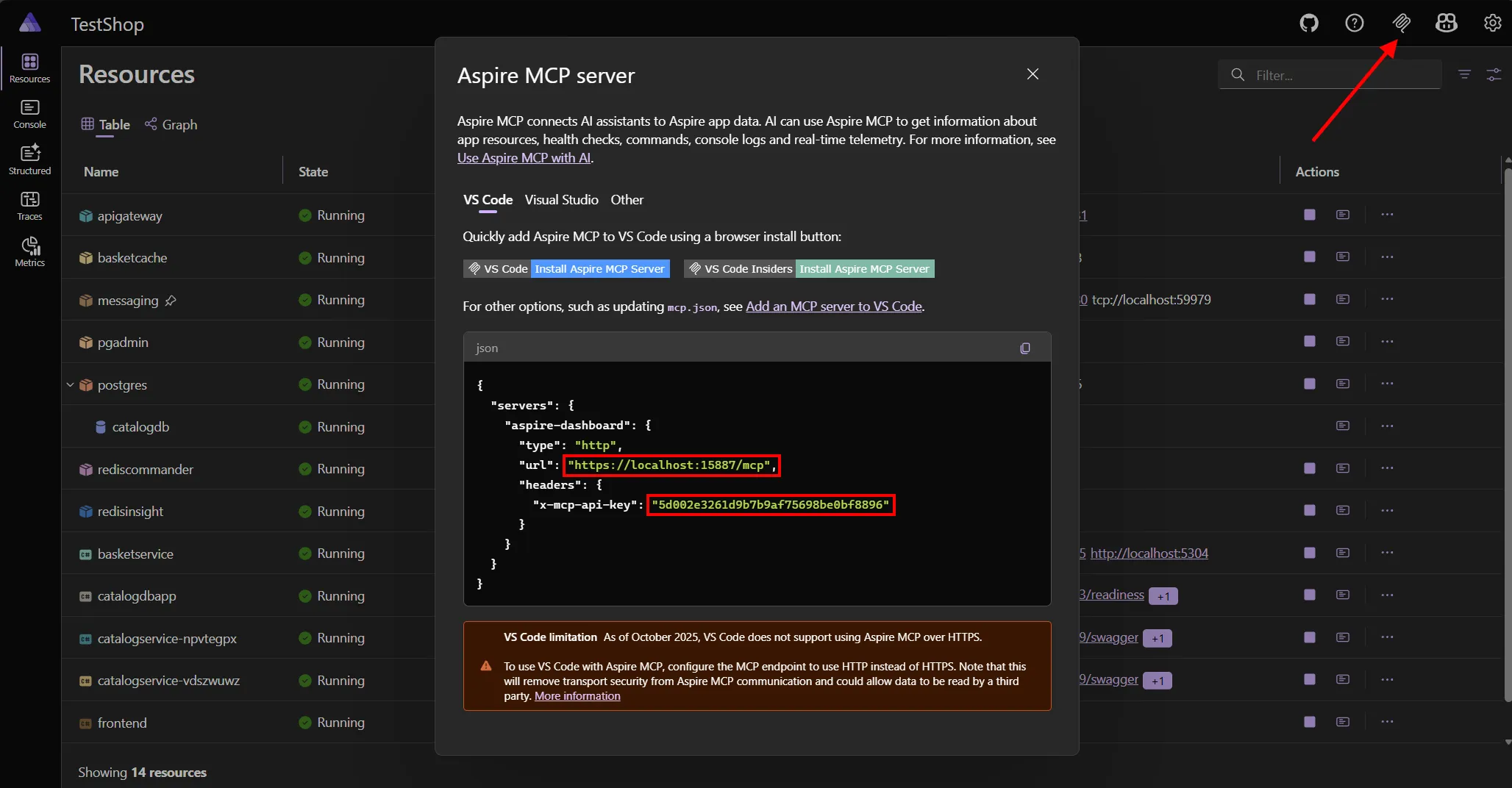
Section titled “Aspire MCP server”The Dashboard now includes an MCP server that integrates Aspire into your AI development ecosystem. The MCP server enables AI assistants to query resources, access telemetry data, and execute commands directly from your development environment.
To get started:
- Run your Aspire app and open the dashboard.
- Click the MCP button in the top right corner.
- Follow the instructions to configure your AI assistant (Claude Code, GitHub Copilot CLI, Cursor, VS Code, etc.).
The MCP server uses streamable HTTP with API key authentication for secure access. Configuration requires:
url: The Aspire MCP endpoint address.type: Set to “http” for the streamable-HTTP MCP server.x-mcp-api-key: HTTP header for authentication.
Available tools include:
list_resources—Retrieve all resources with state, endpoints, environment variables, and metadata.list_console_logs—Access resource console output.list_structured_logs—Retrieve telemetry data, optionally filtered by resource.list_traces—Access distributed trace information.list_trace_structured_logs—View logs associated with specific traces.execute_resource_command—Execute commands on resources.
This enables AI assistants to directly interact with your Aspire applications, analyze telemetry in real-time, and provide intelligent insights during development.
Interaction services dynamic inputs and comboboxes
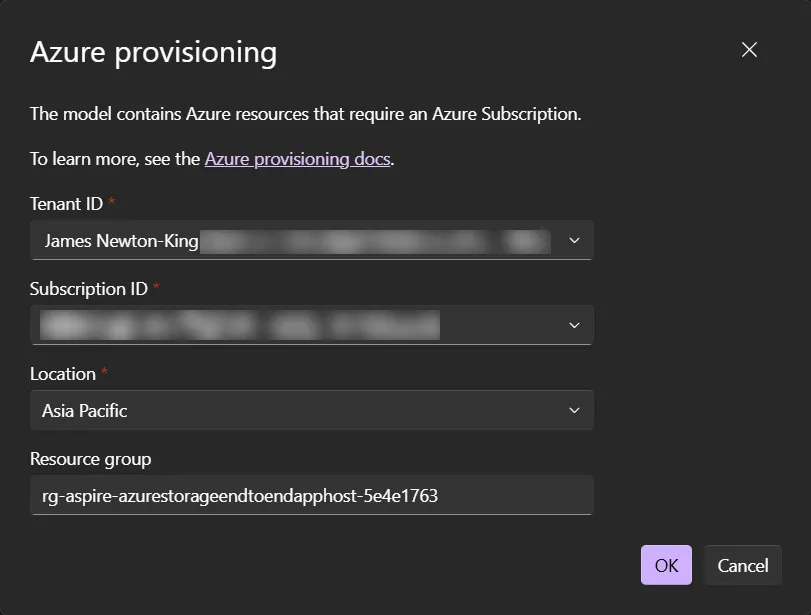
Section titled “Interaction services dynamic inputs and comboboxes”The interaction service just got a major upgrade:
- 💫 Dropdowns can now accept text—in other words, ComboBox inputs. For more information, see interaction service custom choice.
- 🔄 Supports dynamic data loading for cascading dropdowns. For more information, see interaction service dynamic inputs.
You can see an example of the new interaction service features in the dashboard with the Azure provisioning dialog. 🚀
Multi-language icons
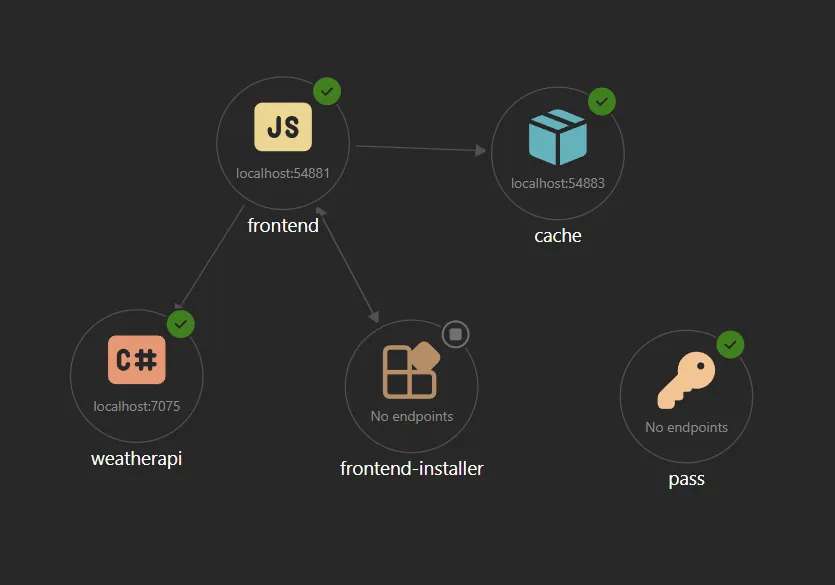
Section titled “Multi-language icons”Aspire is going multi-language with strong support for JavaScript ☕ and Python 🐍 apps. The dashboard features new programming language icons for app resources. This includes .NET projects (C#, F#, VB.NET) and JavaScript and Python apps.
Improved accent colors
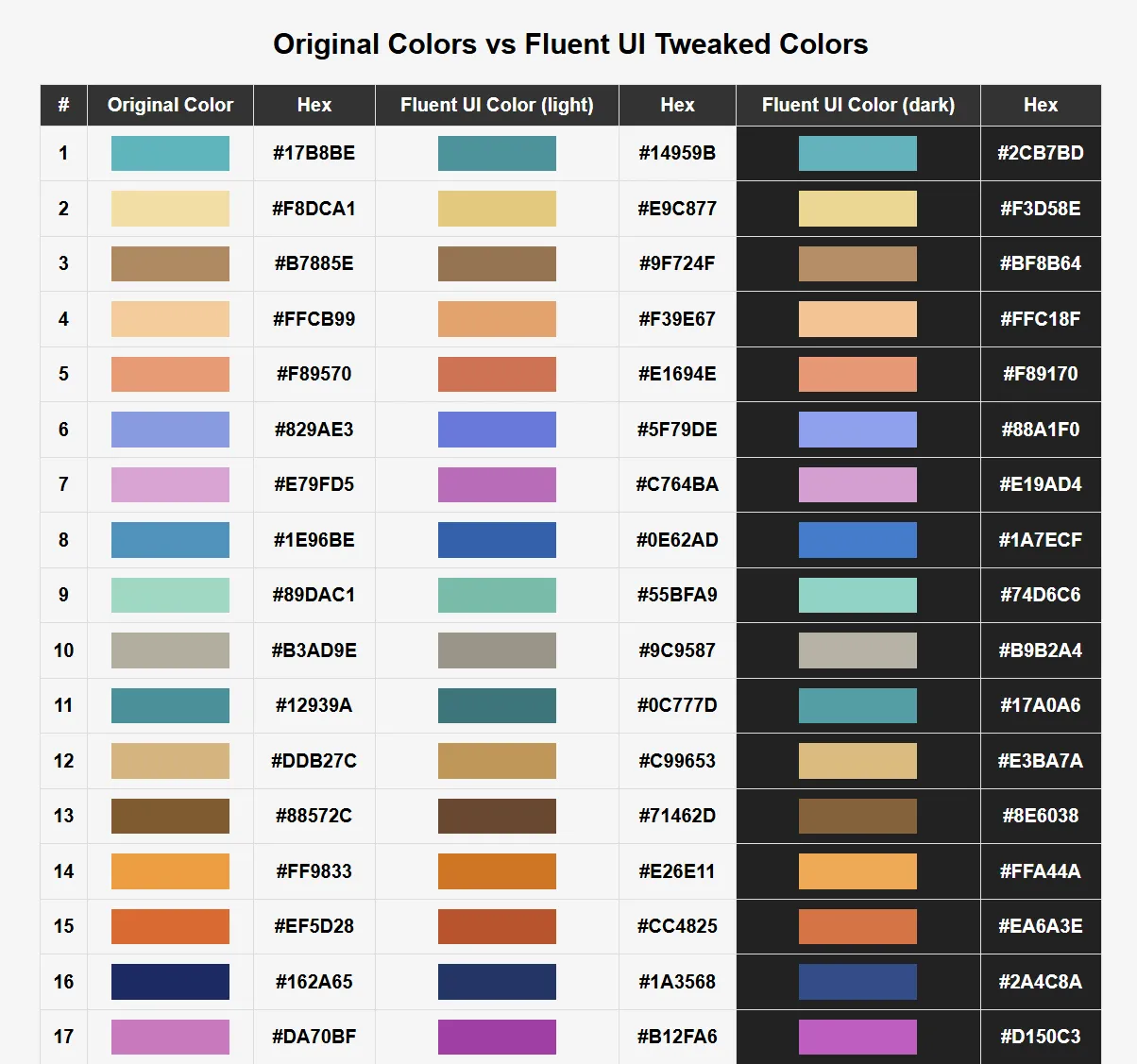
Section titled “Improved accent colors”Resources in the dashboard have accent colors, which is used to color their icon and telemetry. Accent colors are now more FluentUI-ish (saturation++) with custom tweaks for light and dark themes.
The dark blue accent color is no longer almost invisible on a dark background!
Health checks last run time
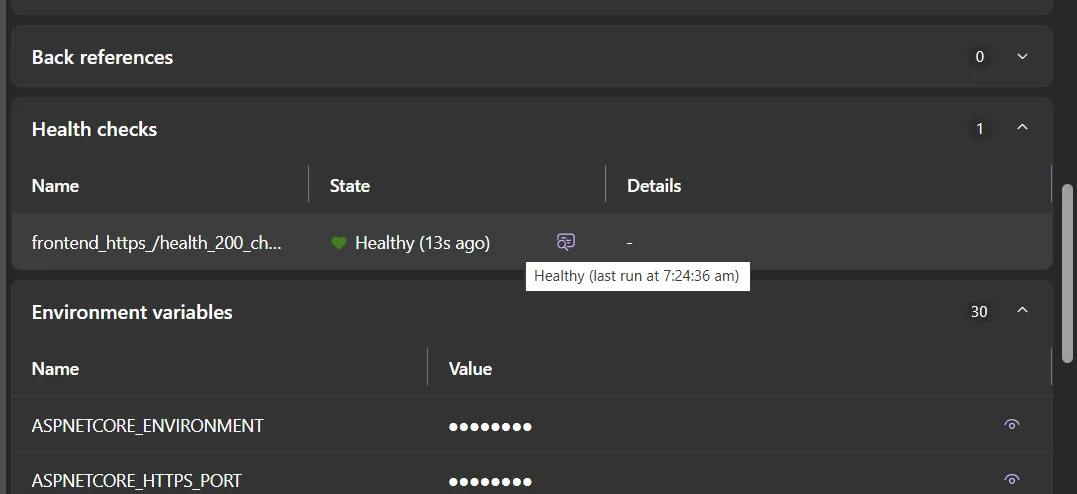
Section titled “Health checks last run time”The dashboard makes it easy to see resource health statuses. New in Aspire 13, the last run time is now displayed next to each resource’s current state. This helps you tell whether an unhealthy resource is still being checked and progressing toward a healthy state.
🖥️ App model enhancements
Section titled “🖥️ App model enhancements”C# file-based app support
Section titled “C# file-based app support”Aspire 13.0 adds first-class support for C# file-based applications, enabling you to add C# apps without full project files to your distributed application.
#:sdk Aspire.AppHost.Sdk@13.0.0#:package Aspire.Hosting.Redis@13.0.0
// Type is for evaluation purposes only and is subject to change or// removal in future updates. Suppress this diagnostic to proceed.#pragma warning disable ASPIRECSHARPAPPS001
var builder = DistributedApplication.CreateBuilder(args);
var cache = builder.AddRedis("cache");
builder.AddCSharpApp("worker", "../worker/Program.cs")    .WithReference(cache);
builder.Build().Run();
This works seamlessly with .NET 10 SDK’s file-based application support. The C# file-based app can use service discovery, access referenced resources, and be debugged in VS Code just like regular projects.
Network identifiers
Section titled “Network identifiers”Aspire 13.0 introduces NetworkIdentifier for better network context awareness in endpoint resolution.
var builder = DistributedApplication.CreateBuilder(args);
var api = builder.AddProject<Projects.Api>("api");
// Get endpoint with specific network contextvar localhostEndpoint = api.GetEndpoint("http", KnownNetworkIdentifiers.LocalhostNetwork);var containerEndpoint = api.GetEndpoint("http", KnownNetworkIdentifiers.DefaultAspireContainerNetwork);
await builder.Build().RunAsync();
Network identifier features:
- Resolve endpoints based on the network context, such as the host or container network.
- Use predefined identifiers for common scenarios:
LocalhostNetwork,DefaultAspireContainerNetwork, andPublicInternet. - Endpoints now include their
NetworkIDinstead of a container host address. - Container-to-container communication is improved.
Interaction service dynamic inputs
Section titled “Interaction service dynamic inputs”The interaction service has been improved with support for dynamic inputs. This feature allows inputs to load options based on other input values, enabling cascading dropdowns and dependent parameter prompting.
var inputs = new List<InteractionInput>{    // First input - static options    new InteractionInput    {        Name = "DatabaseType",        InputType = InputType.Choice,        Label = "Database Type",        Required = true,        Options =        [            KeyValuePair.Create("postgres", "PostgreSQL"),            KeyValuePair.Create("mysql", "MySQL"),            KeyValuePair.Create("sqlserver", "SQL Server")        ]    },
    // Second input - loads dynamically based on DatabaseType    new InteractionInput    {        Name = "DatabaseVersion",        InputType = InputType.Choice,        Label = "Database Version",        Required = true,        DynamicLoading = new InputLoadOptions        {            LoadCallback = async (context) =>            {                var dbType = context.AllInputs["DatabaseType"].Value;                context.Input.Options = await GetAvailableVersionsAsync(dbType);            },            DependsOnInputs = ["DatabaseType"]        }    }};
Features include callback-based loading (LoadCallback), dependency tracking (DependsOnInputs), access to other input values (context.AllInputs), and async support for loading from APIs or databases.
Interaction service custom choices
Section titled “Interaction service custom choices”Choice inputs can be configured to accept custom choices by setting AllowCustomChoice to true. In the dashboard, these inputs are displayed as a combobox.
var input = new InteractionInput{    Name = "AllowCustomInput",    Label = "Favorite food?",    InputType = InputType.Choice,    Options = [KeyValuePair.Create("pizza", "Pizza"), KeyValuePair.Create("burger", "Burger")],    AllowCustomChoice = true};
var result = await interactionService.PromptInputAsync("What is your favorite food?", "Select your favorite food.", input);
Reference and connection improvements
Section titled “Reference and connection improvements”Named references
Section titled “Named references”Reference resources with explicit names to control the environment variable prefix:
var builder = DistributedApplication.CreateBuilder(args);
var primaryDb = builder.AddPostgres("postgres-primary")    .AddDatabase("customers");
var replicaDb = builder.AddPostgres("postgres-replica")    .AddDatabase("customers");
var api = builder.AddProject<Projects.Api>("api")    .WithReference(primaryDb, "primary")    .WithReference(replicaDb, "replica");
The following environment variables are injected into api:
# From primaryDb with "primary" nameConnectionStrings__primary=Host=postgres-primary;...
# From replicaDb with "replica" nameConnectionStrings__replica=Host=postgres-replica;...
This allows the application to distinguish between multiple database connections using the custom names.
Connection properties
Section titled “Connection properties”Access individual connection string components to build custom connection strings or configuration:
var builder = DistributedApplication.CreateBuilder(args);
var postgres = builder.AddPostgres("postgres").AddDatabase("mydb");var redis = builder.AddRedis("cache");
var worker = builder.AddProject<Projects.Worker>("worker")    .WithEnvironment("DB_HOST", postgres.Resource.GetConnectionProperty("Host"))    .WithEnvironment("DB_PORT", postgres.Resource.GetConnectionProperty("Port"))    .WithEnvironment("DB_NAME", postgres.Resource.DatabaseName)    .WithEnvironment("CACHE_HOST", redis.Resource.GetConnectionProperty("Host"))    .WithEnvironment("CACHE_PORT", redis.Resource.GetConnectionProperty("Port"));
The following environment variables are injected into worker:
DB_HOST=postgresDB_PORT=5432DB_NAME=mydbCACHE_HOST=cacheCACHE_PORT=6379This is useful when your application needs individual connection components rather than a full connection string, or when building connection strings in formats Aspire doesn’t provide natively.
Endpoint reference enhancements
Section titled “Endpoint reference enhancements”Control how service URLs are resolved and injected with network-aware endpoint references:
var builder = DistributedApplication.CreateBuilder(args);
var api = builder.AddProject<Projects.Api>("api")    .WithExternalHttpEndpoints();
var frontend = builder.AddJavaScriptApp("frontend", "./frontend")    .WithEnvironment("API_URL", api.GetEndpoint("https"));
The following environment variables are injected into frontend:
# Default behavior - uses the external endpoint URLAPI_URL=https://localhost:7123For advanced scenarios, you can specify the network context:
var worker = builder.AddProject<Projects.Worker>("worker") .WithEnvironment("API_URL", api.GetEndpoint("http", KnownNetworkIdentifiers.DefaultAspireContainerNetwork));The following environment variables are injected into worker:
# Container network context - uses internal container addressAPI_URL=http://api:8080This enables proper service-to-service communication whether the consumer is running on the host or in a container.
Other app model improvements
Section titled “Other app model improvements”- The
WithComputeEnvironmentAPI is now stable, so you can deploy resources to specific compute environments without experimental warnings. - The
ExcludeFromMcpextension controls which resources are visible to AI assistants and MCP clients. WithReferenceEnvironmentandReferenceEnvironmentInjectionFlagsprovide fine-grained control over how references inject environment variables.TryCreateResourceBuildersafely attempts resource builder creation and returnsfalseinstead of throwing when creation fails.
🚀 Deployment improvements
Section titled “🚀 Deployment improvements”Deployment pipeline reimplementation
Section titled “Deployment pipeline reimplementation”Aspire 13.0 completely reimplements the deployment workflow on top of aspire do. This architectural change transforms deployment from a monolithic operation into a composable set of discrete, parallelizable steps.
The new deployment pipeline automatically parallelizes independent operations, dramatically reducing deployment time. Steps like prerequisites, builds, and provisioning run concurrently when dependencies allow.
Use aspire do to execute individual deployment phases:
aspire do build # Build all containersaspire deploy # Complete deploymentaspire do deploy --pipeline-log-level debug # Deploy with verbose loggingThis enables incremental deployments, debugging specific steps, and CI/CD pipeline splitting. Use --pipeline-log-level debug for detailed troubleshooting output.
Use the --list-steps flag (available on aspire deploy, aspire publish, aspire destroy, and aspire do) to inspect the pipeline that would run for a given command — including step order, dependencies, and the resources each step targets — without actually executing it.
The pipeline-based deployment provides dependency tracking, real-time progress reporting, failure isolation, selective execution, extensibility, and built-in diagnostics.
For more details, see aspire do.
Deployment state management
Section titled “Deployment state management”Aspire 13.0 introduces deployment state management that automatically persists deployment information locally across runs. When you deploy to Azure, Aspire now remembers your choices and deployment state between sessions.
Aspire stores the following information locally:
- Azure subscription, resource group, location, and tenant selections.
- Parameter values from previous deployments.
- Records of deployed resources and their locations.
# First deployment - you're prompted for configuration, assumes "Production" environmentaspire deploy# Select Azure subscription, resource group, location, tenant...
# Subsequent deployments - no prompts, uses saved stateaspire deploy# Uses previous selections automatically
# First deployment to a different environment -- prompted againaspire deploy --environment staging
This eliminates repetitive prompts and makes iterative deployments faster. Your deployment configuration is stored locally (not in source control), so each developer can have their own Azure configuration without conflicts.
For example:
- First time: Select subscription “My Subscription”, resource group “my-rg”, location “eastus”
- Deploy completes, state saved locally
- Make code changes
- Run
aspire deployagain - automatically uses “My Subscription”, “my-rg”, “eastus” - No need to re-enter configuration
The state is stored in your local user profile at:
- On Windows:
%USERPROFILE%\.aspire\deployments\<project-hash>\<environment>.json - On macOS and Linux:
$HOME/.aspire/deployments/<project-hash>/<environment>.json
The <project-hash> is a SHA256 hash of your AppHost project path, allowing different projects to maintain separate state. The <environment> corresponds to the deployment environment (e.g., production, development).
This location is excluded from source control by design, so each developer can have their own Azure configuration without conflicts.
If you need to reset your deployment state (for example, to change subscriptions or start fresh), use the --clear-cache flag:
aspire deploy --clear-cache# Clears saved state and prompts for configuration againThis removes all saved deployment state, including Azure configuration, parameter values, and deployment context. The next deployment will prompt you for all configuration values as if it were the first deployment.
☁️ Azure
Section titled “☁️ Azure”Azure tenant selection
Section titled “Azure tenant selection”Aspire 13.0 introduces interactive tenant selection during Azure provisioning, fixing issues with multi-tenant scenarios (work and personal accounts).
When provisioning Azure resources, if multiple tenants are available, the CLI will prompt you to select the appropriate tenant. The tenant selection is stored alongside your subscription, location, and resource group choices for consistent deployments.
aspire deploy
# If you have multiple tenants, you'll be prompted:# Select Azure tenant:#   > work@company.com (Default Directory)#     personal@outlook.com (Personal Account)
Azure App Service enhancements
Section titled “Azure App Service enhancements”Aspire 13.0 brings significant improvements to Azure App Service deployment, making it easier to deploy and monitor your applications in production.
Aspire dashboard in App Service
Section titled “Aspire dashboard in App Service”The Aspire Dashboard is now included by default when deploying to Azure App Service, giving you visibility into your deployed applications:
builder.AddAzureAppServiceEnvironment("env");// Dashboard is included by default at https://[prefix]-aspiredashboard-[unique string].azurewebsites.netThe deployed dashboard provides the same experience as local development: view logs, traces, metrics, and application topology for your production environment.
To disable the dashboard:
builder.AddAzureAppServiceEnvironment("env") .WithDashboard(enable: false);Application Insights integration
Section titled “Application Insights integration”Enable Azure Application Insights for comprehensive monitoring and telemetry:
builder.AddAzureAppServiceEnvironment("env") .WithAzureApplicationInsights();When enabled, Aspire automatically:
- Creates a Log Analytics workspace.
- Creates an Application Insights resource.
- Configures all App Service Web Apps with the connection string.
- Injects
APPLICATIONINSIGHTS_CONNECTION_STRINGinto your applications.
You can also reference an existing Application Insights resource:
var insights = builder.AddAzureApplicationInsights("insights");
builder.AddAzureAppServiceEnvironment("env")    .WithAzureApplicationInsights(insights);
⚠️ Breaking changes
Section titled “⚠️ Breaking changes”Package renames
Section titled “Package renames”The Aspire.Hosting.NodeJs package has been renamed to Aspire.Hosting.JavaScript to reflect its broader support for JavaScript applications such as Node.js and Vite.
Update your package references:
<!-- Before (9.x) --><PackageReference Include="Aspire.Hosting.NodeJs" Version="9.x.x" />
<!-- After (13.0) --><PackageReference Include="Aspire.Hosting.JavaScript" Version="13.0.0" />
Or use the CLI:
# Before (9.x)aspire add nodejs
# After (13.0)aspire add javaScript
Removed APIs
Section titled “Removed APIs”The following APIs have been removed in Aspire 13.0:
Removed publishing infrastructure, replaced by aspire do, includes:
PublishingContextandPublishingCallbackAnnotationDeployingContextandDeployingCallbackAnnotationWithPublishingCallbackextension methodIDistributedApplicationPublisherinterfaceIPublishingActivityReporter,IPublishingStep,IPublishingTaskinterfacesNullPublishingActivityReporterclassPublishingExtensionsclass (all extension methods)PublishingOptionsclassCompletionStateenum
Removed debugging APIs, replaced with the new flexible API, include:
- Old
WithDebugSupportoverload withdebugAdapterIdandrequiredExtensionIdparameters SupportsDebuggingAnnotation(replaced with new debug support annotation)
Removed or renamed diagnostic codes include:
ASPIRECOMPUTE001diagnostics (removed - API graduated from experimental)ASPIREPUBLISHERS001(renamed toASPIREPIPELINES001-003)
The removed CLI option is:
--watchflag removed fromaspire run(replaced byfeatures.defaultWatchEnabledfeature flag)
Obsolete APIs
Section titled “Obsolete APIs”The following APIs are marked as obsolete in Aspire 13.0 and will be removed in a future release:
Obsolete lifecycle hooks include:
IDistributedApplicationLifecycleHookinterface - UseIDistributedApplicationEventingSubscriberinstead
Use eventing subscriber extensions instead of these obsolete lifecycle hook extension methods:
AddLifecycleHook<T>()- UseAddEventingSubscriber<T>()insteadAddLifecycleHook<T>(Func<IServiceProvider, T>)- UseAddEventingSubscriber<T>(Func<IServiceProvider, T>)insteadTryAddLifecycleHook<T>()- UseTryAddEventingSubscriber<T>()insteadTryAddLifecycleHook<T>(Func<IServiceProvider, T>)- UseTryAddEventingSubscriber<T>(Func<IServiceProvider, T>)instead
Use aspire do instead of these obsolete publishing interfaces:
IDistributedApplicationPublisher- UsePipelineStepinsteadPublishingOptions- UsePipelineOptionsinstead
Use the new JavaScript hosting APIs instead of:
AddNpmApp()- UseAddJavaScriptApp()instead for general npm-based apps, orAddViteApp()for Vite projects
While the obsoleted APIs still work in 13.0, they will be removed in the next major version. Update your code to use the recommended replacements.
Changed signatures
Section titled “Changed signatures”The AllocatedEndpoint constructor changed:
// Before (9.x)var endpoint = new AllocatedEndpoint(    "http",    8080,    containerHostAddress: "localhost");
// After (13.0)var endpoint = new AllocatedEndpoint(    endpointAnnotation,    "http",    8080,    networkIdentifier: KnownNetworkIdentifiers.LocalhostNetwork);
The ParameterProcessor constructor changed:
// Before (9.x)var processor = new ParameterProcessor(    notificationService,    loggerService,    interactionService,    logger,    executionContext,    distributedApplicationOptions);
// After (13.0)var processor = new ParameterProcessor(    notificationService,    loggerService,    interactionService,    logger,    executionContext,    deploymentStateManager);
The InteractionInput properties changed:
MaxLength: Changed from settable to init-only.Options: Changed from init-only to settable.Placeholder: Changed from settable to init-only.
WithReference for IResourceWithServiceDiscovery changed:
- Added new overload with
nameparameter for named references. - Existing overload still available for compatibility.
ProcessArgumentValuesAsync and ProcessEnvironmentVariableValuesAsync changed:
// Before (9.x)await resource.ProcessArgumentValuesAsync(    executionContext, processValue, logger,    containerHostName: "localhost", cancellationToken);
// After (13.0)await resource.ProcessArgumentValuesAsync(    executionContext, processValue, logger, cancellationToken);
The containerHostName parameter has been removed. Network context is now handled through NetworkIdentifier.
EndpointReference.GetValueAsync behavior changed:
// Before (9.x) - would throw immediately if not allocatedvar value = await endpointRef.GetValueAsync(cancellationToken);
// After (13.0) - waits for allocation, check IsAllocated if you need immediate failureif (!endpointRef.IsAllocated){    throw new InvalidOperationException("Endpoint not allocated");}var value = await endpointRef.GetValueAsync(cancellationToken);
Major architectural changes
Section titled “Major architectural changes”Universal container-to-host communication
Section titled “Universal container-to-host communication”Aspire 13.0 introduces a major architectural change to enable universal container-to-host communication, independent of container orchestrator support.
The architecture now:
- Leverages DCP’s container tunnel capability for container-to-host connectivity.
EndpointReferenceresolution is now context-aware (usesNetworkIdentifier).- Endpoint references are tracked by their
EndpointAnnotation. AllocatedEndpointconstructor signature changed.
As a result:
- Enables containers to communicate with host-based services reliably across all deployment scenarios.
- Code that directly constructs
AllocatedEndpointobjects will need updates. - Extension methods that process endpoint references may need Network Identifier context.
To migrate, enable the currently experimental universal container-to-host communication feature by setting ASPIRE_ENABLE_CONTAINER_TUNNEL to true.
This change fixes long-standing issues with container-to-host communication (issue #6547).
Refactored AddNodeApp API
Section titled “Refactored AddNodeApp API”The AddNodeApp API has been refactored with breaking changes to how Node.js applications are configured.
The signature changed:
// Before (9.x) - absolute scriptPath with optional workingDirectorybuilder.AddNodeApp(    name: "frontend",    scriptPath: "/absolute/path/to/app.js",    workingDirectory: "/absolute/path/to",    args: ["--port", "3000"]);
// After (13.0) - appDirectory with relative scriptPathbuilder.AddNodeApp(    name: "frontend",    appDirectory: "../frontend",    scriptPath: "app.js");
Behavior also changed:
- If
package.jsonexists inappDirectory, npm is configured automatically with auto-install enabled. - Docker publishing support generates multi-stage builds by default.
- Use
WithNpm(),WithYarn(), orWithPnpm()withWithRunScript()to executepackage.jsonscripts.
To migrate:
// Before (9.x)var app = builder.AddNodeApp("frontend", "../frontend/server.js", "../frontend");
// After (13.0)var app = builder.AddNodeApp("frontend", "../frontend", "server.js");
// Or use package.json scriptvar app = builder.AddNodeApp("frontend", "../frontend", "server.js")    .WithNpm()    .WithRunScript("dev");
DefaultAzureCredential behavior in Azure deployments
Section titled “DefaultAzureCredential behavior in Azure deployments”Aspire 13.0 changes the default behavior of DefaultAzureCredential when deploying to Azure Container Apps and Azure App Service to use only ManagedIdentityCredential.
When you deploy to Azure Container Apps or Azure App Service, Aspire now automatically sets the AZURE_TOKEN_CREDENTIALS environment variable to ManagedIdentityCredential. This configures DefaultAzureCredential to behave deterministically by only using ManagedIdentityCredential, instead of attempting other credential types like EnvironmentCredential or WorkloadIdentityCredential first.
This change ensures DefaultAzureCredential always uses ManagedIdentityCredential in production, enables retry logic, disables probe requests for improved performance, and aligns with Azure SDK authentication best practices.
Previous behavior (9.x):
DefaultAzureCredential used the full chain of credential types, attempting EnvironmentCredential and WorkloadIdentityCredential before ManagedIdentityCredential.
New behavior (13.0):
DefaultAzureCredential only uses ManagedIdentityCredential when the AZURE_TOKEN_CREDENTIALS environment variable is set to ManagedIdentityCredential.
The affected APIs are:
AddAzureContainerAppEnvironmentAddAzureAppServiceEnvironment
If you were relying on EnvironmentCredential or WorkloadIdentityCredential in your application, choose one of the following options:
-
Use explicit credentials instead of
DefaultAzureCredentialin your application, such asEnvironmentCredentialorWorkloadIdentityCredential. -
Remove the environment variable by implementing a callback that removes
AZURE_TOKEN_CREDENTIALSfrom the deployment:// For Azure Container Appsbuilder.AddProject<Projects.Frontend>("frontend").PublishAsAzureContainerApp((infra, app) =>{var containerAppContainer = app.Template.Containers[0].Value!;var azureTokenCredentialEnv = containerAppContainer.Env.Single(v => v.Value!.Name.Value == "AZURE_TOKEN_CREDENTIALS");containerAppContainer.Env.Remove(azureTokenCredentialEnv);});// For Azure App Servicebuilder.AddProject<Projects.Frontend>("frontend").PublishAsAzureAppServiceWebsite((infra, website) =>{var azureTokenCredentialSetting = website.AppSettings.Single(v => v.Value!.Name.Value == "AZURE_TOKEN_CREDENTIALS");website.AppSettings.Remove(azureTokenCredentialSetting);});
Migration guide
Section titled “Migration guide”Migrating from publishing callbacks to pipeline steps
Section titled “Migrating from publishing callbacks to pipeline steps”Before (9.x):
var api = builder.AddProject<Projects.Api>("api") .WithPublishingCallback(async (context, cancellationToken) => { await CustomDeployAsync(context, cancellationToken); });After (13.0):
var api = builder.AddProject<Projects.Api>("api") .WithPipelineStepFactory(context => { return new PipelineStep() { Name = "CustomDeployStep", Action = CustomDeployAsync, RequiredBySteps = [WellKnownPipelineSteps.Publish] }; });For more details, see Deployment pipeline documentation.
Migrating from lifecycle hooks to events
Section titled “Migrating from lifecycle hooks to events”Before (9.x):
public class MyLifecycleHook : IDistributedApplicationLifecycleHook{    public async Task BeforeStartAsync(        DistributedApplicationModel model,        CancellationToken cancellationToken)    {        // Logic before start    }}
builder.Services.TryAddLifecycleHook<MyLifecycleHook>();
After (13.0):
public class MyEventSubscriber : IDistributedApplicationEventingSubscriber{    public Task SubscribeAsync(        IDistributedApplicationEventing eventing,        DistributedApplicationExecutionContext executionContext,        CancellationToken cancellationToken)    {        eventing.Subscribe<BeforeStartEvent>((@event, ct) =>        {            // Access model and services via event            var model = @event.Model;            var services = @event.Services;
            // Logic before start
            return Task.CompletedTask;        });
        return Task.CompletedTask;    }}
builder.Services.TryAddEventingSubscriber<MyEventSubscriber>();
Experimental features
Section titled “Experimental features”The following features are marked as [Experimental] and may change in future releases:
- The Dockerfile builder APIs:
WithDockerfileBuilder,AddDockerfileBuilder, andWithDockerfileBaseImage. - C# file-based app support through
AddCSharpApp. - Dynamic inputs through
InputLoadOptionsand dynamic input loading. - Pipeline features through
IDistributedApplicationPipelineand related APIs.
To use experimental features, you must enable them explicitly and acknowledge they may change:
#pragma warning disable ASPIREXXX // Experimental featurevar app = builder.AddCSharpApp("myapp", "./app.cs");#pragma warning restore ASPIREXXXWe’d love to hear about your experience with Aspire 13.0. Share feedback on GitHub or join the conversation on Discord.
🙏 Community
Section titled “🙏 Community”Aspire is built in the open, and this release wouldn’t be what it is without you. A huge thank you to everyone who helped make Aspire 13.0 possible.
The Aspire core team is
 Adam Ratzman
 Ankit Jain
 Damian Edwards
 David Fowler
 David Negstad
 David Pine
 Ella Hathaway
 Eric Erhardt
 James Newton-King
 José Pérez
 Karol Zadora-Przylecki
 Maddy Montaquila
 Mitch Denny
 Sébastien Ros
Special thanks to everyone whose pull requests shipped in Aspire 13.0, including:
@bart-vmware, @captainsafia, @foxminchan, @hewe-saxo, @jfversluis, @jguadagno, @jomaxso, @MattKotsenas, @Meir017, @ShilpiRach, @vhvb1989, @WeihanLi, @wtgodbe, @yreynhout, and @zhiyuanliang-ms
We're always excited to see community contributions! If you'd like to get involved, check out our contributing guide.
 Aspire