


Project resources
Bu içerik henüz dilinizde mevcut değil.

This article is the reference for modeling .NET projects as first-class Aspire resources in your AppHost. It enumerates the AppHost APIs — with examples for both AppHost.cs and apphost.mts — that you use to add, configure, and connect a .NET project resource in your AppHost project.
When to use project resources
Section titled “When to use project resources”Use project resources when you need to:
- Orchestrate an ASP.NET Core, worker, or console project from an AppHost.
- Connect the project to other Aspire resources with
WithReferencewithReference, service discovery, and generated connection strings. - Reuse launch profile settings and ASP.NET Core endpoint discovery from
launchSettings.json.
In a C# AppHost, AddProject<T> references the target project through a generated Projects.* type, created from a ProjectReference in the AppHost .csproj. In a TypeScript AppHost, addProject(name, path) takes the path to the .csproj file directly — no generated type or project file reference is needed.
For single-file apps or quick experiments that don’t need a ProjectReference, use C# file-based apps instead.
Basic workflow
Section titled “Basic workflow”In a TypeScript AppHost, pass the path to the .csproj file directly — no ProjectReference in the AppHost project file is needed:
import { createBuilder } from './.aspire/modules/aspire.mjs';
const builder = await createBuilder();
const api = await builder.addProject("api", "../ApiService/ApiService.csproj");
await builder.build().run();
Start by adding a ProjectReference from the AppHost to the target project:
<ItemGroup> <ProjectReference Include="..\ApiService\ApiService.csproj" /></ItemGroup>When the AppHost builds, Aspire generates a metadata type in the Projects namespace for that reference. Use the generated type with AddProjectaddProject:
var builder = DistributedApplication.CreateBuilder(args);
var api = builder.AddProject<Projects.ApiService>("api");
builder.Build().Run();
The path to the project comes from the ProjectReference, so AddProject doesn’t need a .csproj path. This is the main difference from AddCSharpAppaddCSharpApp, which points directly to a file, project, or directory.
Resource dependencies
Section titled “Resource dependencies”Project resources participate fully in the Aspire application model. You can reference other resources, flow connection strings and service discovery information, and expose endpoints like any other Aspire resource:
import { createBuilder } from './.aspire/modules/aspire.mjs';
const builder = await createBuilder();
const cache = await builder.addRedis("cache");const postgres = await builder.addPostgres("postgres");const db = await postgres.addDatabase("appdb");
await builder.addProject("api", "../ApiService/ApiService.csproj")    .withReference(cache)    .withReference(db)    .withExternalHttpEndpoints();
await builder.build().run();var builder = DistributedApplication.CreateBuilder(args);
var cache = builder.AddRedis("cache");var postgres = builder.AddPostgres("postgres");var db = postgres.AddDatabase("appdb");
builder.AddProject<Projects.ApiService>("api") .WithReference(cache) .WithReference(db) .WithExternalHttpEndpoints();
builder.Build().Run();The referenced project receives connection strings and service discovery information through environment variables, just like other Aspire resources.
Control launch settings and endpoints
Section titled “Control launch settings and endpoints”Project resources read launch profiles from the target project’s launchSettings.json file:
{ "$schema": "http://json.schemastore.org/launchsettings.json", "profiles": { "http": { "commandName": "Project", "applicationUrl": "http://localhost:5066", "environmentVariables": { "ASPNETCORE_ENVIRONMENT": "Development" } }, "https": { "commandName": "Project", "applicationUrl": "https://localhost:7239;http://localhost:5066", "environmentVariables": { "ASPNETCORE_ENVIRONMENT": "Development" } } }}Use the launchProfileName option when you want a specific profile:
import { createBuilder } from './.aspire/modules/aspire.mjs';
const builder = await createBuilder();
await builder.addProject("inventoryservice", "../InventoryService/InventoryService.csproj", {    launchProfileOrOptions: "https",});
await builder.build().run();var builder = DistributedApplication.CreateBuilder(args);
builder.AddProject<Projects.InventoryService>( "inventoryservice", launchProfileName: "https");
builder.Build().Run();The launchProfileName argument has the highest precedence. When you don’t specify it, Aspire selects the effective launch profile in this order:
- The explicit
launchProfileNameargument, if supplied. - The AppHost default launch profile from
AppHost:DefaultLaunchProfileNameorDOTNET_LAUNCH_PROFILE. - The first profile in launchSettings.json.
- No launch profile.
To force a project resource to run without a launch profile, pass launchProfileName: null:
The TypeScript AppHost doesn’t currently expose a way to explicitly disable launch profile selection. Omit launchProfileOrOptions to fall through to the default profile-selection order described above.
var builder = DistributedApplication.CreateBuilder(args);
builder.AddProject<Projects.InventoryService>(    "inventoryservice",    launchProfileName: null);
builder.Build().Run();
For consistency with dotnet run and dotnet watch, Aspire sets DOTNET_LAUNCH_PROFILE on the launched project when an effective launch profile is selected. The selected profile’s environmentVariables are also passed through to the process.
The applicationUrl values in a project’s launchSettings.json are the project-resource equivalent of configuring explicit HTTP and HTTPS endpoints:
await builder.addProject("frontend", "../Networking_Frontend/Networking_Frontend.csproj") .withHttpEndpoint({ port: 5066 }) .withHttpsEndpoint({ port: 7239 });builder.AddProject<Projects.Networking_Frontend>("frontend") .WithHttpEndpoint(port: 5066) .WithHttpsEndpoint(port: 7239);If there’s no launchSettings.json file or selected launch profile, project resources don’t get HTTP or HTTPS bindings by default.
When you want to ignore launch profile endpoints or prefer Kestrel endpoint configuration, use the configure callback. For ASP.NET Core projects, Aspire can also read endpoint information from Kestrel configuration:
{ "Kestrel": { "Endpoints": { "Https": { "Url": "https://*:5271" } } }}With a Kestrel endpoint configured, remove any applicationUrl from launchSettings.json before telling the project resource to use Kestrel endpoints.
The TypeScript AppHost doesn’t currently expose a configure callback for addProject. To use Kestrel endpoints, call withHttpsEndpoint() directly and omit launchProfileOrOptions to prevent launch-profile endpoints from conflicting:
import { createBuilder } from './.aspire/modules/aspire.mjs';
const builder = await createBuilder();
await builder.addProject("inventoryservice", "../InventoryService/InventoryService.csproj")    .withHttpsEndpoint();
await builder.build().run();var builder = DistributedApplication.CreateBuilder(args);
builder.AddProject<Projects.InventoryService>( name: "inventoryservice", configure: static project => { project.ExcludeLaunchProfile = true; project.ExcludeKestrelEndpoints = false; }) .WithHttpsEndpoint();For ASP.NET Core projects, Aspire reads the selected launch profile and can create endpoints from the applicationUrl field in launchSettings.json. You can then customize those endpoints with methods like WithEndpointwithEndpoint:
import { createBuilder } from './.aspire/modules/aspire.mjs';
const builder = await createBuilder();
await builder.addProject("inventoryservice", "../InventoryService/InventoryService.csproj")    .withEndpointCallback("https", async endpoint => {        await endpoint.isProxied.set(false);    });
await builder.build().run();var builder = DistributedApplication.CreateBuilder(args);
builder.AddProject<Projects.InventoryService>("inventoryservice") .WithEndpoint("https", endpoint => endpoint.IsProxied = false);For more information about launch profile selection and endpoint generation, see Launch profiles.
Ports, proxies, and replicas
Section titled “Ports, proxies, and replicas”When you define a host port for a project resource, Aspire assigns that host port to the proxy in front of the project, not directly to the underlying service. This keeps single-instance and replicated projects consistent, and it means WithReference consumers use the proxy endpoint from the generated environment variables.
await builder.addProject("frontend", "../Networking_Frontend/Networking_Frontend.csproj") .withHttpEndpoint({ port: 5066 }) .withReplicas(2);builder.AddProject<Projects.Networking_Frontend>("frontend") .WithHttpEndpoint(port: 5066) .WithReplicas(2);The following diagram shows this setup:
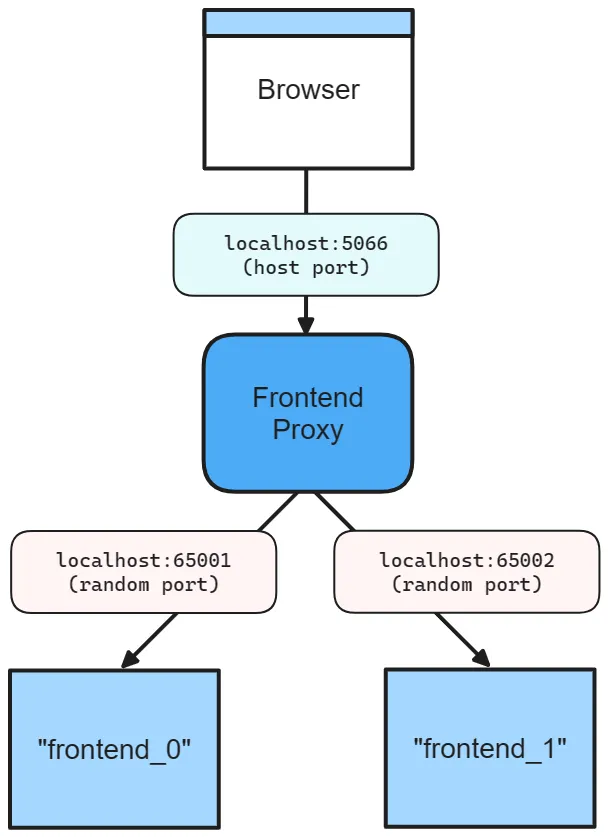
With that configuration:
- The proxy listens on host port
5066. - Each project replica listens on its own random internal port.
- The project receives its internal binding through
ASPNETCORE_URLS. - Browsers and dependent resources talk to the proxy endpoint, not directly to a replica.
Without WithReplicaswithReplicas, the proxy still fronts the project resource. The host port stays stable, while the project itself listens on a random internal port.
await builder.addProject("frontend", "../Networking_Frontend/Networking_Frontend.csproj") .withHttpEndpoint({ port: 5066 });builder.AddProject<Projects.Networking_Frontend>("frontend") .WithHttpEndpoint(port: 5066);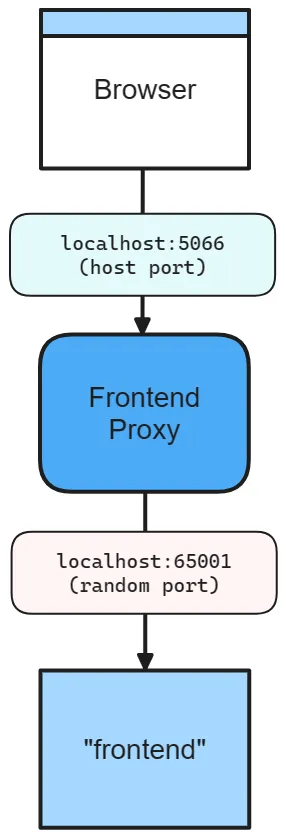
In this configuration:
- The proxy still listens on host port
5066. - The project listens on a random internal port.
ASPNETCORE_URLSpoints the project at the internal port, while browsers and other resources continue to use the stable proxy port.
If you omit the host port entirely, Aspire chooses random host and service ports for the endpoint:
await builder.addProject("frontend", "../Networking_Frontend/Networking_Frontend.csproj") .withHttpEndpoint();builder.AddProject<Projects.Networking_Frontend>("frontend") .WithHttpEndpoint();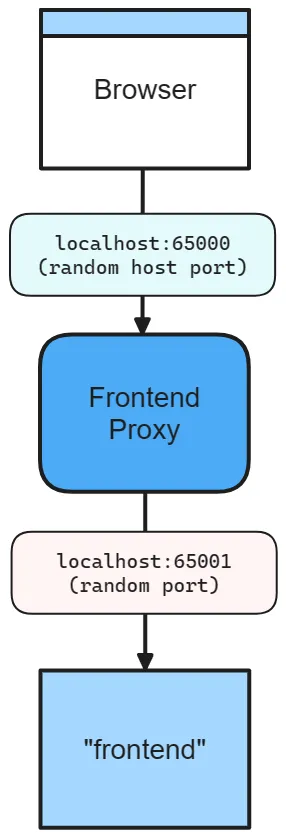
In this configuration, Aspire assigns a random proxy port for the host-facing endpoint and a separate random internal port for the project.
Filter endpoints in environment variables
Section titled “Filter endpoints in environment variables”Project resource endpoints follow default heuristics. Some endpoints are included in ASPNETCORE_URLS, some are published as HTTP/HTTPS_PORTS, and some are resolved from Kestrel configuration. Use WithEndpointsInEnvironmentwithEndpointsInEnvironment when you need to filter which endpoints are exposed through environment variables:
import { createBuilder } from './.aspire/modules/aspire.mjs';
const builder = await createBuilder();
await builder.addProject("apiservice", "../Networking.ApiService/Networking.ApiService.csproj")    .withHttpsEndpoint()    .withHttpsEndpoint({ port: 19227, name: "admin" })    .withEndpointsInEnvironment(["https"]); // include only "https"; "admin" is excluded
await builder.build().run();builder.AddProject<Projects.Networking_ApiService>("apiservice") .WithHttpsEndpoint() .WithHttpsEndpoint(port: 19227, name: "admin") .WithEndpointsInEnvironment( filter: static endpoint => { return endpoint.Name is not "admin"; });This keeps the admin endpoint out of the environment variables while still defining it in the application model.
For more background on bindings, proxies, and endpoint annotations, see Inner-loop networking.
Coordinated builds and restore
Section titled “Coordinated builds and restore”Before resources start, Aspire groups projects that share a compatible SDK and environment context into generated MSBuild traversal projects under the AppHost’s intermediate output. Build groups run serially, while projects within each traversal group build in parallel and share one NuGet graph restore. Restoring the group together avoids repeating restore work for overlapping dependency graphs, without introducing solution-specific MSBuild properties.
Because the group restore doesn’t invoke each root project’s Restore target separately, custom targets
attached directly to that target — such as BeforeTargets="Restore" or AfterTargets="Restore" — don’t run
for each project.
If a project relies on those hooks, opt back in to restoring projects individually by setting
Aspire:Dotnet:RestoreProjectsIndividually to true in the AppHost’s configuration:
{ "Aspire": { "Dotnet": { "RestoreProjectsIndividually": true } }}The environment-variable equivalent is Aspire__Dotnet__RestoreProjectsIndividually=true. The setting
defaults to false, is read once when the build plan is created, and applies to every generated traversal
in that AppHost — it isn’t a per-resource runtime environment variable. With individual restore, each root
project’s restore runs serially while builds remain parallel.
File-based apps, project-specific build environments, individual Rebuild commands, and publishing keep their existing build and restore paths.
Multithreaded builds
Section titled “Multithreaded builds”Aspire probes the dotnet SDK selected for each build context — honoring global.json — and, when it
supports the MSBuild -mt switch, passes it to coordinated traversal builds, file-based app builds, and
individual project rebuild commands. -mt lets the
SDK execute supported build tasks with multithreaded task execution, which can reduce the time it takes for
resources to become ready.
How project references work
Section titled “How project references work”The C# and TypeScript AppHosts differ in how they reference .NET projects:
-
C# AppHost: A
ProjectReferencein the AppHost.csprojcauses the Aspire SDK to generate aProjects.*type during build.AddProject<Projects.ApiService>("api")uses that generated type to locate and launch the project. For the SDK-level build behavior behind this generation step, see Aspire SDK. -
TypeScript AppHost: No
ProjectReferenceis needed.addProject("api", "../ApiService/ApiService.csproj")points directly to the.csprojfile. The TypeScript SDK resolves the project path at startup.
Exclude a project from orchestration
Section titled “Exclude a project from orchestration”In a C# AppHost, if you need a regular project reference that shouldn’t become an Aspire resource, set IsAspireProjectResource="false" on the ProjectReference:
<ProjectReference Include="..\MyProject\MyProject.csproj" IsAspireProjectResource="false" />In a TypeScript AppHost, this concept doesn’t apply — you only add resources you explicitly call addProject on, so simply omit the addProject call.
Customize generated project type names
Section titled “Customize generated project type names”In a C# AppHost, if multiple projects would generate the same Projects.* type name, set AspireProjectMetadataTypeName on the ProjectReference:
<ItemGroup> <ProjectReference Include="..\Microservice1\Presentation.Api\Presentation.Api.csproj" AspireProjectMetadataTypeName="MicroService1" /> <ProjectReference Include="..\Microservice2\Presentation.Api\Presentation.Api.csproj" AspireProjectMetadataTypeName="MicroService2" /></ItemGroup>Then reference those generated types explicitly:
The TypeScript AppHost doesn’t use generated project types. Use the .csproj path directly for each project — name collisions don’t apply:
import { createBuilder } from './.aspire/modules/aspire.mjs';
const builder = await createBuilder();
const microservice1 = await builder.addProject("micro1", "../Microservice1/Presentation.Api/Presentation.Api.csproj");const microservice2 = await builder.addProject("micro2", "../Microservice2/Presentation.Api/Presentation.Api.csproj");
await builder.build().run();var builder = DistributedApplication.CreateBuilder(args);
var microservice1 = builder.AddProject<Projects.MicroService1>("micro1");var microservice2 = builder.AddProject<Projects.MicroService2>("micro2");
builder.Build().Run();AddProject vs. AddCSharpApp
Section titled “AddProject vs. AddCSharpApp”In a C# AppHost, use AddProject<T> when you have a standard .csproj, can add a ProjectReference from the AppHost, and want generated Projects.* types plus launch-profile integration. Use AddCSharpApp when you want to run a single .cs file, or when you want to point at a project path directly without adding a ProjectReference from the AppHost.
In a TypeScript AppHost, addProject(name, path) always takes a path, so the distinction between AddProject<T> and AddCSharpApp doesn’t apply in the same way.
Some .NET app types use specialized integrations instead of AddProject. For example, .NET MAUI integration uses AddMauiProjectaddMauiProject because MAUI apps aren’t added to the AppHost through ProjectReference metadata.
Migrate from legacy project resources
Section titled “Migrate from legacy project resources”The aspire-project-v2-migration skill assesses legacy project resources in C# or TypeScript AppHosts targeting Aspire 13.6 or newer and proposes exact edits for approval. It preserves supported configuration and flags unsupported patterns, including Azure Functions and custom integrations tied to ProjectResource.
The skill doesn’t upgrade your AppHost’s Aspire version. Upgrade first, then follow Aspire skills to install the migration skill and review its proposal before applying it.
 Aspire