


Set up SQL Server in the AppHost

This article is the reference for the Aspire SQL Server Hosting integration. It enumerates the AppHost APIs — with examples for both AppHost.cs and apphost.mts — that you use to model a SQL Server instance and database resources in your AppHost project.
If you’re new to the SQL Server integration, start with the Get started with SQL Server integrations guide. For how consuming apps read the connection information this page exposes, see Connect to SQL Server. For the SQL Server Entity Framework Core (EF Core) client integration, see Get started with the SQL Server EF Core integrations.
Installation
Section titled “Installation”To start building an Aspire app that uses SQL Server, install the 📦 Aspire.Hosting.SqlServer NuGet package:
aspire add sql-serverLearn more about aspire add in the command reference.
This updates your aspire.config.json with the SQL Server hosting integration package:
{ "packages": { "Aspire.Hosting.SqlServer": "13.6.0" }}aspire add sql-serverLearn more about aspire add in the command reference.
Or, choose a manual installation approach:
#:package Aspire.Hosting.SqlServer@*<PackageReference Include="Aspire.Hosting.SqlServer" Version="*" />Add SQL Server resource
Section titled “Add SQL Server resource”Once you’ve installed the hosting integration in your AppHost project, you can add a SQL Server resource and then add a database resource as shown in the following examples:
import { createBuilder, ContainerLifetime } from './.aspire/modules/aspire.mjs';
const builder = await createBuilder();
const sql = await builder.addSqlServer("sql");await sql.withLifetime(ContainerLifetime.Persistent);
const db = await sql.addDatabase("database");
await builder.addNodeApp("api", "./api", "index.js")    .withReference(db)    .waitFor(db);
// After adding all resources, run the app...await builder.build().run();var builder = DistributedApplication.CreateBuilder(args);
var sql = builder.AddSqlServer("sql") .WithLifetime(ContainerLifetime.Persistent);
var db = sql.AddDatabase("database");
var exampleProject = builder.AddProject<Projects.ExampleProject>("exampleproject") .WithReference(db) .WaitFor(db);
// After adding all resources, run the app...builder.Build().Run();-
When Aspire adds a container image to the AppHost, as shown in the preceding example with the
mcr.microsoft.com/mssql/serverimage, it creates a new SQL Server instance on your local machine. A reference to thedatabaseresource is then used to add a dependency to the consuming project. -
When adding a database resource to the app model, the database is created if it doesn’t already exist. The creation of the database relies on the AppHost eventing APIs, specifically
ResourceReadyEvent. In other words, when thesqlresource is ready, the event is raised and the database resource is created. -
The SQL Server resource includes default credentials with a
usernameofsaand a randomly generatedpasswordusing theCreateDefaultPasswordParametermethod. The password is stored in the AppHost’s secret store assql-password. -
The AppHost reference call configures a connection in the consuming project named after the referenced database resource, such as
databasein the preceding example.
- SQL Server container imageMicrosoft Artifact Registrymcr.microsoft.com/mssql/server:2022-latest
Tags reflect the latest defaults on the microsoft/aspire main branch, and may be newer than the version pinned by the package you install.
Add SQL Server resource with database creation script
Section titled “Add SQL Server resource with database creation script”By default, when you add a SqlServerDatabaseResource, it relies on the following SQL script to create the database:
IF (NOT EXISTS (SELECT 1 FROM sys.databases WHERE name = @DatabaseName)) CREATE DATABASE [<QUOTED_DATABASE_NAME>];To supply a custom creation script, call WithCreationScriptwithCreationScript on the database resource builder:
import { createBuilder, ContainerLifetime } from './.aspire/modules/aspire.mjs';
const builder = await createBuilder();
const sql = await builder.addSqlServer("sql");await sql.withLifetime(ContainerLifetime.Persistent);
const databaseName = "app-db";const creationScript = `IF DB_ID('${databaseName}') IS NULL    CREATE DATABASE [${databaseName}];
USE [${databaseName}];
CREATE TABLE todos (    id INT PRIMARY KEY IDENTITY(1,1),    title VARCHAR(255) NOT NULL,    description TEXT,    is_completed BIT DEFAULT 0,    due_date DATE,    created_at DATETIME DEFAULT GETDATE());`;
const db = await sql.addDatabase(databaseName);await db.withCreationScript(creationScript);
await builder.addNodeApp("api", "./api", "index.js")    .withReference(db)    .waitFor(db);
// After adding all resources, run the app...await builder.build().run();var builder = DistributedApplication.CreateBuilder(args);
var sql = builder.AddSqlServer("sql") .WithLifetime(ContainerLifetime.Persistent);
var databaseName = "app-db";var creationScript = $$""" IF DB_ID('{{databaseName}}') IS NULL CREATE DATABASE [{{databaseName}}]; GO
USE [{{databaseName}}]; GO
CREATE TABLE todos ( id INT PRIMARY KEY IDENTITY(1,1), title VARCHAR(255) NOT NULL, description TEXT, is_completed BIT DEFAULT 0, due_date DATE, created_at DATETIME DEFAULT GETDATE() ); GO """;
var db = sql.AddDatabase(databaseName) .WithCreationScript(creationScript);
var exampleProject = builder.AddProject<Projects.ExampleProject>("exampleproject") .WithReference(db) .WaitFor(db);
// After adding all resources, run the app...builder.Build().Run();The preceding example creates a database named app-db with a single todos table. The script is executed when the database resource is created in the context of the SQL Server resource.
Add SQL Server resource with data volume
Section titled “Add SQL Server resource with data volume”Add a data volume to the SQL Server resource as shown in the following examples:
import { createBuilder } from './.aspire/modules/aspire.mjs';
const builder = await createBuilder();
const sql = await builder.addSqlServer("sql");await sql.withDataVolume();
const db = await sql.addDatabase("database");
await builder.addNodeApp("api", "./api", "index.js")    .withReference(db)    .waitFor(db);
// After adding all resources, run the app...await builder.build().run();var builder = DistributedApplication.CreateBuilder(args);
var sql = builder.AddSqlServer("sql") .WithDataVolume();
var db = sql.AddDatabase("database");
var exampleProject = builder.AddProject<Projects.ExampleProject>("exampleproject") .WithReference(db) .WaitFor(db);
// After adding all resources, run the app...builder.Build().Run();The data volume is used to persist the SQL Server data outside the lifecycle of its container. The data volume is mounted at the /var/opt/mssql path in the SQL Server container and when a name parameter isn’t provided, the name is generated at random. For more information on data volumes and details on why they’re preferred over bind mounts, see Docker docs: Volumes.
Add SQL Server resource with data bind mount
Section titled “Add SQL Server resource with data bind mount”Add a data bind mount to the SQL Server resource as shown in the following examples:
import { createBuilder } from './.aspire/modules/aspire.mjs';
const builder = await createBuilder();
const sql = await builder.addSqlServer("sql");await sql.withDataBindMount("C:\\SqlServer\\Data");
const db = await sql.addDatabase("database");
await builder.addNodeApp("api", "./api", "index.js")    .withReference(db)    .waitFor(db);
// After adding all resources, run the app...await builder.build().run();var builder = DistributedApplication.CreateBuilder(args);
var sql = builder.AddSqlServer("sql") .WithDataBindMount(source: @"C:\SqlServer\Data");
var db = sql.AddDatabase("database");
var exampleProject = builder.AddProject<Projects.ExampleProject>("exampleproject") .WithReference(db) .WaitFor(db);
// After adding all resources, run the app...builder.Build().Run();Data bind mounts rely on the host machine’s filesystem to persist the SQL Server data across container restarts. The data bind mount is mounted at the C:\SqlServer\Data on Windows (or /SqlServer/Data on Unix) path on the host machine in the SQL Server container. For more information on data bind mounts, see Docker docs: Bind mounts.
Add SQL Server resource with parameters
Section titled “Add SQL Server resource with parameters”When you want to explicitly provide the password used by the container image, you can provide it as a parameter:
import { createBuilder } from './.aspire/modules/aspire.mjs';
const builder = await createBuilder();
const password = await builder.addParameter("password", { secret: true });
const sql = await builder.addSqlServer("sql", { password });const db = await sql.addDatabase("database");
await builder.addNodeApp("api", "./api", "index.js")    .withReference(db)    .waitFor(db);
// After adding all resources, run the app...await builder.build().run();var builder = DistributedApplication.CreateBuilder(args);
var password = builder.AddParameter("password", secret: true);
var sql = builder.AddSqlServer("sql", password);var db = sql.AddDatabase("database");
var exampleProject = builder.AddProject<Projects.ExampleProject>("exampleproject") .WithReference(db) .WaitFor(db);
// After adding all resources, run the app...builder.Build().Run();When no password parameter is provided, Aspire generates a strong password automatically using the CreateDefaultPasswordParameter method. For more information on providing parameters, see External parameters.
Use a specific SQL Server container image tag
Section titled “Use a specific SQL Server container image tag”To pin the SQL Server container to a specific release, call WithImageTagwithImageTag:
import { createBuilder } from './.aspire/modules/aspire.mjs';
const builder = await createBuilder();
const sql = await builder.addSqlServer("sql");await sql.withImageTag("2025-RTM-ubuntu-24.04-preview");
const db = await sql.addDatabase("database");
await builder.addNodeApp("api", "./api", "index.js")    .withReference(db)    .waitFor(db);
// After adding all resources, run the app...await builder.build().run();var builder = DistributedApplication.CreateBuilder(args);
var sql = builder.AddSqlServer("sql") .WithImageTag("2025-RTM-ubuntu-24.04-preview");
var db = sql.AddDatabase("database");
var exampleProject = builder.AddProject<Projects.ExampleProject>("exampleproject") .WithReference(db) .WaitFor(db);
// After adding all resources, run the app...builder.Build().Run();For a list of available tags, see SQL Server container image tags.
Pass custom environment variables
Section titled “Pass custom environment variables”By default, Aspire injects the SQL Server connection information using variable names derived from the resource name (for example, DATABASE_URI, DATABASE_HOST, DATABASE_PORT). If your consuming app expects a different set of environment variable names, pass individual connection properties from the AppHost:
import { createBuilder } from './.aspire/modules/aspire.mjs';
const builder = await createBuilder();
const sql = await builder.addSqlServer("sql");const database = await sql.addDatabase("database");
await builder.addNodeApp("my-app", "./app", "index.js")    .withReference(database)    .withEnvironment("SQL_HOST", await sql.host())    .withEnvironment("SQL_PORT", await sql.port())    .withEnvironment("SQL_PASSWORD", await sql.passwordParameter.get())    .withEnvironment("SQL_DATABASE", "database");
await builder.build().run();var builder = DistributedApplication.CreateBuilder(args);
var sql = builder.AddSqlServer("sql");var database = sql.AddDatabase("database");
var app = builder.AddExecutable("my-app", "node", "app.js", ".") .WithReference(database) .WithEnvironment(context => { context.EnvironmentVariables["SQL_HOST"] = sql.Resource.PrimaryEndpoint.Property(EndpointProperty.Host); context.EnvironmentVariables["SQL_PORT"] = sql.Resource.PrimaryEndpoint.Property(EndpointProperty.Port); context.EnvironmentVariables["SQL_PASSWORD"] = sql.Resource.PasswordParameter; context.EnvironmentVariables["SQL_DATABASE"] = database.Resource.DatabaseName; });
builder.Build().Run();Connect to an existing SQL Server instance
Section titled “Connect to an existing SQL Server instance”To reference an externally managed SQL Server instance instead of running one as a container, use AddConnectionStringaddConnectionString:
import { createBuilder } from './.aspire/modules/aspire.mjs';
const builder = await createBuilder();
const sql = await builder.addConnectionString("sql");
await builder.addNodeApp("api", "./api", "index.js")    .withReference(sql);
// After adding all resources, run the app...await builder.build().run();var builder = DistributedApplication.CreateBuilder(args);
var sql = builder.AddConnectionString("sql");
var exampleProject = builder.AddProject<Projects.ExampleProject>("exampleproject") .WithReference(sql);
// After adding all resources, run the app...builder.Build().Run();The connection string is resolved from the ConnectionStrings configuration section of the AppHost project:
{ "ConnectionStrings": { "sql": "Server=myserver;Database=mydb;User Id=sa;Password=mypassword;" }}For more information, see Reference existing resources.
Connect to database resources
Section titled “Connect to database resources”When the AppHost runs, the server’s database resources can be accessed from external tools, such as SQL Server Management Studio (SSMS) or MSSQL for Visual Studio Code. The connection string for the database resource is available in the dependent resources environment variables and is accessed using the Aspire dashboard: Resource details pane. The environment variable is named ConnectionStrings__{name} where {name} is the name of the database resource, in this example it’s database. Use the connection string to connect to the database resource from external tools.
To connect to the database resource from SQL Server Management Studio, follow these steps:
-
Open SSMS.
-
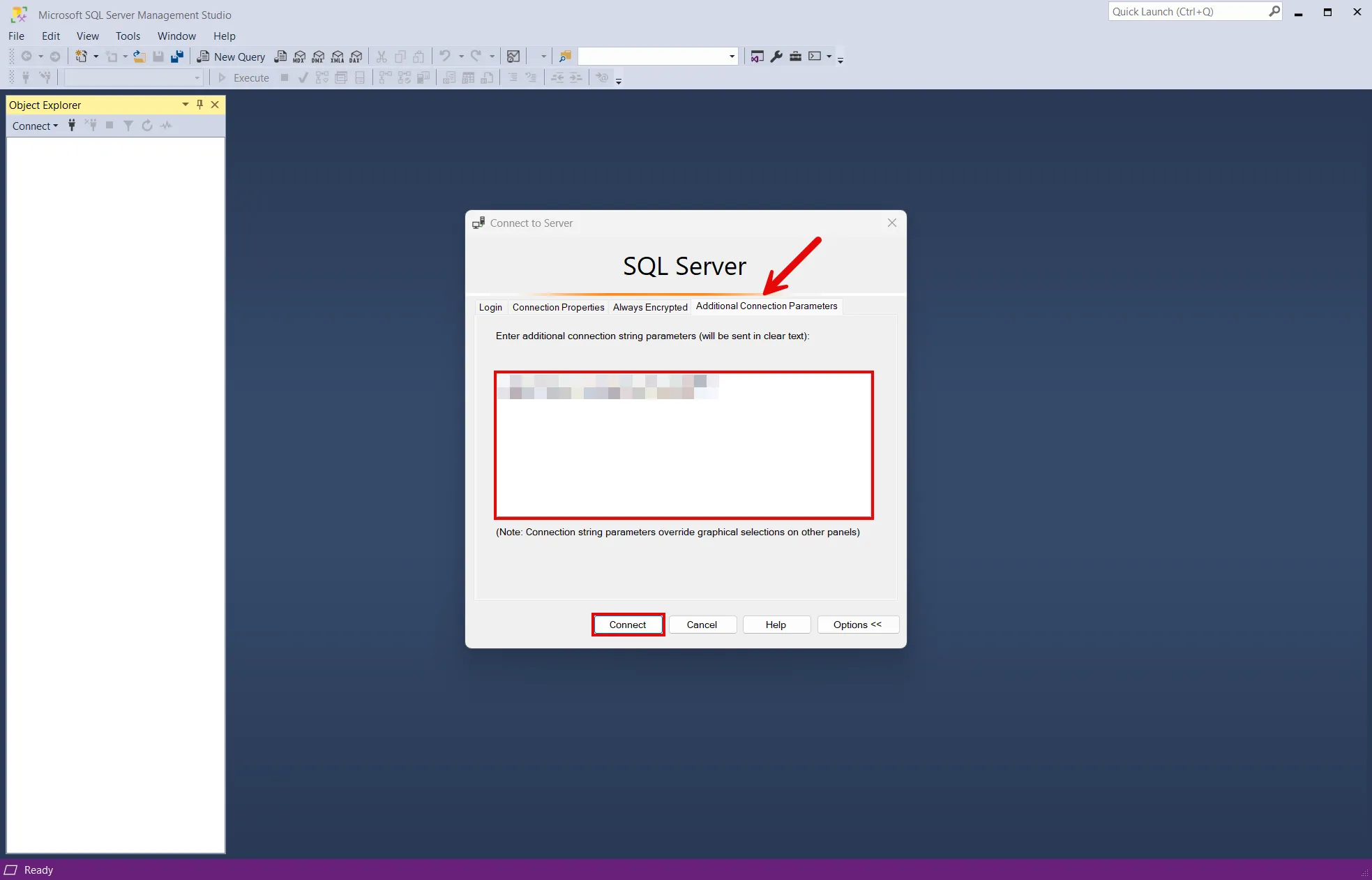
In the Connect to Server dialog, select the Additional Connection Parameters tab.
-
Paste the connection string into the Additional Connection Parameters field and select Connect.
-
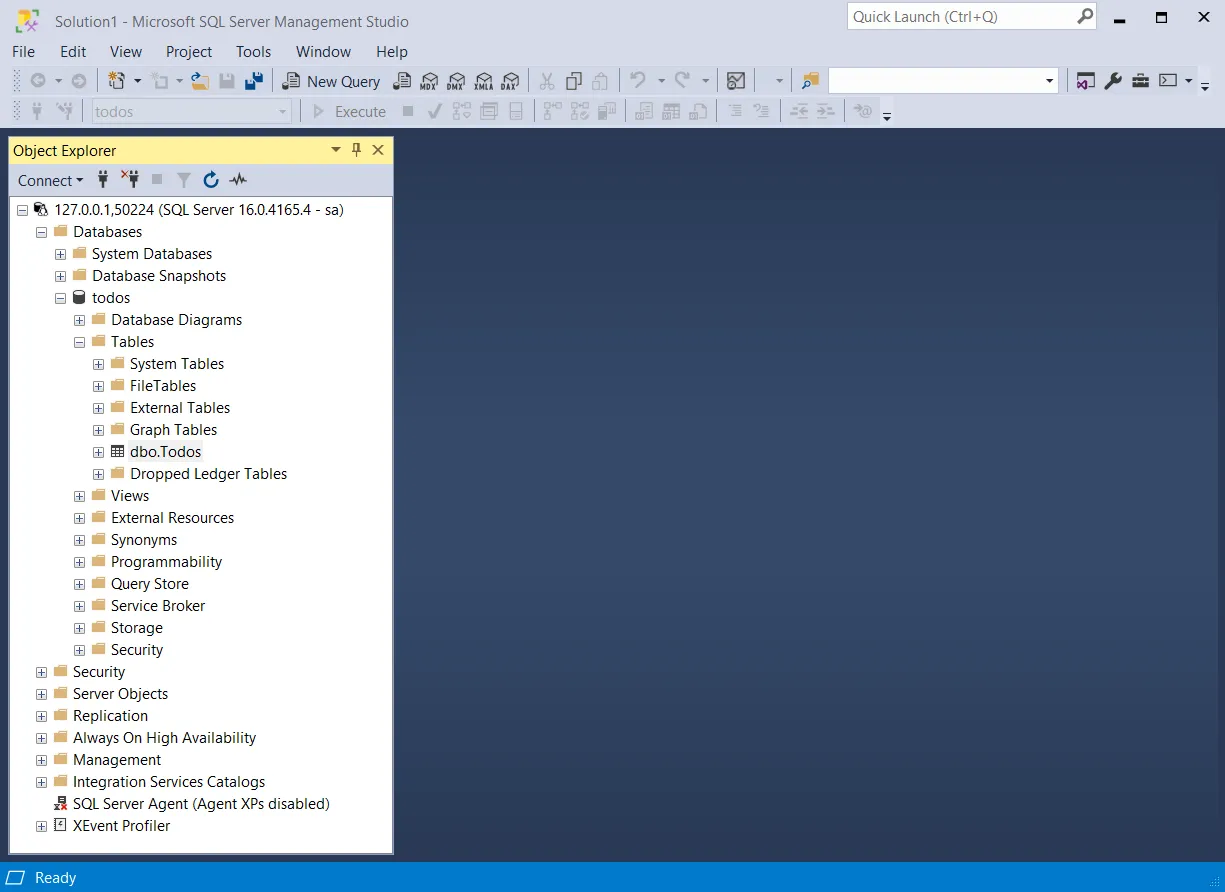
If you’re connected, you can see the database resource in the Object Explorer:
For more information, see SQL Server Management Studio: Connect to a server.
To connect to the database resource from MSSQL for Visual Studio Code, follow these steps:
-
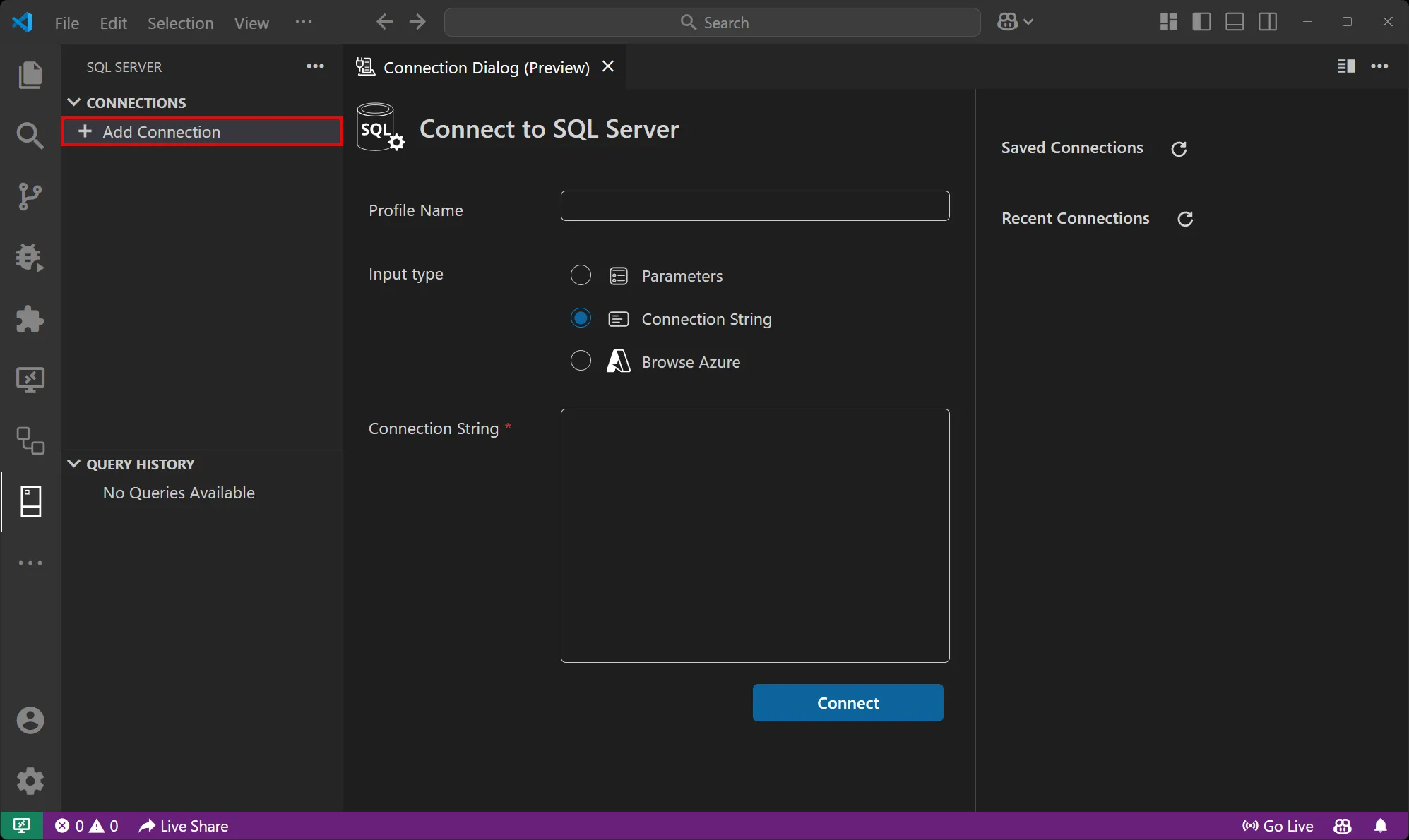
Open the SQL SERVER extension.
-
Select the Add Connection option under CONNECTIONS.
-
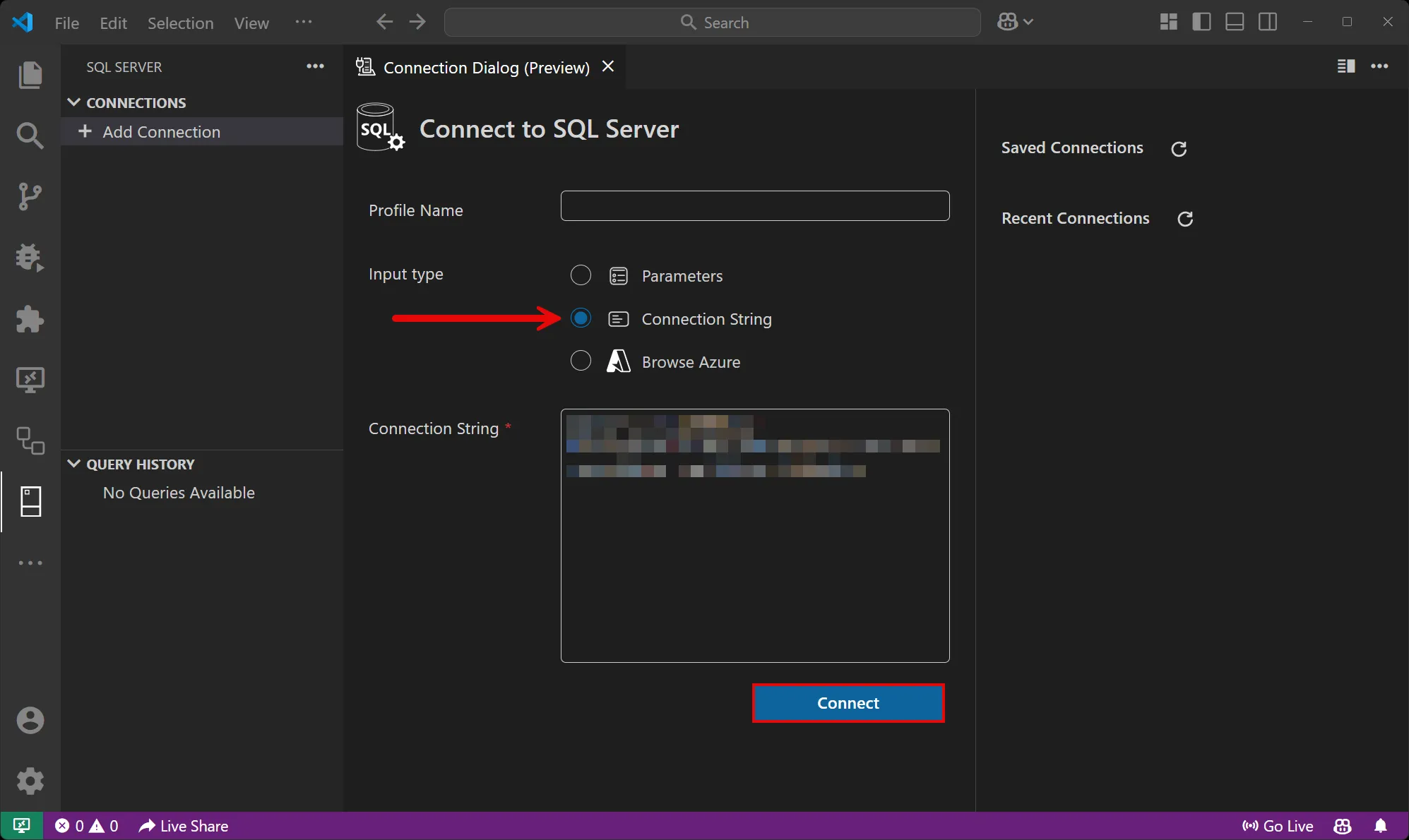
Change the Input type to Connection string and paste the connection string into the Connection string field.
-
Select Connect.
-
Once you’re connected, you can see the database resource in the active tab and run queries against it:
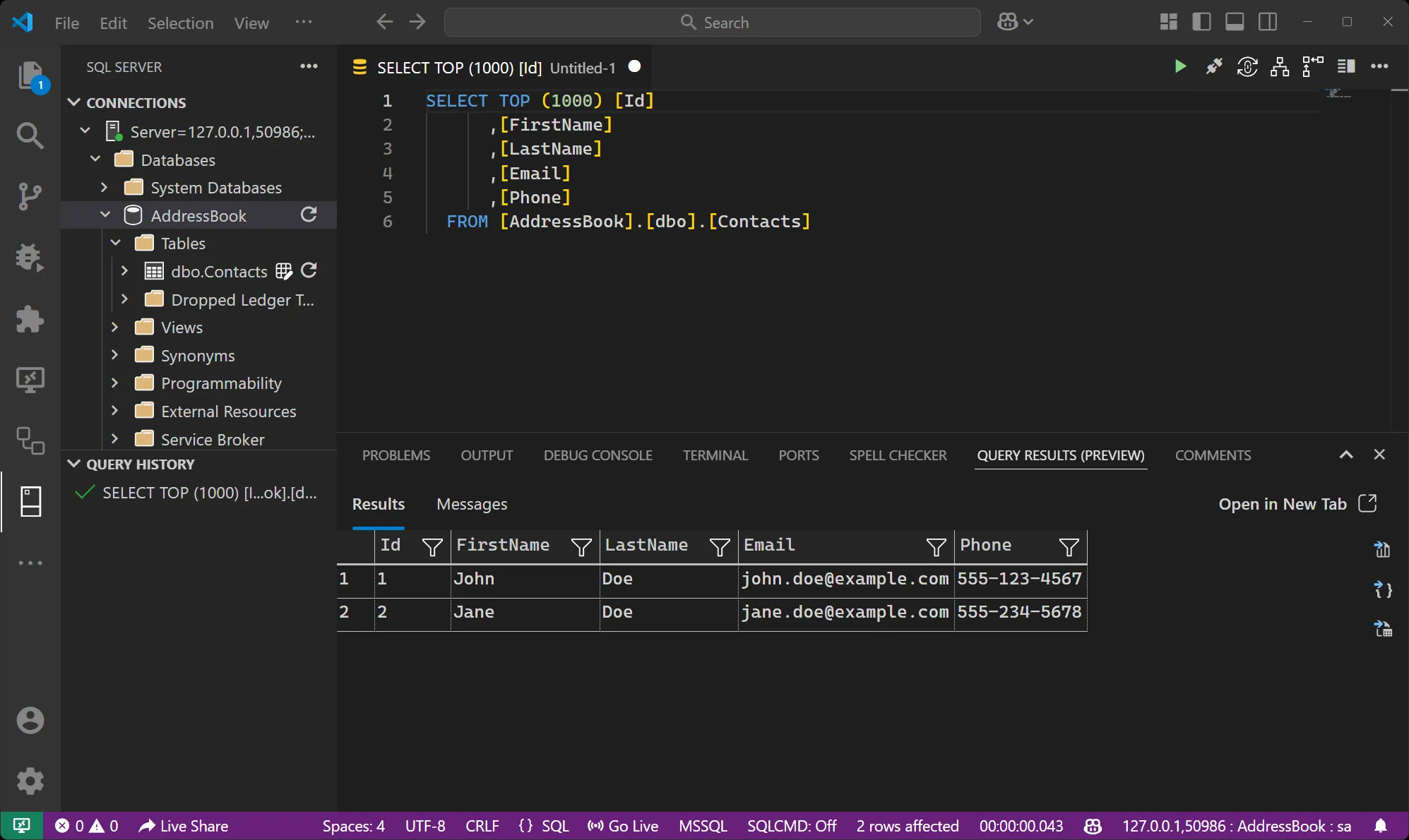
For more information, see MSSQL for Visual Studio Code.
Open an interactive REPL
Section titled “Open an interactive REPL”In Aspire 13.6 or later, add WithReplwithRepl to the SQL Server resource to enable a REPL command that opens sqlcmd in the terminal dock.
import { createBuilder } from './.aspire/modules/aspire.mjs';
const builder = await createBuilder();await builder.addSqlServer('sql').withRepl();
await builder.build().run();var builder = DistributedApplication.CreateBuilder(args);
builder.AddSqlServer("sql").WithRepl();
builder.Build().Run();The command is opt-in and available only in run mode while the container is running. The client runs inside the container as sa, connected to the master database, so no local SQL client is needed. It uses the configured password without putting it in command-line arguments and trusts the local server’s self-signed certificate, matching the integration’s local development connection string.
The command supports /opt/mssql-tools18/bin/sqlcmd in newer SQL Server images and /opt/mssql-tools/bin/sqlcmd in older images. Custom images must include one of these clients.
Enter SQL statements followed by GO on its own line to execute a batch:
SELECT DB_NAME();GOUse USE [db]; followed by GO to switch databases, and QUIT to exit before closing the terminal tab. Closing the tab alone can leave the client running inside the container; stopping the container ends any remaining processes.
Connection properties
Section titled “Connection properties”For the full reference of SQL Server connection properties — and how consuming apps in C#, TypeScript, Python, and Go read them — see Connect to SQL Server.
Hosting integration health checks
Section titled “Hosting integration health checks”The SQL Server hosting integration automatically adds a health check for the SQL Server resource. The health check verifies that the SQL Server instance is running and that a connection can be established to it.
The hosting integration relies on the 📦 AspNetCore.HealthChecks.SqlServer NuGet package.
 Aspire